 Update Theme Visual Studio :
- Download zip code from Codecanyon.
- Now Extract the Zip.
- Open the extract project in Visual Studio.
- Now Copy lib folder and paste in your project


- As you can see above image there list of bugs soo for that replace import package name
with your app name
probot to demo. Select (Ctrl + Shift + R (Cmd+Shift+R on macOS))

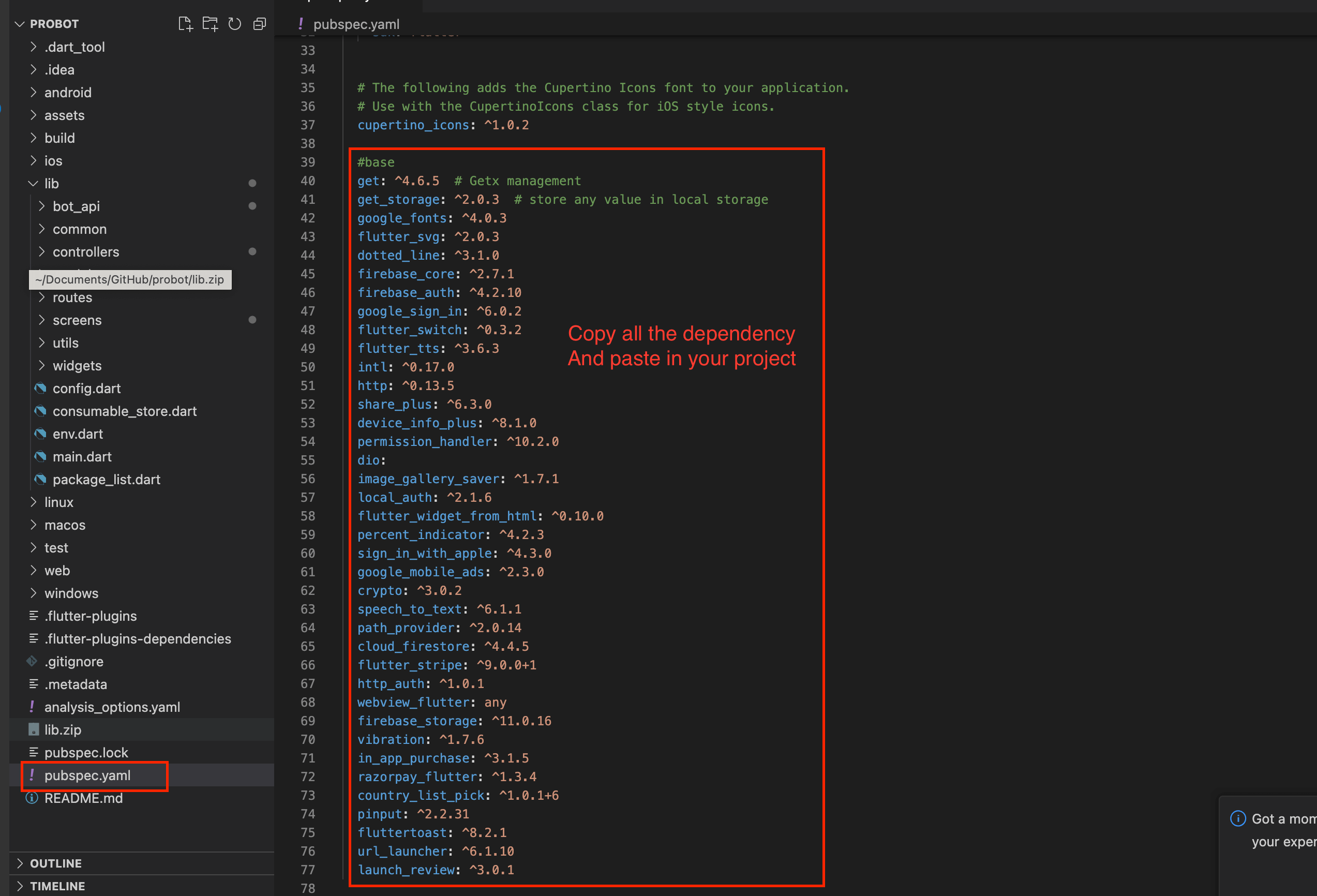
- Now go to downloaded probot project go to pubspec.yaml and copy all plugin name and
paste in your project.

- Now open terminal and copy below command and paste in termail and press enter
- All your bug will be resolve
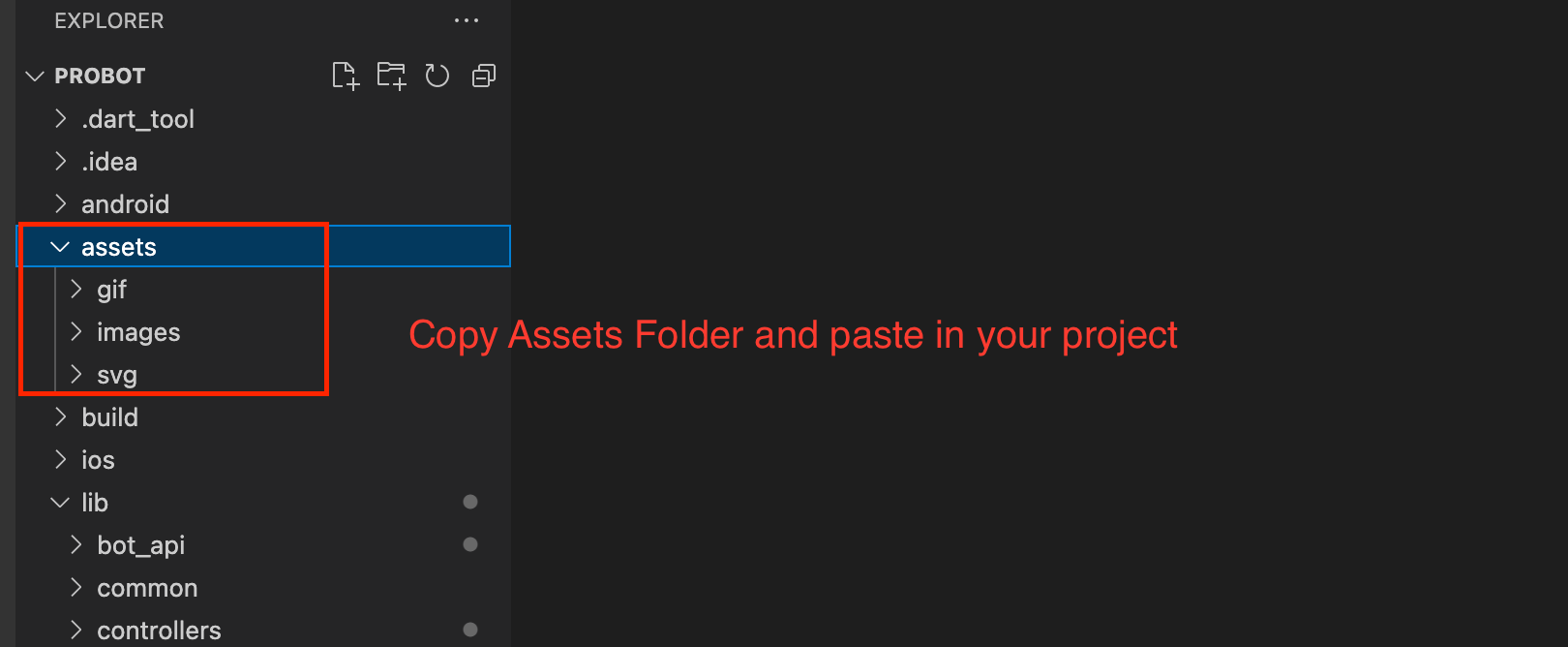
- Now Again go to Probot project copy assets folder and paste it in your project.
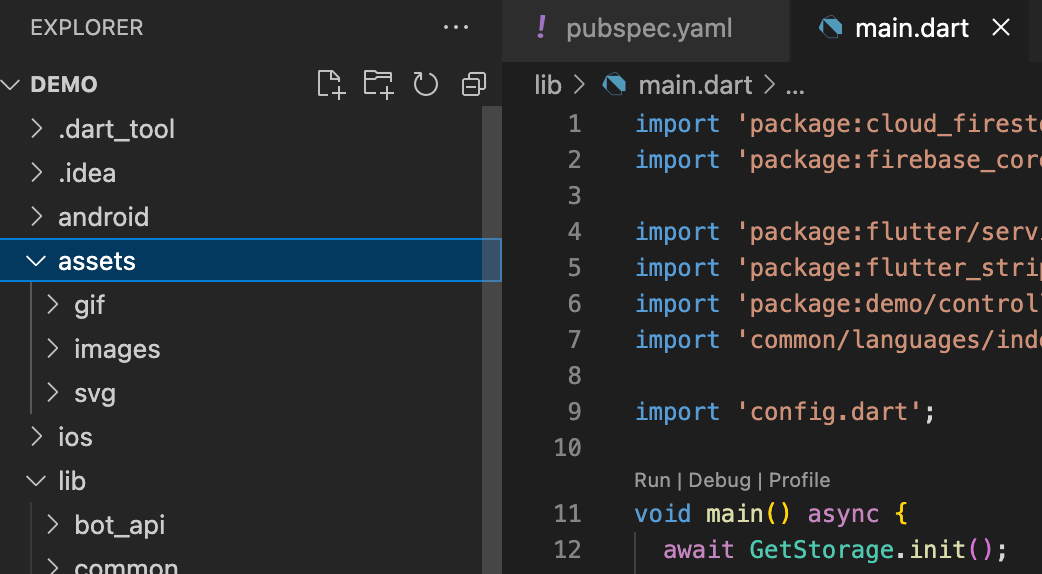
- Now Again go to Probot project -> go to pubspec.yaml and copy all the assets path.


- No Again go to Probot project -> go to android -> app -> src -> main ->
AndroidManifest.xml
- Copy All the dependencies and paste it in your project in AndroidManifest.xml file .


-
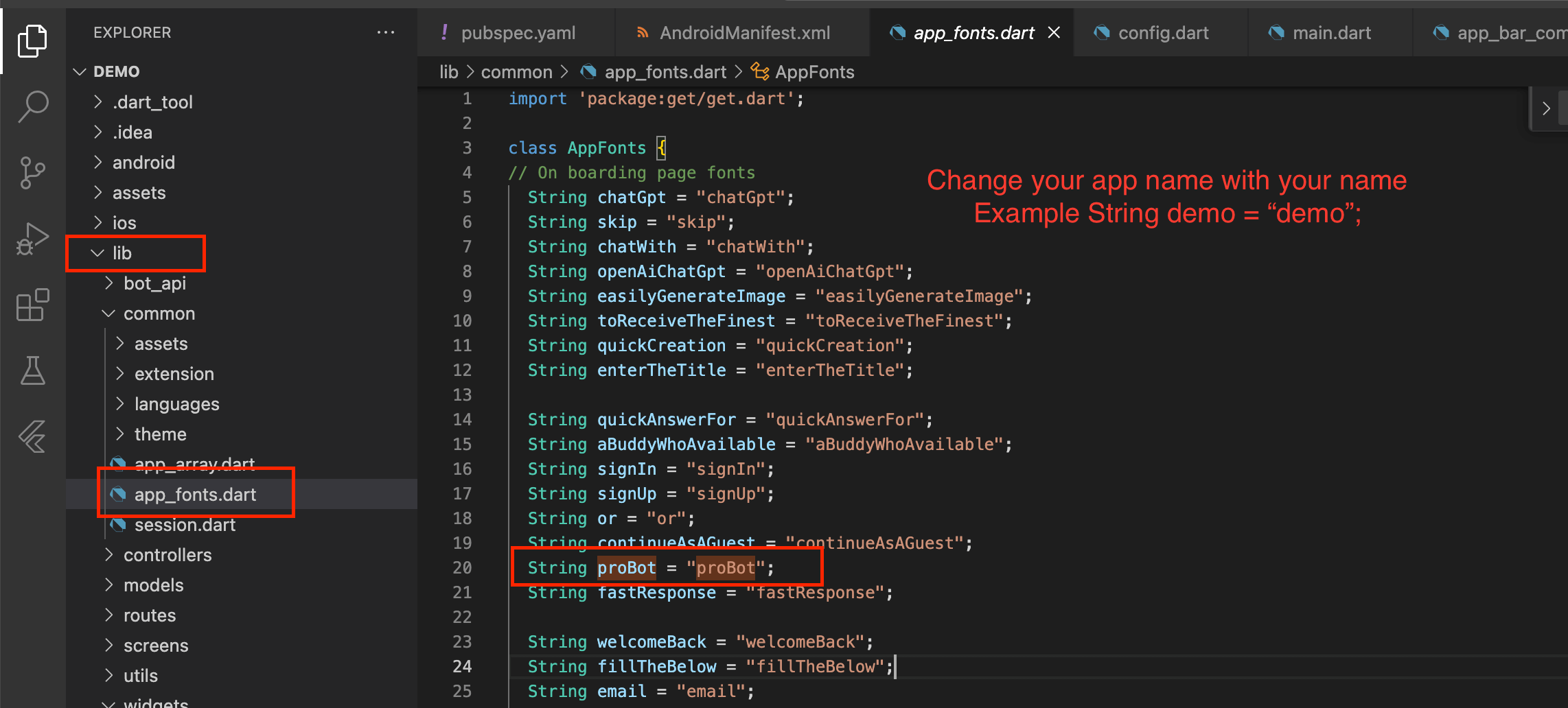
Change Your title Name in main.dart. For that firstly go to lib -> common ->
app_fonts.
- Now change your name with your app name. Our app name probot so replace probot
with your app name
demo or whatever you keep your app name
NOTE : your variable and value both name should be same as probot in small
alphabet. For Example:
String demo = "demo";

- No go to lib -> common -> langugae -> and set your app name in all languages
- Now go to your project -> main.dart and change title name with aap name with you have
given in app_fonts
NOTE : Do not remove .tr after the app name it indicates language value


