 Google Login:
If you haven’t Firebase Project Account ? Click here for create project see the steps show in Firebase Setup.
Follow below steps for Google Login in your project:
- Go to Firebase https://firebase.google.com/.
- Now click on Get Started button
- Now select your project if created or create your project by click on + Add Project and
google-services.json
NOTE : How to create Project and set google-services.json setup show in above Firebase Setup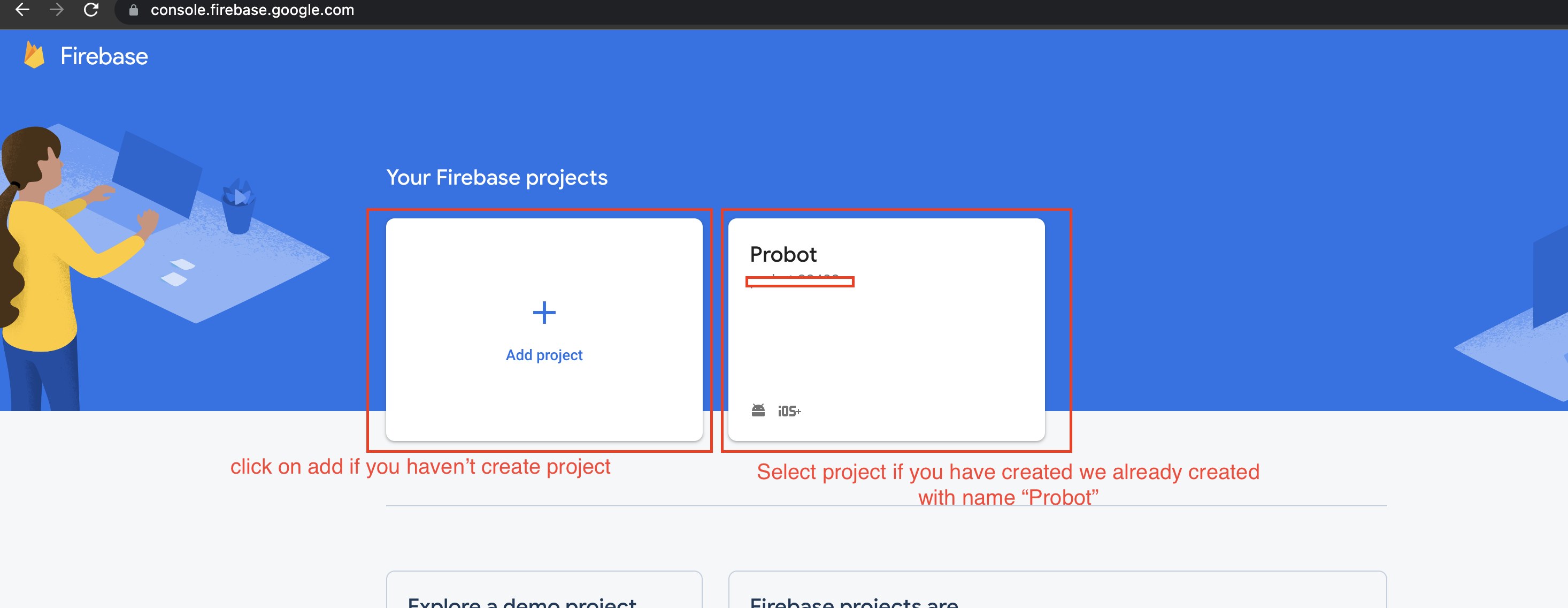
-
On left hand side panel click on setting icon. On click Setting
button pop open open.
In that click on Project Settings

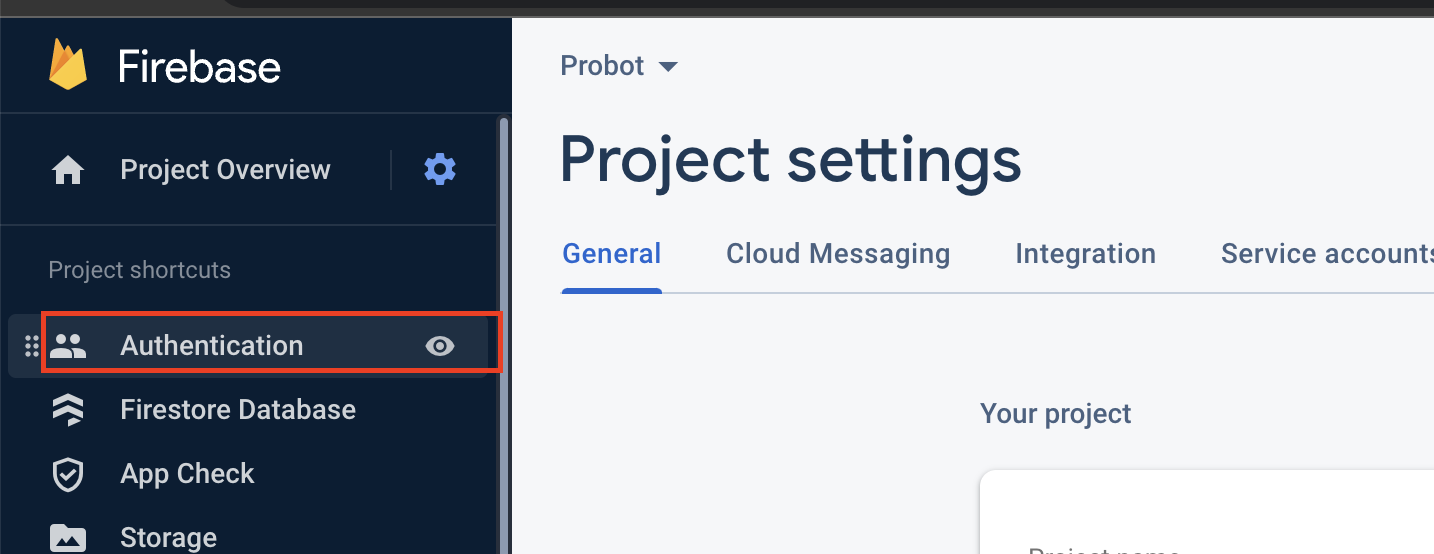
- In Firebase on left hand panel click on Authentication and click on Get
started
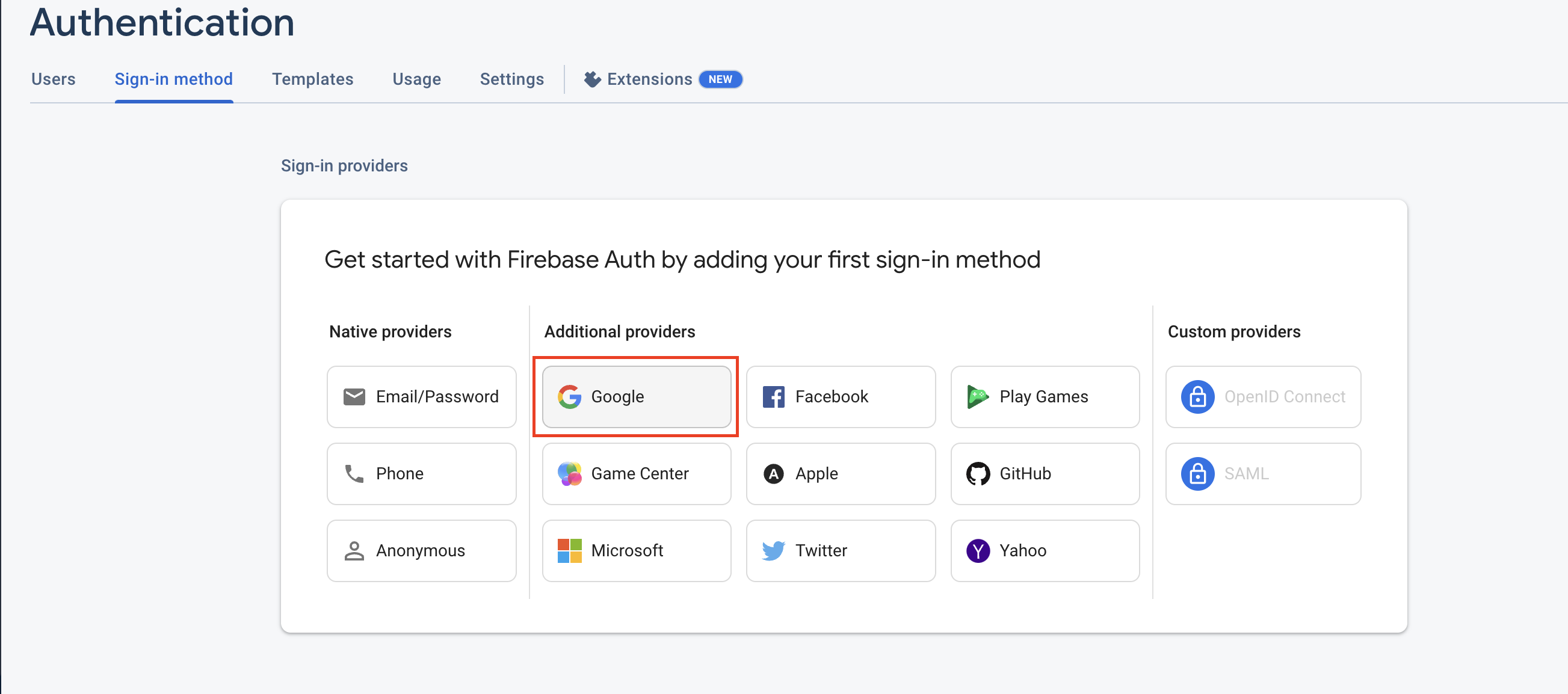
- In Authentication, click Sign-in-method and in thar click on Add new
provider.

- Now click on Google button for add provider.
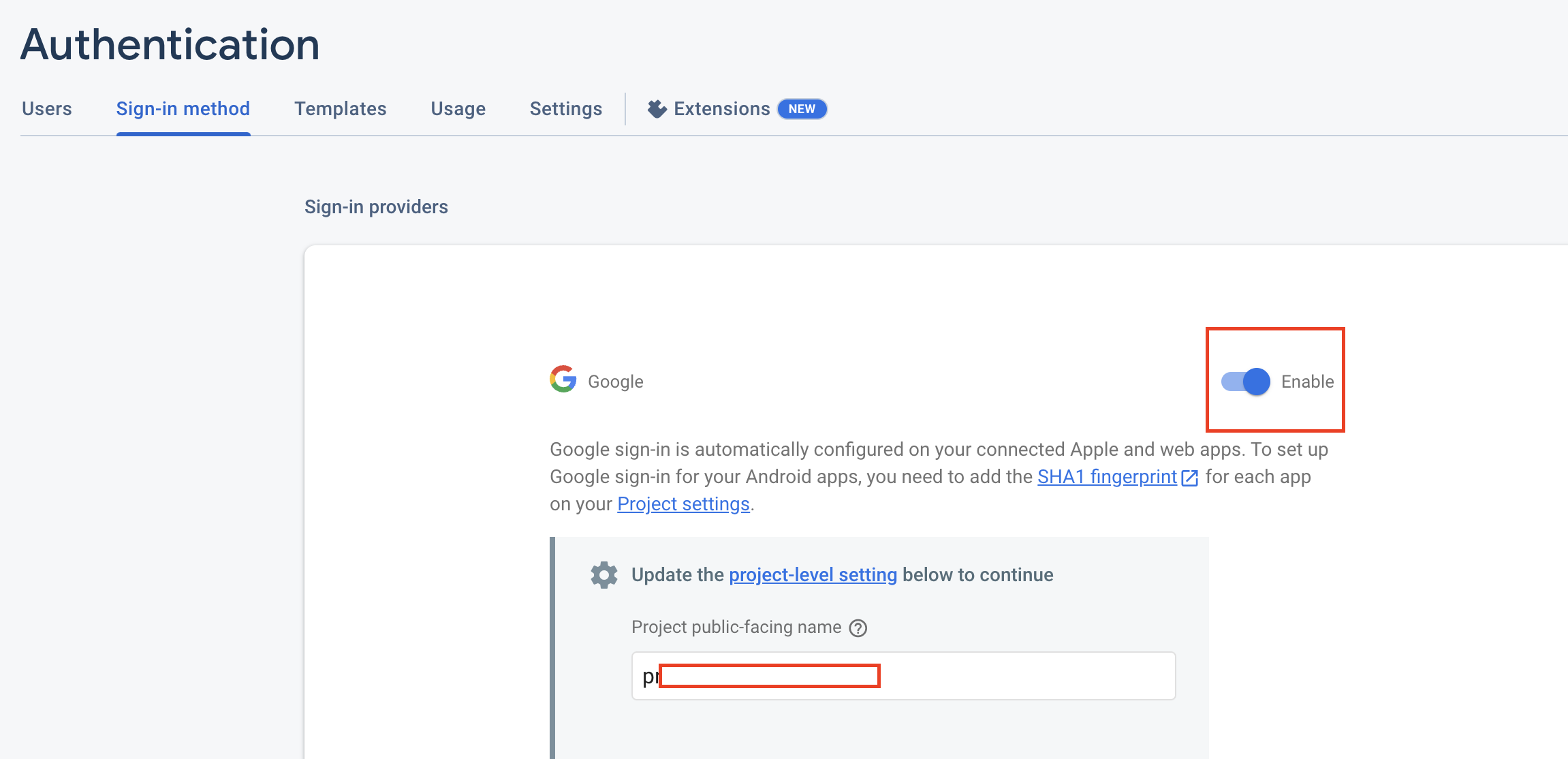
- Now Enable the toggle give support email and click on Save> button.

-
Now Generate key pair for google login


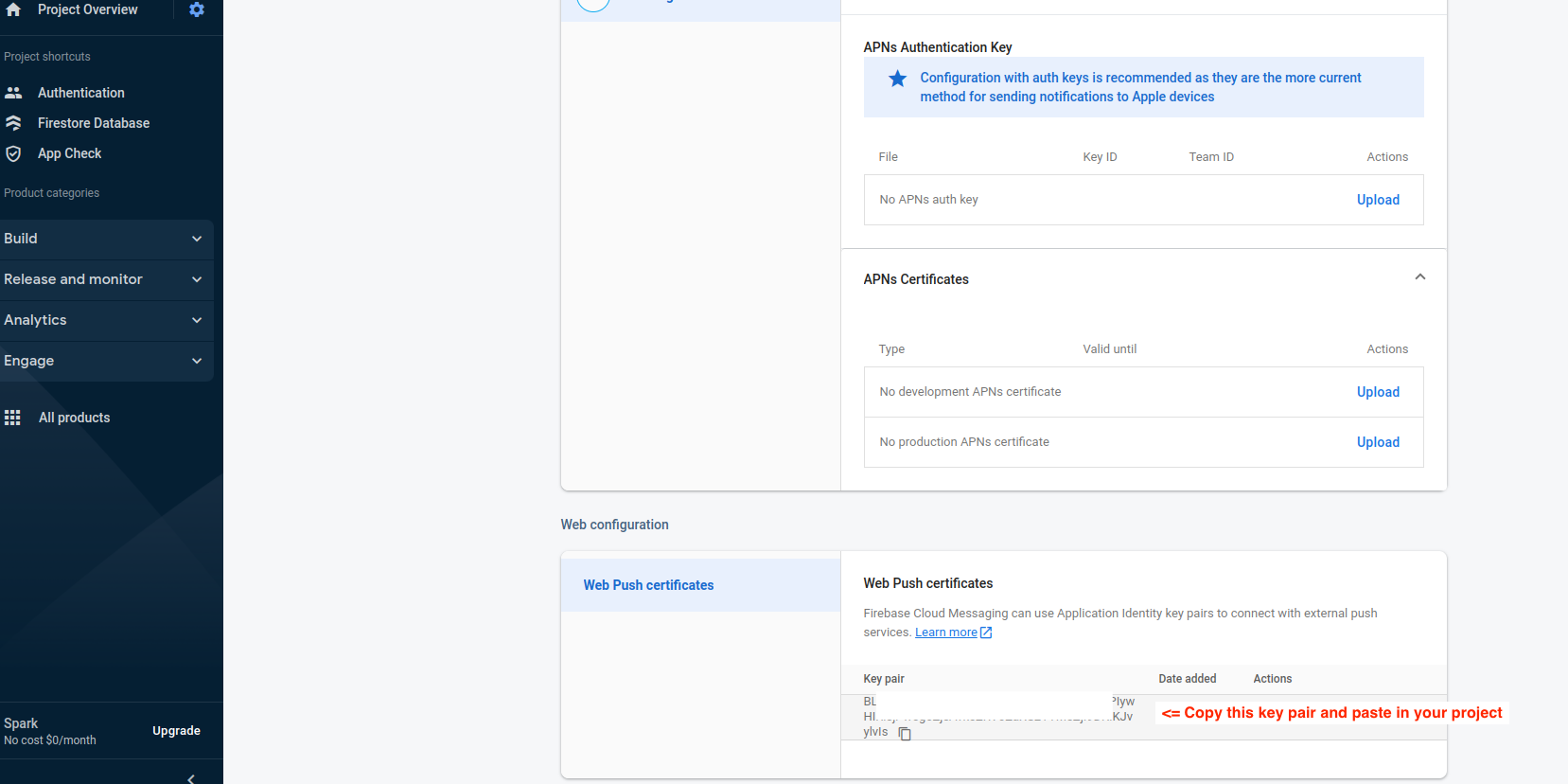
- Now go to your project -> controller -> auth_controller ->
sign_in_controller.dart
and peste your
Generated key pair

- After complete above steps then go to google_sign_in plugin link.
- Copy the plugin with latest version and paste it in your project -> pubspec.yaml
- Copy below command, go to project in Android Studio or Visual Studio -> open terminal
and paste command and enter it.
flutter pub get - Now Stop your Web app from your device and the run web app again and try to do Google Login.