
 How to maintain future Updates with Old Version
If you want which file changes are on the latest updated version then you have to manage the
git repository by yourself. You can give same name as we have given probot or give your name
like demoTest. For Example we have create project with name demoTest.
NOTE : Do not directly change in your real project it will show
errors Regards package name, version and etc.
Follow below steps on how to update existing source code.
- Download Github Desktop from url as per your system like MacOs or Windows https://desktop.github.com/
- Now Login in Github Desktop and configure the setup with your github.
- You have already create your project in Android or Visual Studio.
- Open Github Desktop, on left hand panel top click on
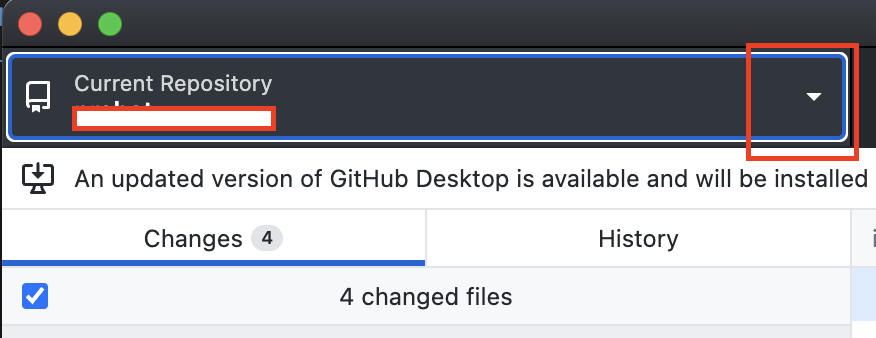
- One side menu open in that click on Add button
- On click add button dropdown menu will open in that click on Create New
Repository...

- After click create new repository one pop-up will appear in the form add your project
name your project path where it is located and click on Create repository button
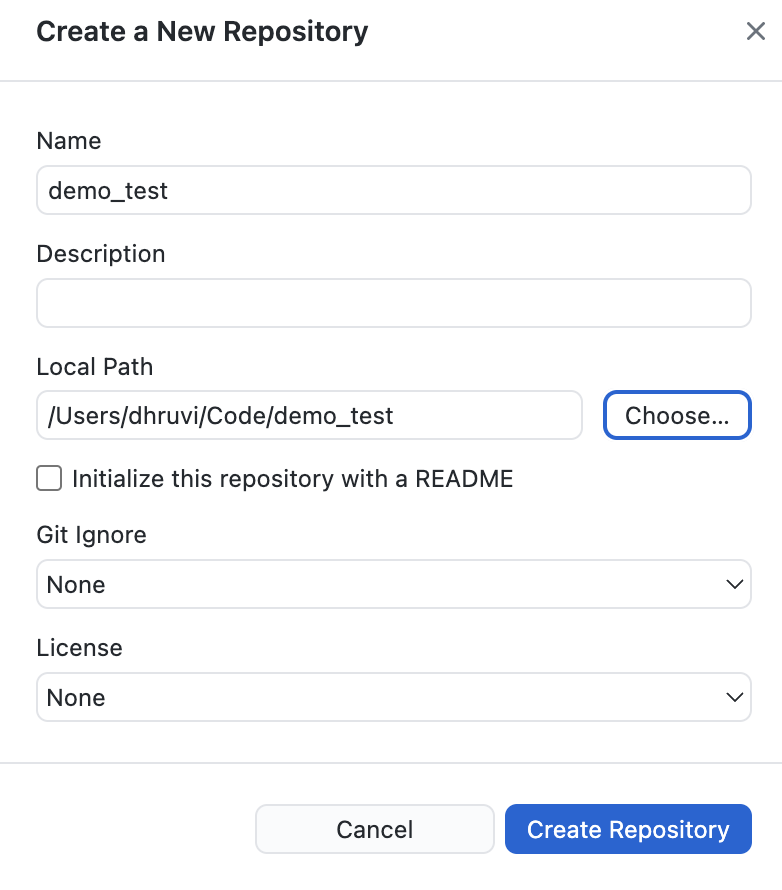
- After click create new repository one pop-up will appear in the form add your project
name your project path where it is located.
- After above process you can check in your project there is another folder created with
same project name just remove that folder.

- Now again go to github desktop there is option show for locate and cancel just click on cancel button.
- Again click add button dropdown menu will open in that click on Add Existing
Repository...

- Now Again set your project path. As there is note show in that click on create a
repository
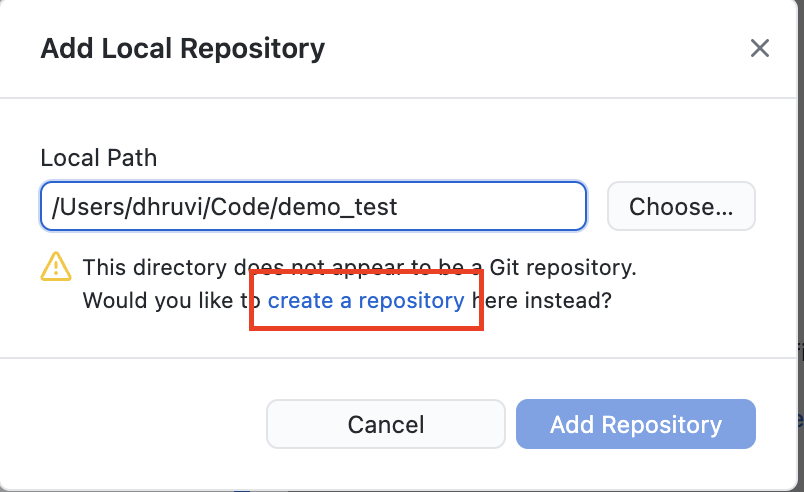
- Now click on Create repository

- After above process complete click on Publish repository, one confirmation pop-up
will appear in that again click on Publish repository button

- For check open github in google crome login in your git and check

- Now download project your project Codecanyon, unzip the folder, click on probot folder,
now copy all the files and paste it in your project


- Now go to project in Android Studio or Visual Studio open terminal and copy below
command and paste it and enter it
flutter pub get - Now Again go to Github Desktop give comment and click on commint on main
button.

- Now click on Push origin

- Now again click on
- Click right click on your project name from list and click on View on Github.

- Now click on Changes for check total number for file changes and which files has
been changed.
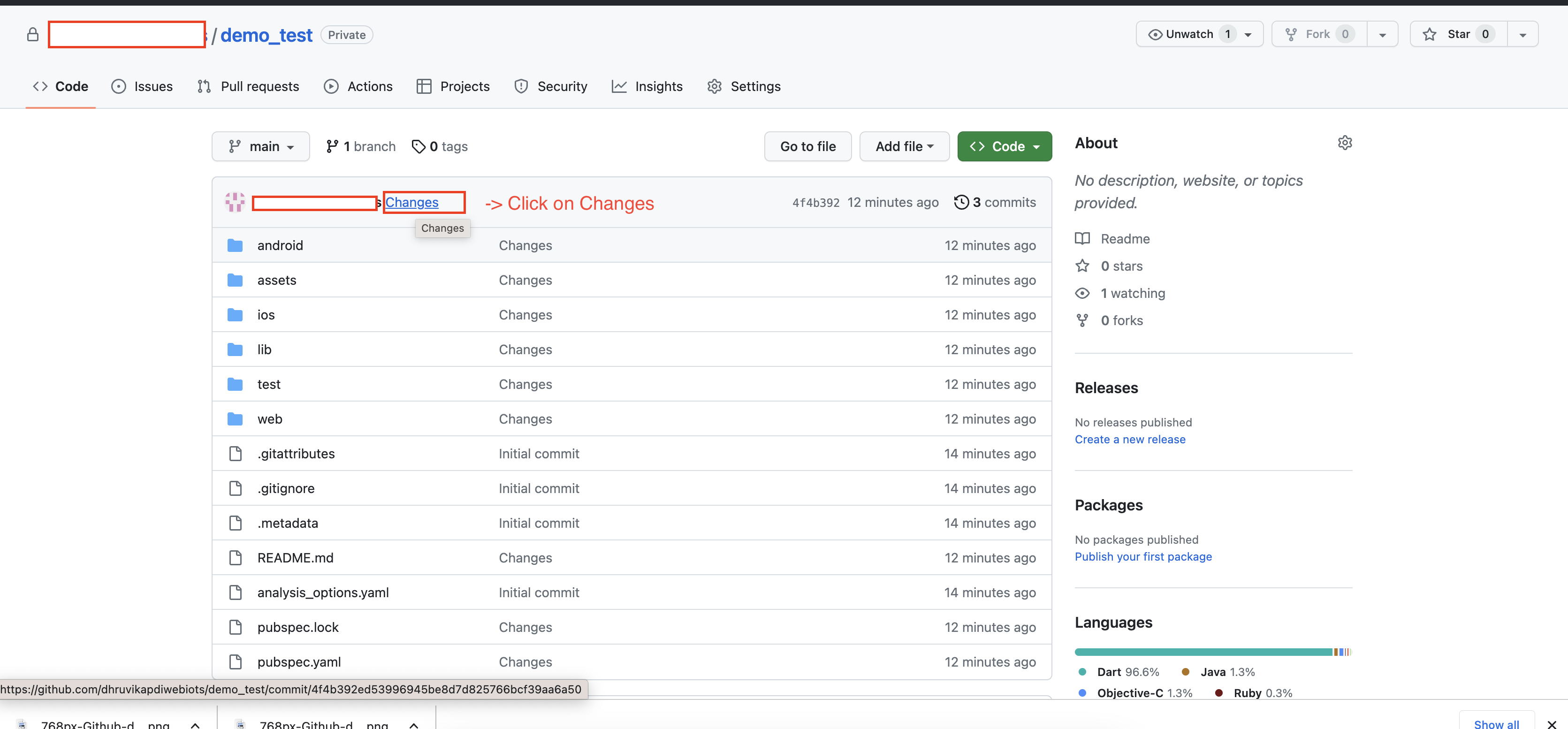
- You can see total number of changes and which file has been changed.

- Every time when ever new update came in project do same process download code unzip folder and paste in your dumy project and push it and go to github and click on changes you can see the in all the files where ever changes happens.
- Copy the changes one by one and paste it your real project.