Loader
How to Remove Loader from Application?
Go to Loader file in src >> shared >> loader-component
Remove design of loader from Loader Component between comment of Loader starts to Loader ends
<!-- Loader starts-->
<div class="loader-wrapper" [class.loderhide]="!show">
<div class="loader-index"><span></span></div>
<svg>
<defs></defs>
<filter id="goo">
<fegaussianblur in="SourceGraphic" stddeviation="11" result="blur"></fegaussianblur>
<fecolormatrix in="blur" values="1 0 0 0 0 0 1 0 0 0 0 0 1 0 0 0 0 0 19 -9" result="goo"></fecolormatrix>
</filter>
</svg>
</div>
<!-- Loader ends-->
Routing
Your complete route structure is place at module.routing
Suppose you are creating a new module (For creating a new module refer create new module ) then you have to add new routes for that modules.
/* Dashboards */
import { NgModule } from '@angular/core';
import { Routes, RouterModule } from '@angular/router';
import { DefaultComponent } from './default/default.component';
Use that component name with path, name, and data attribute in routes array in module-routing file
const routes: Routes =
[
    {
      path: '',
      children:
      [
        {
          path: 'default',
          component: DefaultComponent
        },
      ],
    }
];
  @NgModule({
  imports: [RouterModule.forChild(routes)],
  exports: [RouterModule]
  })
  export class DashboardRoutingModule { }
Customize or Replace Menu Sidebar
Suppose you want to change in your menu sidebar or want to add new menu in your menu section then you just need to open nav.service.ts
{
  "title": "Dashboard", "icon": "home", "type": "sub", "badgeType": "primary", "badgeValue": "6", "active": false, "children": [
    { "path": "/dashboard/default", "title": "Default", "type": "link" },
  ]
}
Variables :
- Path : Here you have to give path name same as you have given in nav.service.ts
- title : Title is the name that you can see on frontside so here you can give attractive title to showcase your menu item
- type : It denote how you want to open your particular routes means on same page, or on new page on live application. Means suppose you want to open "ecommerce" dashboard on new page then write "extTabLink" in type attribute. Here we have four type attribute:
- link : It simply link with particular routes without loading your page.
- sub : It stop to route your page to next. In most case it use when our menu have children item.
- extLink : It change route with reloading a page (Work like href)
- extTabLink : It change routes and taking us on new tab.
Add Modules
Suppose if you want to create a new Module then you just need to run below code
ng generate module <module name>Add Components
Suppose if you want to create a new component then you just need to run below code
ng generate component <component name>Style customization
Suppose you want to customize color and font as per your project then you can change it by:
Theme Color
Suppose you want to customize your theme primary and secondary color:
@import "theme/variables";
$primary-color: #7366ff;
$secondary-color :#f73164;
Then you have to go in assets >> scss >> color >> color-1.scss and then place your theme primary color in $primary-color and your secondary color in $secondary-color and then import that scss in your app.scss in assets >> scss >> app.scss
For changing charts color you need to go in src >> layout >> theme-customizer >> index.jsx and find color data and change your color their also
Variable customization of complete theme
Suppose you want to change color and size of card-body, Alert, Badge, Form input, breadcrumb,buttons, footer, sidebar and many more then you just need to change that particular color from _variable.scss in assets >> scss >> theme >> _variable.scss
Google Font
You can change font of your theme from index.html
<link rel="icon" href="<%= BASE_URL %>favicon.png">
<link href="https://fonts.googleapis.com/css?family=Work+Sans:100,200,300,400,500,600,700,800,900" rel="stylesheet">
<link href="https://fonts.googleapis.com/css?family=Nunito:200,200i,300,300i,400,400i,600,600i,700,700i,800,800i,900,900i" rel="stylesheet">
<link href="https://fonts.googleapis.com/css?family=Poppins:100,100i,200,200i,300,300i,400,400i,500,500i,600,600i,700,700i,800,800i,900,900i" rel="stylesheet">
Theme Customize
Layouts
We have provided a bunch of page layouts and menu layouts that can be implemented with just a options change to body!
For creating your dream layout open customizer by click on setting icon
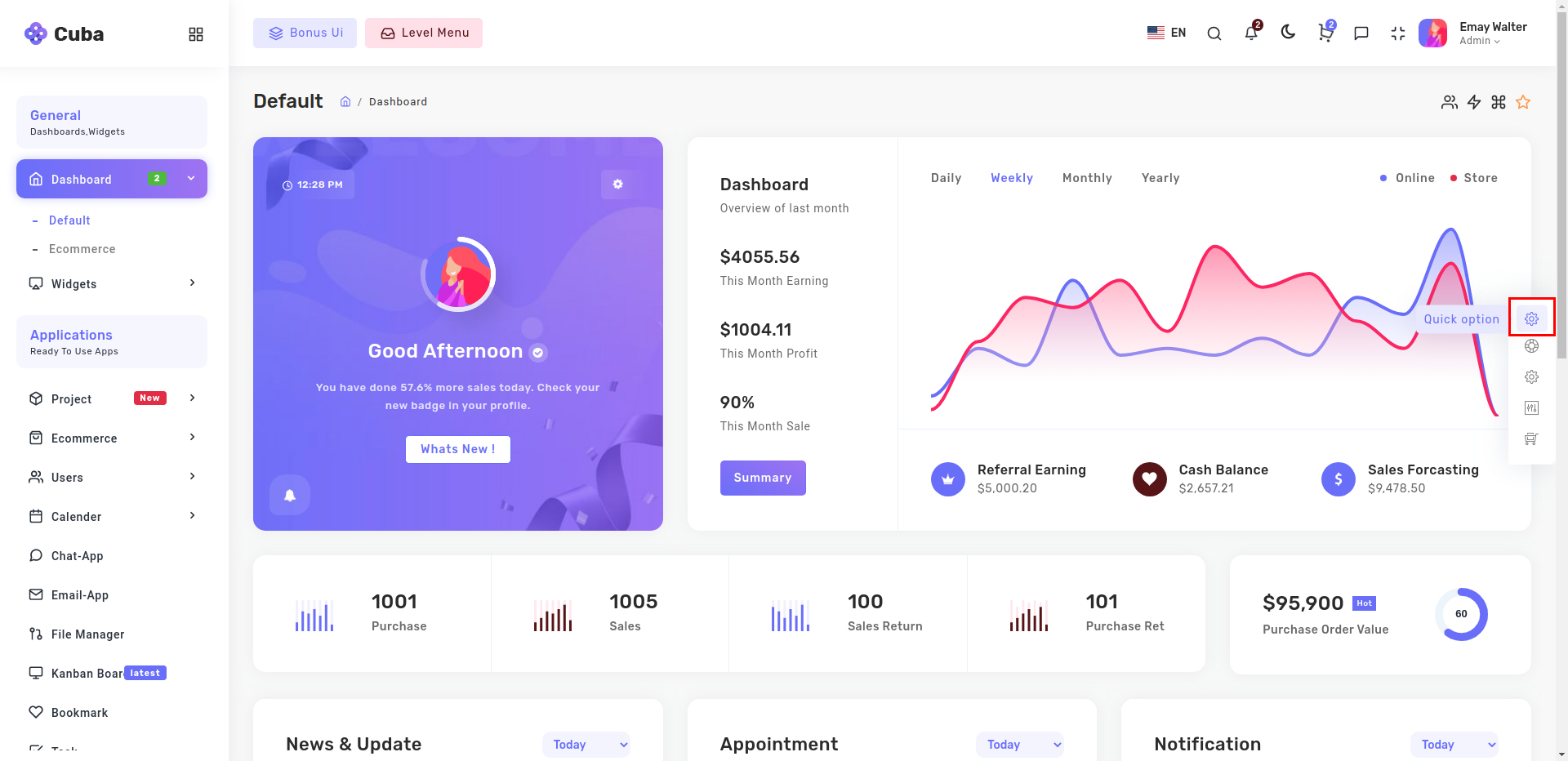
You can change your theme by clicking particular setting
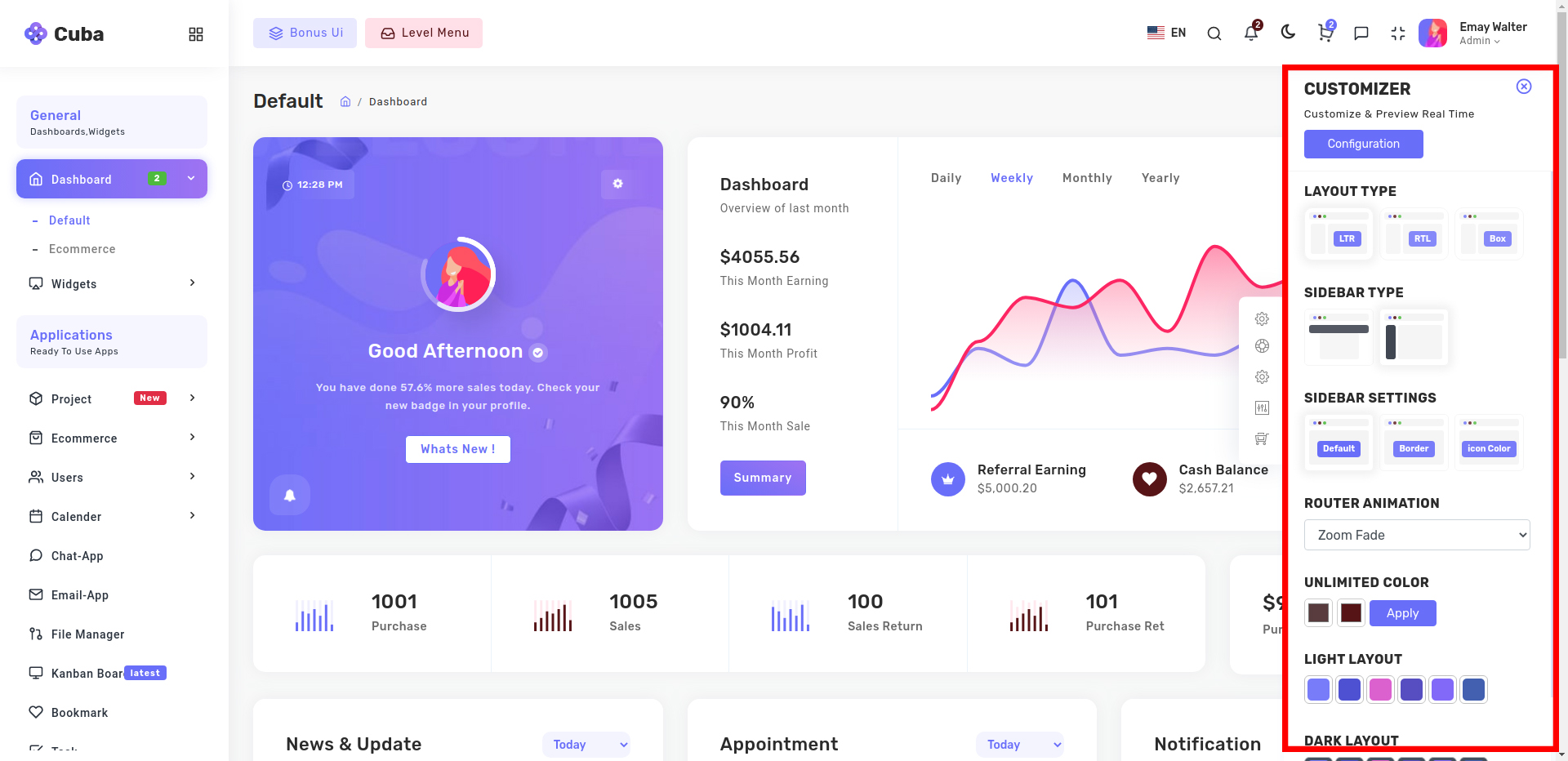
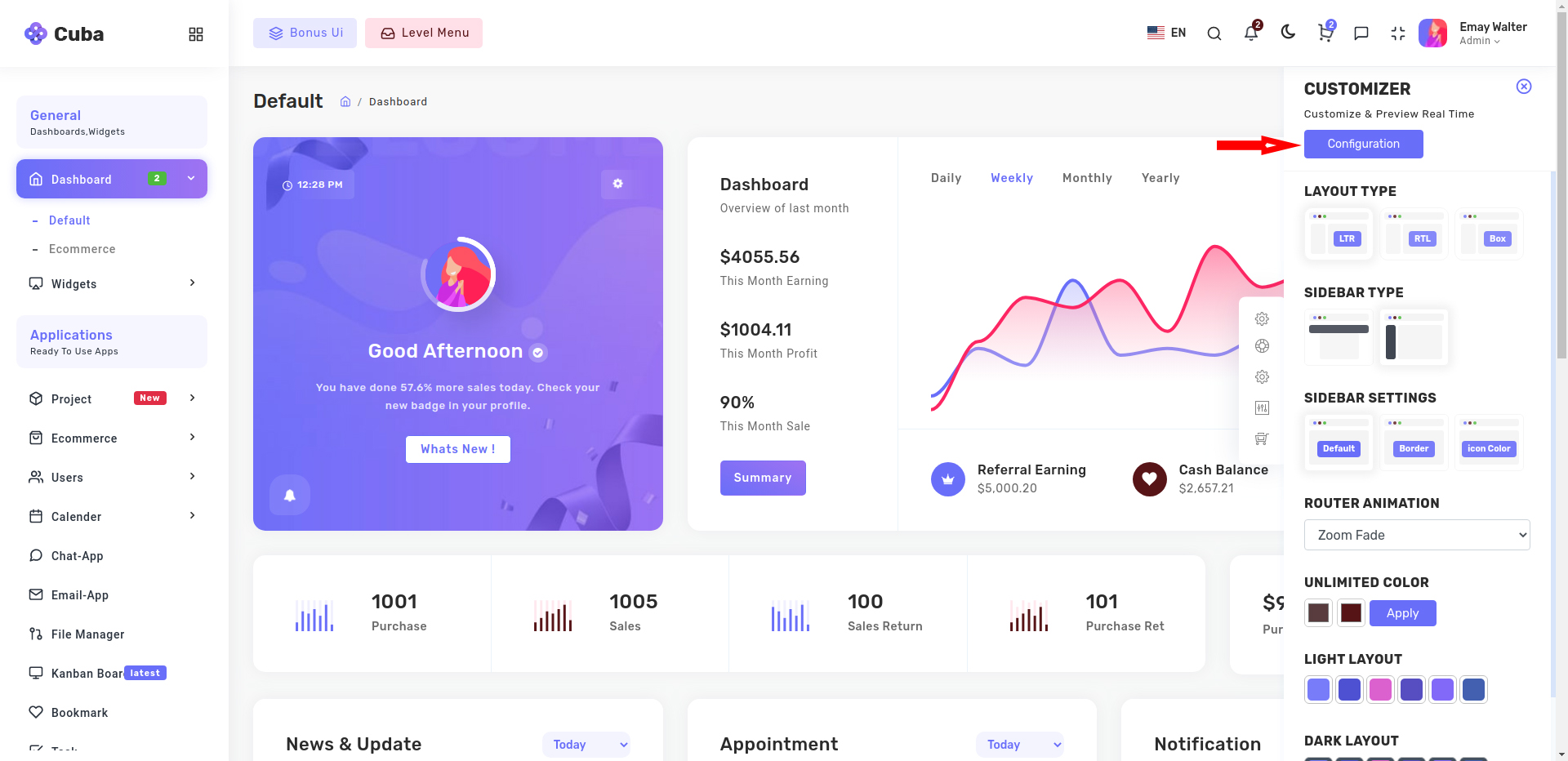
Then you just need to click on configuration button
Configuration popup will be open then just click on copy json button which will copy configuration of theme which you want
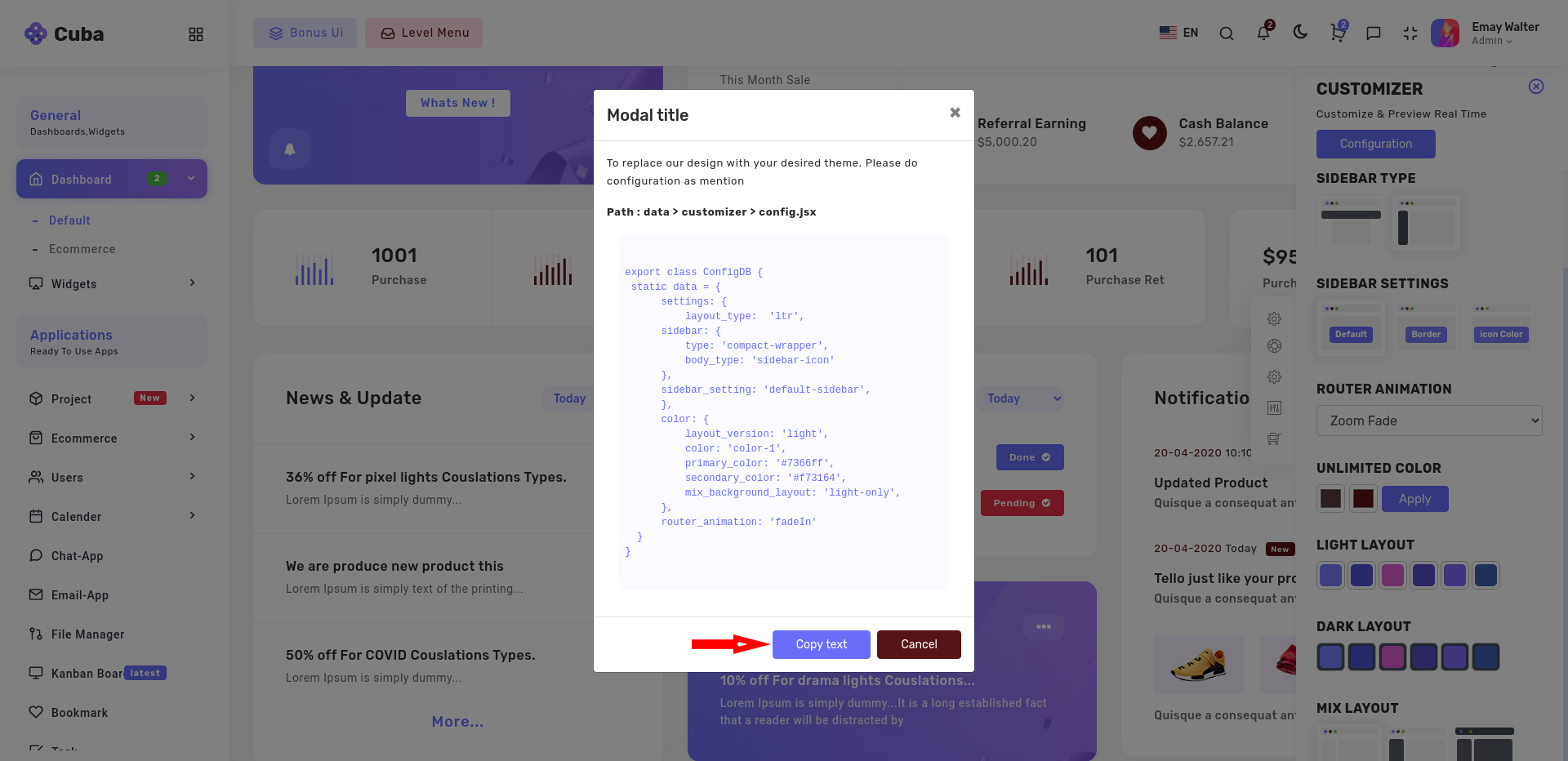
Now go to our theme >> src >> shared >> services >> layout.service.ts and then just replace with your configuration.
public config = {
 settings: {
    layout_type: 'ltr',
    sidebar: {
       type: 'compact-wrapper',
       body_type: 'sidebar-icon'
    },
    sidebar_setting: 'default-sidebar',
    sidebar_background_setting: ''
 },
 color: {
    layout_version: 'light',
    color: 'color-1',
    primary_color: '#158df7',
    secondary_color: '#fb2e63',
    mix_background_layout: 'default',
 },
 router_animation: 'fadeIn'
}
Please refer the below table for corresponding classes. it is just for your inforamation you do not need to bother about this it's dynamically take particular classes according to your needs.
| Layout | Options |
|---|---|
| Boxed Layout | Class: box-layout |
| RTL Layout | Class: rtl |
| Light Layout | Class: light |
| Dark Sidebar | Class: dark-sidebar |
| Dark Layout | Class: dark-only |
Theme options
We have some inbuilt themes for sidebar that can be switched with just a class change
| Sidebar | Options |
|---|---|
| Horizontal Sidebar type | Class: "page-wrapper horizontal-wrapper" and "page-body-wrapper horizontal-menu" |
| Bordered Navigation | Attribute: sidebar-layout="border-sidebar" |
| Sidebar icons color | Attribute: sidebar-layout="iconcolor-sidebar" |