Loader
How to Remove Loader from Application?
Go to app.jsx file and comment or remove Loader section
Remove design of loader from src >> layout >> loader >> index.jsx between comment of Loader starts to Loader ends
<!-- Loader starts -->
<div className={`loader-wrapper ${show ? '' : 'loderhide'}`}>
  <div className="loader-index"><span></span></div>
  <svg>
      <defs></defs>
      <filter id="goo">
      <fegaussianblur in="SourceGraphic" stdDeviation="11" result="blur"></fegaussianblur>
      <fecolormatrix in="blur" values="1 0 0 0 0  0 1 0 0 0  0 0 1 0 0  0 0 0 19 -9" result="goo">    </fecolormatrix>
      </filter>
  </svg>
</div>
correspondingly remove methods of useEffect from script tag in loader.jsx
const [show, setShow] = useState(true);
useEffect(() => {
    const timeout = setTimeout(() => {
        setShow(false)
      }, 3000);

    return () => {
        clearTimeout(timeout);
      }

},[show]);
Routing
Your complete route structure is place at index.jsx
Suppose you are creating a new component (For creating a new component refer create new component ) then you have to add new routes for that components.
/* Dashboards */
import Default from './components/dashboard/default'
import Ecommerce from './components/dashboard/ecommerce'
Use that component name with path in routes array in index.jsx
%process.env.PUBLIC_URL% :-When you run npm run build, Create React App will substitute %PUBLIC_URL% with a correct absolute path so your project works even if you use client-side routing or host it at a non-root URL.
<Route exact path={`${process.env.PUBLIC_URL}/`} component={Default} />
<Route path={`${process.env.PUBLIC_URL}/dashboard/default`} component={Default}/>
<Route path={`${process.env.PUBLIC_URL}/dashboard/ecommerce`} component={Ecommerce}/>
Customize or Replace Menu Sidebar
Suppose you want to change in your menu sidebar or want to add new menu in your menu section then you just need to open src >> layout >> sidebar >> menu.jsx and
{
    title: 'Dashboard', icon: Home, type: 'sub', active: false, children: [
        { path: `${process.env.PUBLIC_URL}/dashboard/default`, title: 'Default', type: 'link' },
        { path: `${process.env.PUBLIC_URL}/dashboard/ecommerce`, title: 'Ecommerce', type: 'link' },
    ]
},
Variables :
- Path : Here you have to give path name same as you have given in index.jsx
- title : Title is the name that you can see on frontside so here you can give attractive title to showcase your menu item
- type : It denote how you want to open your particular routes means on same page, or on new page on live application. Means suppose you want to open "ecommerce" dashboard on new page then write "extTabLink" in type attribute. Here we have four type attribute:
- link : It simply link with particular routes without loading your page.
- sub : It stop to route your page to next. In most case it use when our menu have children item.
- extLink : It change route with reloading a page (Work like href)
- extTabLink : It change routes and taking us on new tab.
Add Components
React provide two types Components :-
- - Class Components
- - Functional Components (Hooks)
Class Components
Suppose if you want to create a new class component then you just need to create a folder in src >> pages and then create a react file with .jsx extension and then paste code as per your needs.
import React, { Component } from 'react';

class Demo extends Component {
    render() {
        return (
            <div>
                //write Html code or structure
            </div>
        );
    }
}

export default Demo;
Functional Component : (Hooks)
Suppose if you want to create a new class component then you just need to create a folder in src >> pages and then create a react file with .jsx extension and then paste code as per your needs.
import React from 'react';
const Demo = () => {
  return (
      <div>
        //write Html code or structure
      ></div>
    );
  };

export default Demo;
Use of Widgets
Suppose you want to use widget then you need to integrate a particular widget in your existing file. Suppose you want to use calneder components in your dashboard then you need to import that widget in your dashboard
import React, { Component } from 'react';
import Datepicker from './datepicker';  //import external dependacy

class Demo extends Component {
    render() {
        return (
            <Datepicker>
                //declare like this here
            </Datepicker>
        );
    }
}

export default Demo;
Style customization
Suppose you want to customize color and font as per your project then you can change it by:
Theme Color
Suppose you want to customize your theme primary and secondary color then go to assets >> scss >> color.scss and give primary and secondary color as per your choice :
$primary-color: #7366ff;
$secondary-color: #f73164;
And if you want to convert default color to your require color then go to assets >> scss >> theme >> _variable.scss and change primary and secondary color from there
For changing charts color you need to go in src >> layout >> theme-customizer >> index.jsx and find color data and change your color their also
Variable customization of complete theme
Suppose you want to change color and size of card-body, Alert, Badge, Form input, breadcrumb,buttons, footer, sidebar and many more then you just need to change that particular color from _variable.scss in assets >> scss >> theme >> _variable.scss
Google Font
You can change font of your theme from index.html in public folder
<link href="https://fonts.googleapis.com/css?family=Rubik:400,400i,500,500i,700,700i&display=swap" rel="stylesheet">
<link href="https://fonts.googleapis.com/css?family=Roboto:300,300i,400,400i,500,500i,700,700i,900&display=swap">
Theme Customize
Layouts
We have provided a bunch of page layouts and menu layouts that can be implemented with just a options change to body!
For creating your dream layout open customizer by click on setting icon
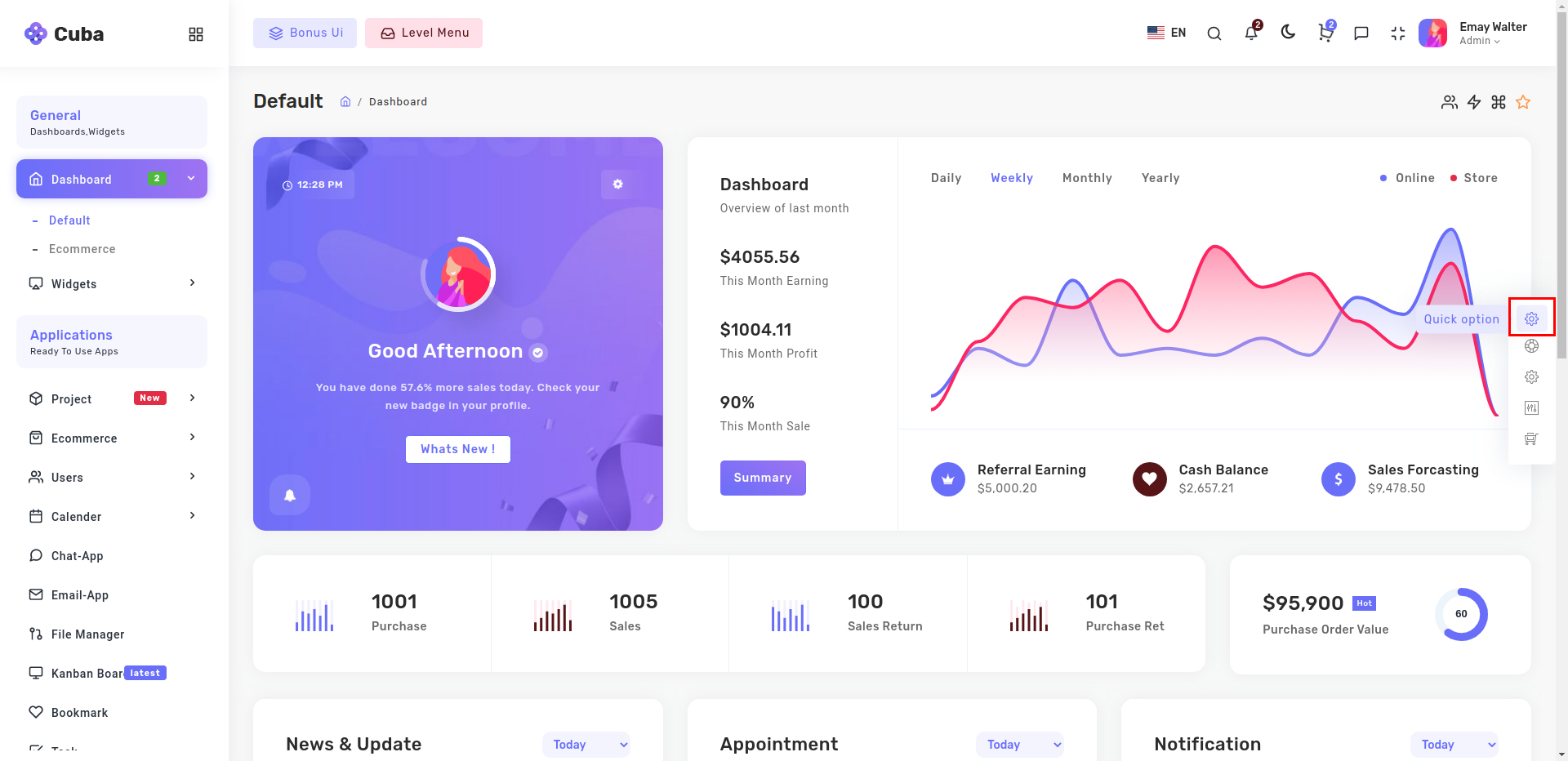
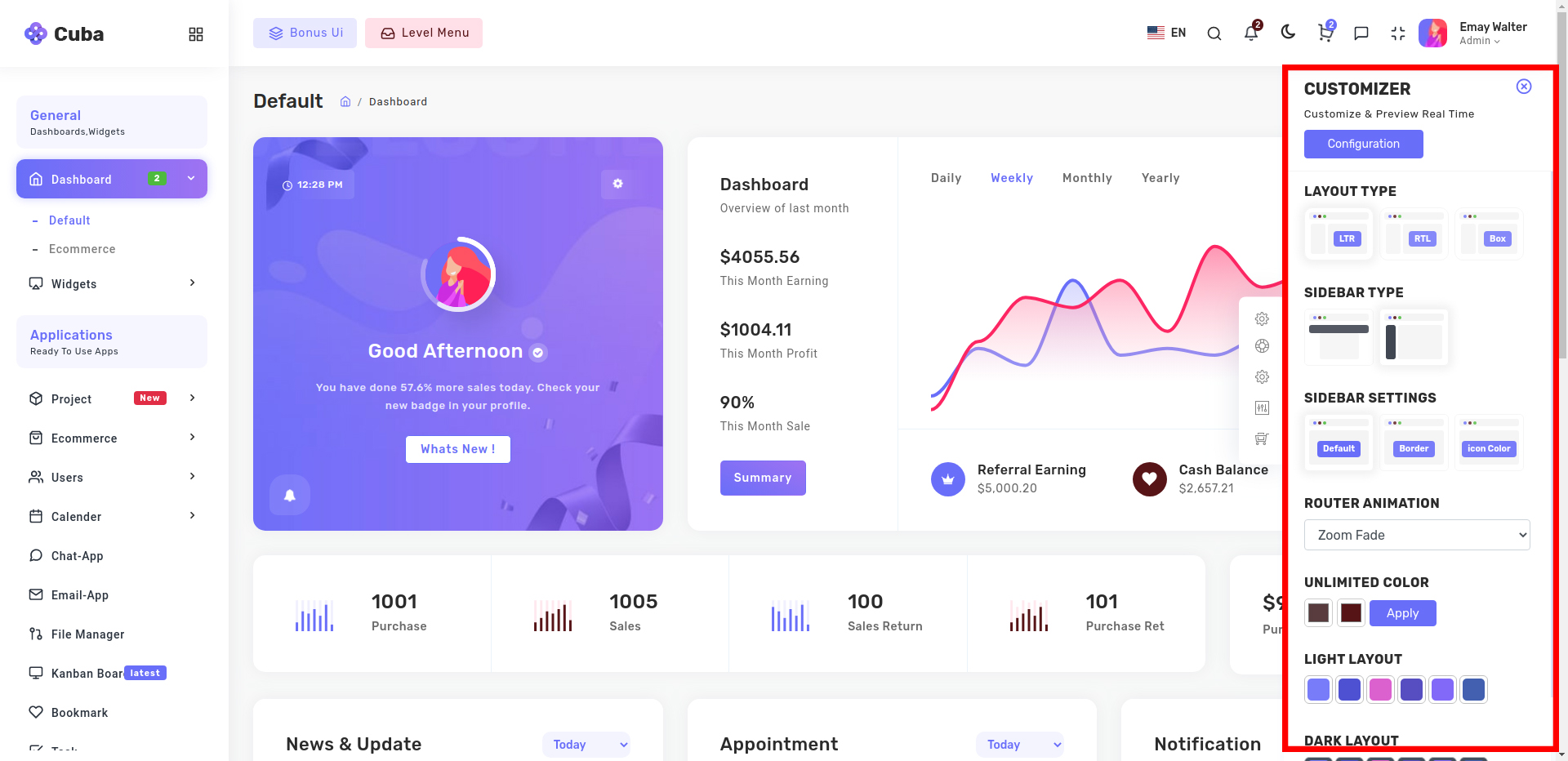
You can change your theme by clicking particular setting
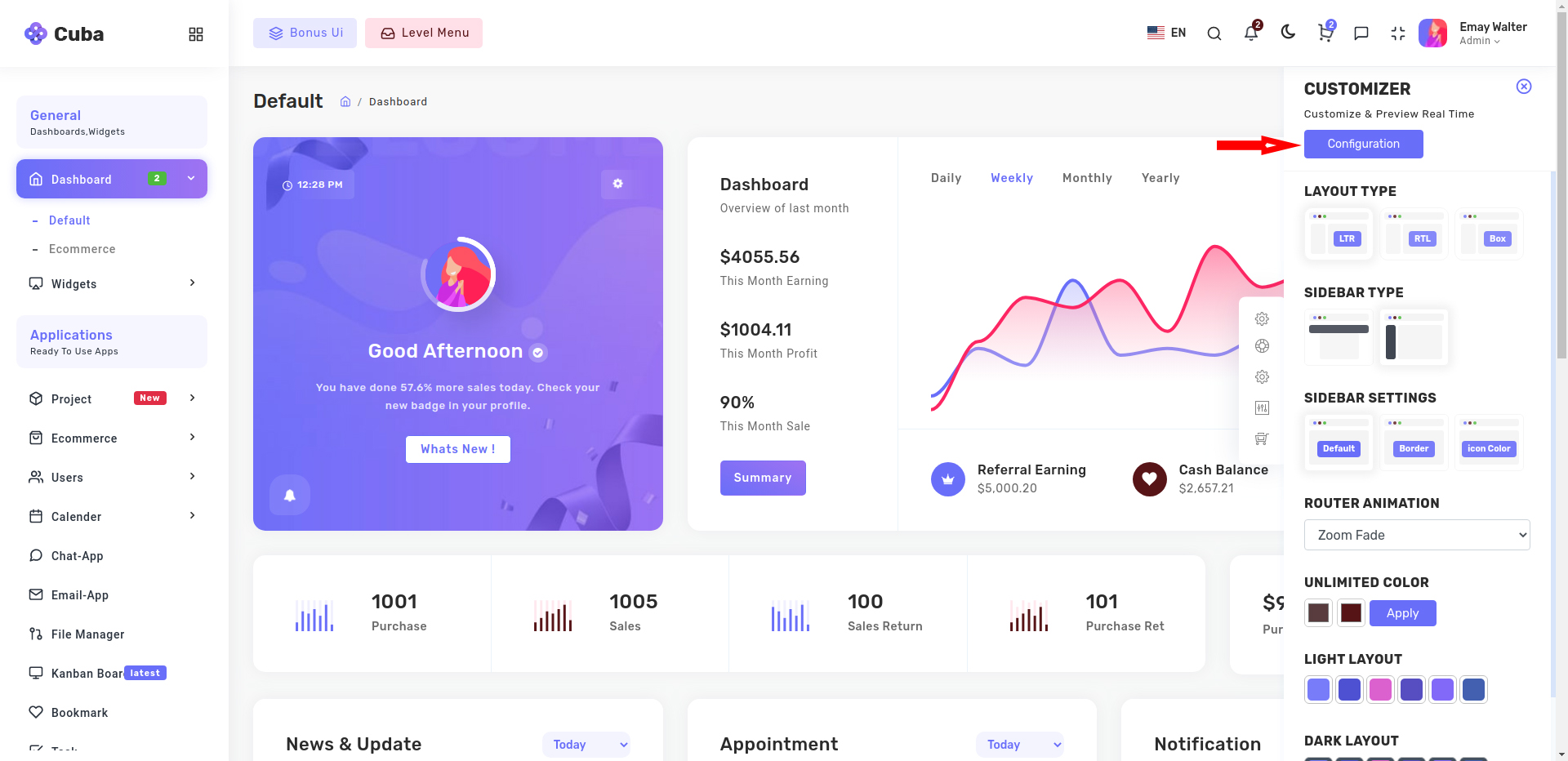
Then you just need to click on configuration button
Configuration popup will be open then just click on copy json button which will copy configuration of theme which you want
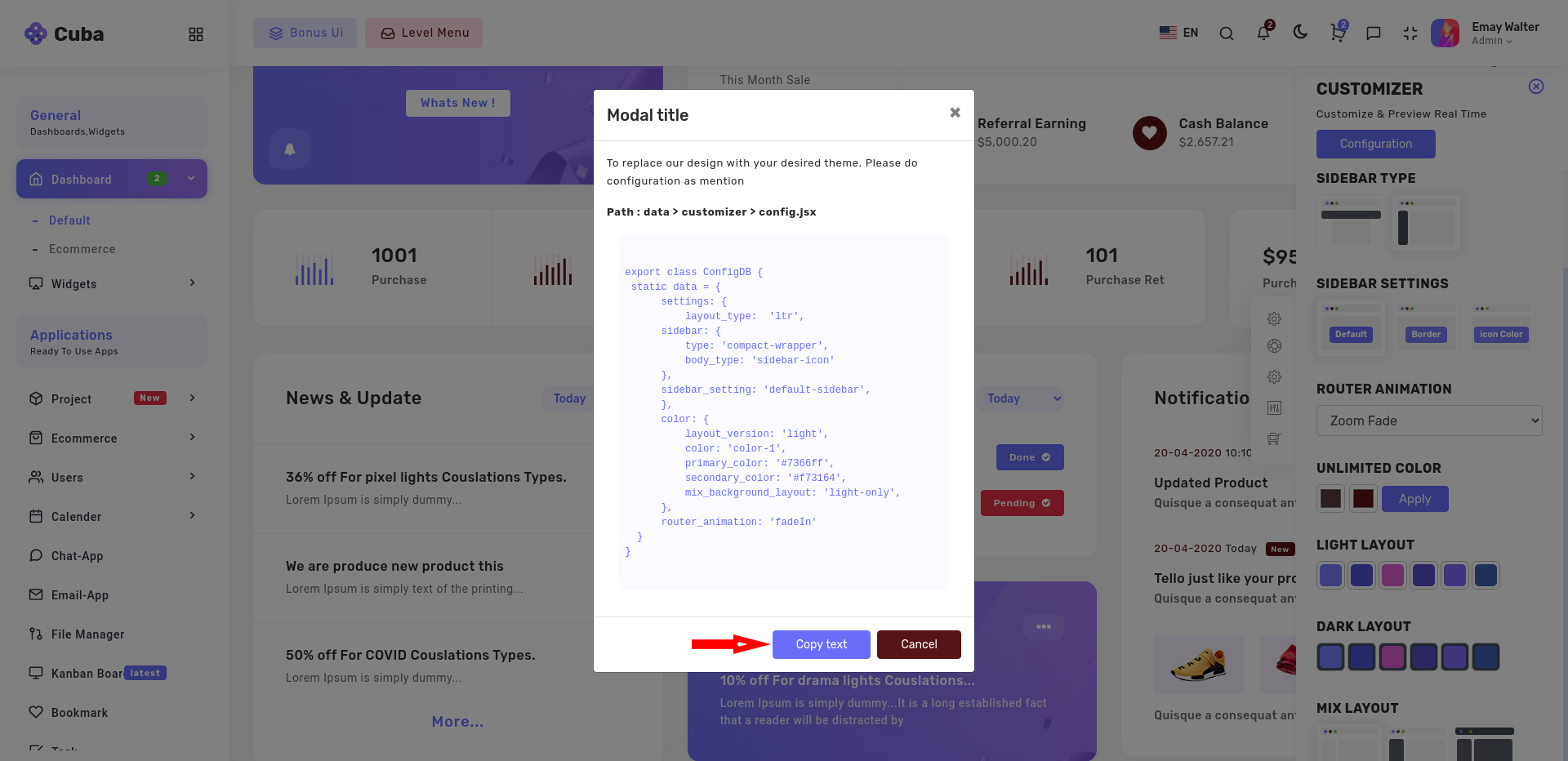
Now go to our theme >> src >> data >> customizer >> config.jsx and then just replace complete config.jsx with your new configuration and re-run theme using npm start.
{
  "settings": {
    "layout_type": "ltr",
    "sidebar": {
    "type": "compact-wrapper",
    "body_type": "sidebar-icon"
    },
    "sidebar_setting": "default-sidebar",
  },
  "color": {
      "primary_color": "#7366ff",
      "secondary_color": "#f73164",
      "mix_background_layout": "light-only",
    },
    "router_animation": "fade"
  }
}
Please refer the below table for corresponding classes. it is just for your inforamation you do not need to bother about this it's dynamically take particular classes according to your needs.
| Layout | Options |
|---|---|
| Boxed Layout | Class: box-layout |
| RTL Layout | Class: rtl |
| Light Layout | Class: light |
| Dark Sidebar | Class: dark-sidebar |
| Dark Layout | Class: dark-only |
Theme options
We have some inbuilt themes for sidebar that can be switched with just a class change
| Sidebar | Options |
|---|---|
| Horizontal Sidebar type | Class: "page-wrapper horizontal-wrapper" and "page-body-wrapper horizontal-menu" |
| Bordered Navigation | Attribute: sidebar-layout="border-sidebar" |
| Sidebar icons color | Attribute: sidebar-layout="iconcolor-sidebar" |
| Router Animation | Options |
|---|---|
| Select Animation type | Zoom Fade, Slide Fade, Fade Bottom, Fade, Zoom Out, None |
RTL
Suppose you want to add RTL in your application then you just need to set "layout_type" as RTL so application will be converted in RTL layout.
Suppose you want to change Colors from config.jsx then you have to first clear localStorage then you will get your color in theme.
{
  "settings": {
    "layout_type": "rtl",
    "sidebar": {
      "type": "compact-wrapper",
      "body_type": "sidebar-icon"
      },
      "sidebar_setting": "default-sidebar",
  },
    "color": {
        "primary_color": "#7366ff",
        "secondary_color": "#f73164",
        "mix_background_layout": "light-only",
      },
    "router_animation": "fade"
  }
}