
Introduction
cuba Angular Theme is pure angular theme, Yes! you read correct, it's No Jquery angular admin theme including all feature and functionality with ease of integration for your project.cuba theme document will help you to understand angular from scratch to making perfect real time dream application.
Follow the documentation carefully for solving your issues in minutes, Apart from that if you don't find when you following the docs you can raise a support ticket from pixelstrap.freshdesk.com
Dependancies- Angular-10
- Bootstrap-4
- SASS
Yes! again No Jquery dependency.
Features
- Angular, No Jquery Dependency
- Created with Angular CLI 10
- 6 Attractive Dashboard
- Attractive Charts using Google Charts, Chartist
- Map using Google map and Leaflet
- Editors
- Knowledge Base
- Job Search
- 8 Workable Application
- E-commerce App with integration of Paypal and Stripe
- Chat Application
- To-do
- Firebase To-do
- Bookmark
- Calender
- Attractive Gallery
- Sidebar variation (Default, Compact, Icon)
- Color Variation (Light and Dark Layout)
- RTL Support
- Error pages
Credits
- node.js
- Angular CLI
- Deployment
- Angular Bootstrap
- Perfect Scrollbar
- Toaster
- Tour
- Rating
- Alert
- Range Bar
- Image Cropper
- File Upload
- Date Picker
- Select
- Typeahead
- Smart Table
- Google Charts
- apex Charts
- ngx-Charts
- Chartist
- Google Map
- Leaflet Map
- Editor
- CK Editor
- ACE Editor
- NGX Editor
- Simple Mde Editor
- Calender
- Gallery
- Slider
- Firebase
Getting started
Welcome to Angular! Angular helps you build modern applications for the web, mobile, or desktop.
For getting started an Angular application you needs two things as Prerequisites.
Prerequisites
Before you begin, make sure your development environment includes Node and an npm package manager.
Node.js
Download latest version of node.js from nodejs.org.
- Install Node.js using downloaded file
- To check your node version, run node -v in a terminal/console window.
Npm package manager
Angular CLI, and Angular apps depend on features and functionality provided by libraries that are available as npm packages. To download and install npm packages, you must have an npm package manager. This Quick Start uses the npm client command line interface, which is installed with Node.js by default. To check that you have the npm client installed, run npm -v in a terminal/console window.
For better understanding Angular we suggest you to once go through official documentation of Angular from Angular Docs
Angular setup
If you want cuba theme setup then directly follow next cuba setup section
Installing Angular CLI
You use the Angular CLI to create projects, generate application and library code, and perform a variety of ongoing development tasks as it is a progressive framework for building user interfaces.
Install the Angular CLI globally.
To install the CLI using npm, open a terminal/console window and enter the following command:
npm install -g @angular/cli Create Initial application
- 1 . Run the CLI command ng new and provide the name my-app, as shown here:
ng new my-app- 2. The angular new command prompts you for information about features to include in the initial app project. Accept the defaults by pressing the Enter or Return key.
Serve Application
- 1. Go to the workspace folder (my-app).
cd my-app- 2. Launch the server by using the CLI command ng serve
ng servecuba setup
If you have already download and install node.js and Angular CLI then ignore prerequisites accordingly.
Prerequisites
Node.js
Download latest version of node.js from nodejs.org.
- Install Node.js using downloaded file
- To check your node version, run node -v in a terminal/console window.
Angular CLI
Install Angular CLI Using:
npm install -g @angular/cliSetup an cuba theme by
- 1) Download and extract an cuba themes from themeforest
- 2) Extract it and then go in to theme folder.
cd theme- 3) Import all dependency by installing npm command
npm install- 4) Now you are in stage to successfully run cuba using below command:
ng serveOnce you serve your application by default it will take their defalult port so you can open port using localhost:4200
Make sure you are not running any other angular project in local if so then use new generated port from terminal with label called app running at:
- Use Latest Version of node.js
- Remove node_module and package-lock.json file and again do npm install
- You can again download theme from themeforst and then again run
- Then also if you don't solve issue you can generate a ticket.
Build Application
- 1. Build you application for host on server using below command:
ng buildFolder Structured
Here we represent Angular Folder Structure and Style Customize
- cuba Admin
- e2e
- node_modules
- src
- app
- app-component.ts
- app.component.html
- app-routing.module.ts
- app.component.scss
- app.module.ts
- Assets
- fonts
- images
- data
- css
- scss
- video
- audio
- environments
- environment.ts
- environment.prod.ts
- fevicon.ico
- index.html
- main.ts
- polyfills.ts
- style.css
- app
- angular.json
- package.json
- tsconfig.json
How to Remove Loader from Application?
- Go to Loader file in src >> shared >> loader-component
-
Remove design of loader from Loader Component between comment of Loader starts to Loader ends
<div class="loader-wrapper">
  <div class="loader loader-7">
    <div class="line line1"></div>
    <div class="line line2"></div>
    <div class="line line3"></div>
  </div>
</div>
Routing
Your complete route structure is place at module.routing
Suppose you are creating a new module (For creating a new module refer create new module ) then you have to add new routes for that modules.
-
Import that component in module.routing
/* Dashboards */ import { NgModule } from '@angular/core'; import { Routes, RouterModule } from '@angular/router'; import { DefaultComponent } from './default/default.component'; -
Use that component name with path, name, and data attribute in routes array in module-routing file
  const routes: Routes =
[
    {
      path: '',
      children:
      [
        {
          path: 'default',
          component: DefaultComponent
        },
      ],
    }
];
  @NgModule({
  imports: [RouterModule.forChild(routes)],
  exports: [RouterModule]
  })
  export class DashboardRoutingModule { }
Customize or Replace Menu Sidebar
Suppose you want to change in your menu sidebar or want to add new menu in your menu section then you just need to open nav.service.ts
    {
      "title": "Dashboard", "icon": "home", "type": "sub", "badgeType": "primary", "badgeValue": "6", "active": false, "children": [
      { "path": "/dashboard/default", "title": "Default", "type": "link" },
      ]
      }
Variables :
Path : Here you have to give path name same as you have given in nav.service.ts
title : Title is the name that you can see on frontside so here you can give attractive title to showcase your menu item
type : It denote how you want to open your particular routes means on same page, or on new page on live application. Means suppose you want to open "ecommerce" dashboard on new page then write "extTabLink" in type attribute. Here we have four type attribute:
- link : It simply link with particular routes without loading your page.
- sub : It stop to route your page to next. In most case it use when our menu have children item.
- extLink : It change route with reloading a page (Work like href)
- extTabLink : It change routes and taking us on new tab.
Add Modules
Suppose if you want to create a new Module then you just need to run below code
ng generate module <module name>
Add Components
Suppose if you want to create a new component then you just need to run below code
ng generate component <component name>
Style customization
Suppose you want to customize color and font as per your project then you can change it by:
-
Theme Color
Suppose you want to customize your theme primary and secondary color:
@import "theme/variables";$primary-color: #0288d1;$secondary-color :#26c6da;Then you have to go in assets >> scss >> color >> color-1.scss and then place your theme primary color in $primary-color and your secondary color in $secondary-color and then import that scss in your app.scss in assets >> scss >> app.scss
-
Variable customization of complete theme
Suppose you want to change color and size of card-body, Alert, Badge, Form input, breadcrumb,buttons, footer, sidebar and many more then you just need to change that particular color from _variable.scss in assets >> scss >> theme >> _variable.scss
-
Google Font
You can change font of your theme from index.html
<link rel="icon" href="<%= BASE_URL %>favicon.png"><link href="https://fonts.googleapis.com/css?family=Work+Sans:100,200,300,400,500,600,700,800,900" rel="stylesheet"><link href="https://fonts.googleapis.com/css?family=Nunito:200,200i,300,300i,400,400i,600,600i,700,700i,800,800i,900,900i" rel="stylesheet"><link href="https://fonts.googleapis.com/css?family=Poppins:100,100i,200,200i,300,300i,400,400i,500,500i,600,600i,700,700i,800,800i,900,900i" rel="stylesheet">
Theme Customize
Layouts
We have provided a bunch of page layouts and menu layouts that can be implemented with just a options change to body!
For creating your dream layout open customizer by click on setting icon
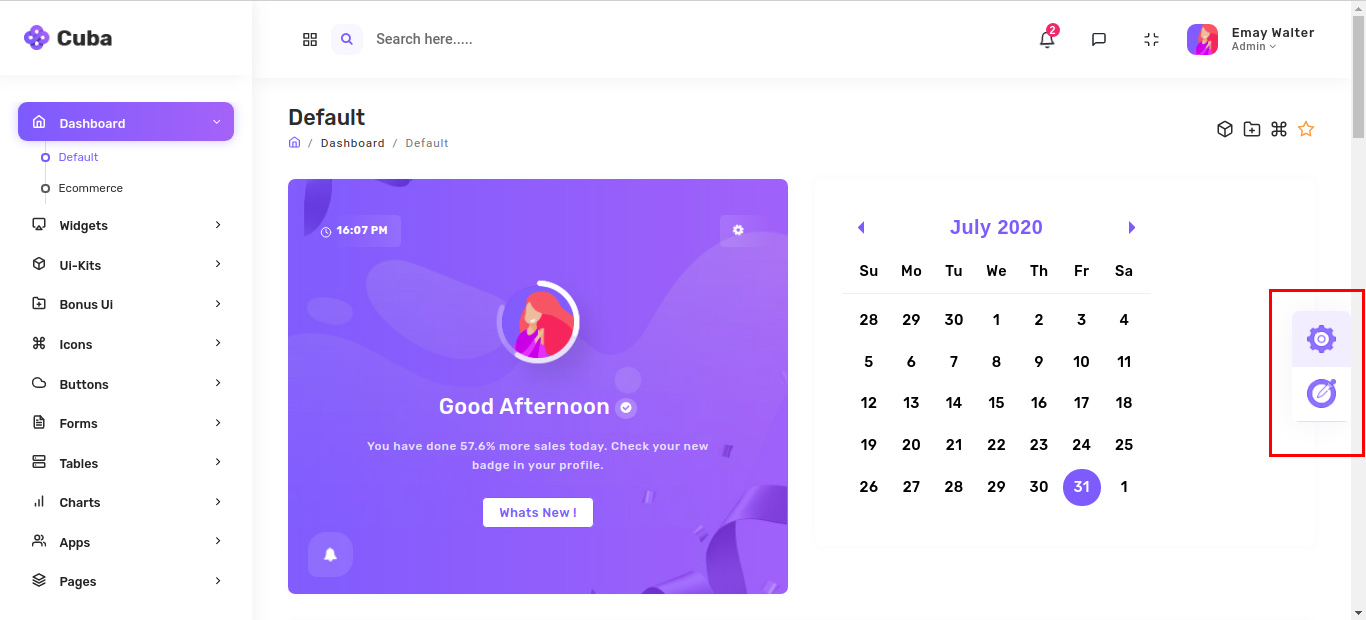
You can change your theme by clicking particular setting
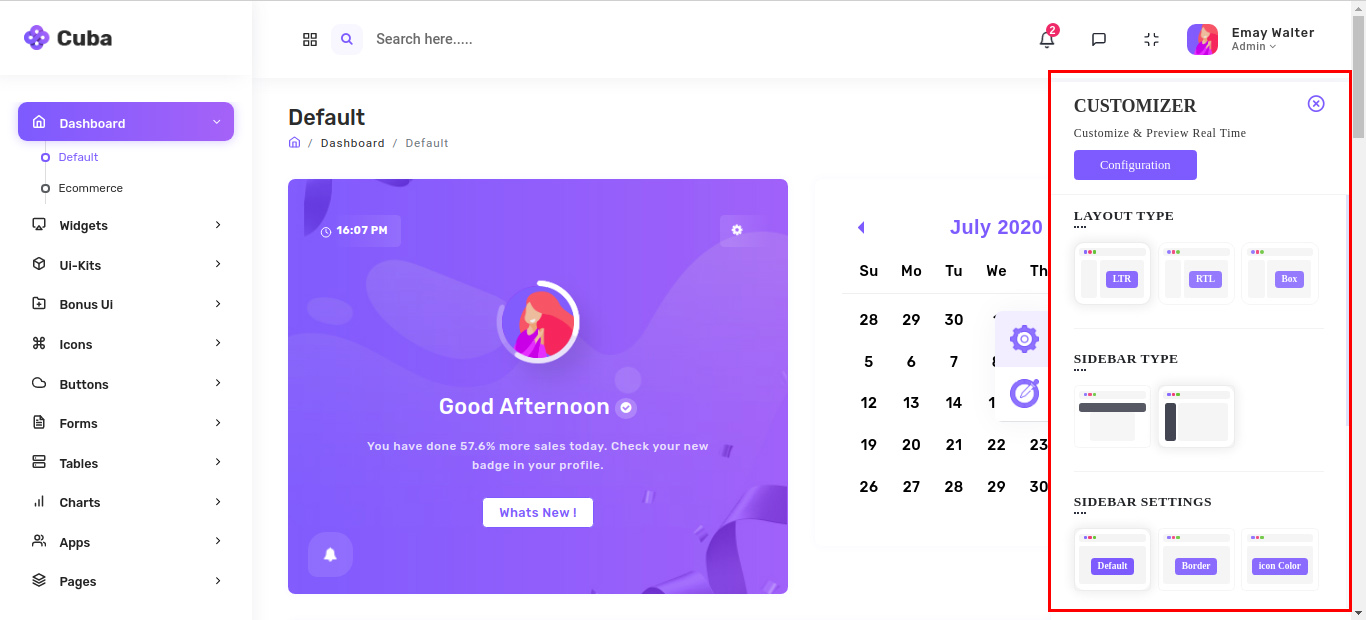
Then you just need to click on configuration button

Configuration popup will be open then just click on copy json button which will copy configuration of theme which you want
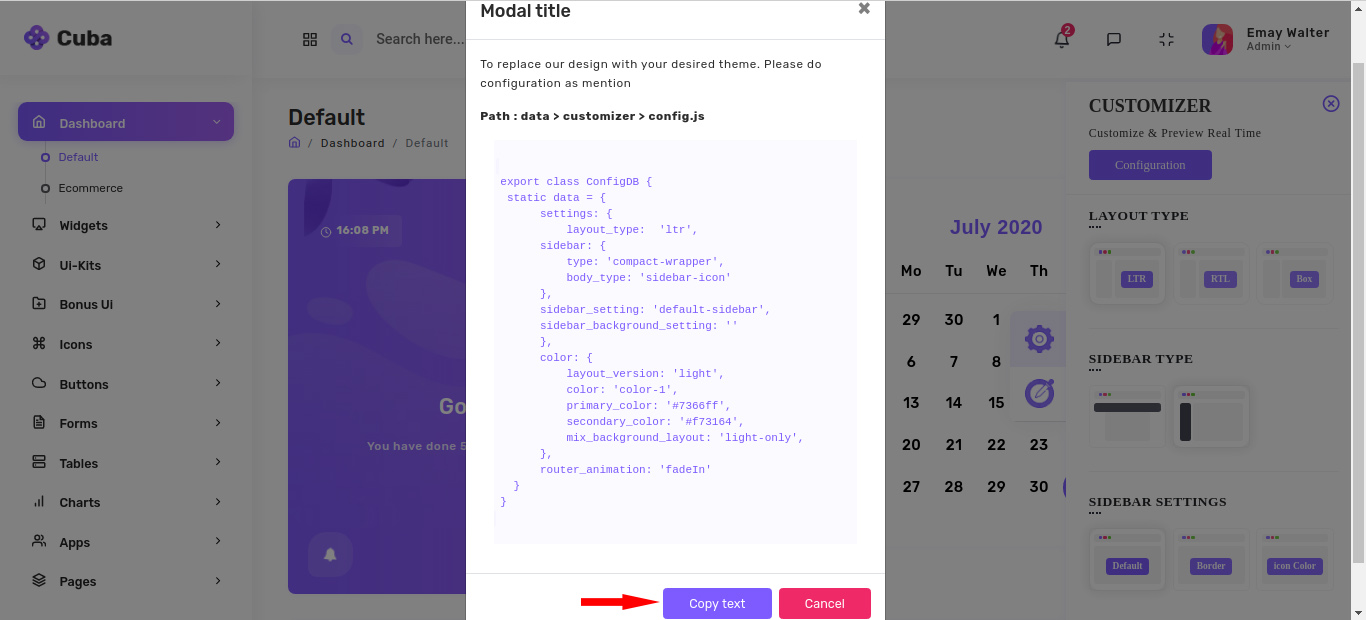
Now go to our theme >> src >> shared >> services >> layout.service.ts and then just replace with your configuration.
 public config = {
       settings: {
          layout_type: 'ltr',
          sidebar: {
             type: 'compact-wrapper',
             body_type: 'sidebar-icon'
          },
          sidebar_setting: 'default-sidebar',
          sidebar_background_setting: ''
       },
       color: {
          layout_version: 'light',
          color: 'color-1',
          primary_color: '#158df7',
          secondary_color: '#fb2e63',
          mix_background_layout: 'default',
       },
       router_animation: 'fadeIn'
      }
Please refer the below table for corresponding classes. it is just for your inforamation you do not need to bother about this it's dynamically take particular classes according to your needs.
| Layout | Options |
|---|---|
| RTL Layout | Attribute: main-theme-layout="rtl" |
| Light layout | class: light-only |
| Dark Page-body | class: dark-body-only |
| Dark Page-body & Sidebar | class: dark-sidebar-body-mix |
| Dark Layout | class: dark-only |
Theme options
We have some inbuilt themes for sidebar that can be switched with just a class change
| Sidebar | Options |
|---|---|
| Default Sidebar layout | Attribute: sidebar-layout="default-sidebar" |
| Bordered Navigation | Attribute: sidebar-layout="border-sidebar" |
| Sidebar icons color | Attribute: sidebar-layout="iconcolor-sidebar" |
| Background Image | class: sidebar-img* |
| Light Sidebar layout | class: light-sidebar |
Basic UI Elements
  <span class="badge badge-primary">Primary</span>
  <span class="badge badge-secondary">Secondary</span>
  <span class="badge badge-success">Success</span>
  <span class="badge badge-info">Info</span>
  <span class="badge badge-warning">Warning</span>
  <span class="badge badge-danger">Danger</span>
  <span class="badge badge-light">Light</span>
  <span class="badge badge-dark">Dark</span>
  <div class="progress-bar" role="progressbar" aria-valuenow="0" aria-valuemin="0" aria-valuemax="100"></div>
  <div class="progress-bar bg-primary" role="progressbar" style="width: 25%" aria-valuenow="25" aria-valuemin="0" aria-valuemax="100"></div>
  <div class="progress-bar bg-secondary" role="progressbar" style="width: 50%" aria-valuenow="50" aria-valuemin="0" aria-valuemax="100"></div>
  <div class="progress-bar bg-success" role="progressbar" style="width: 75%" aria-valuenow="75" aria-valuemin="0" aria-valuemax="100"></div>
  <div class="progress-bar bg-info" role="progressbar" style="width: 100%" aria-valuenow="100" aria-valuemin="0" aria-valuemax="100">
</div>
<div class="alert alert-primary dark" role="alert">This is a info alert—check it out!</div>
<div class="alert alert-secondary dark" role="alert">This is a light alert—check it out!</div>
<div class="alert alert-success dark" role="alert">This is a success alert—check it out!</div>
<div class="alert alert-info dark" role="alert">This is a danger alert—check it out!</div>
<div class="alert alert-warning dark" role="alert">This is a secondary alert—check it out!</div>
<div class="alert alert-danger dark" role="alert">This is a warning alert—check it out!</div>
<div class="alert alert-light dark" role="alert">This is a dark alert—check it out!</div>
<div class="alert alert-dark dark" role="alert">This is a dark alert—check it out!</div>
<button type="button" class="btn btn-primary example-popover mr-1" data-toggle="popover" title="Popover title" data-content="And here's some amazing content. It's very engaging. Right?"> Click to toggle popover</button>

<a tabindex="0" class="example-popover btn btn-secondary" role="button" data-toggle="popover" data-trigger="focus" title="Popover title" data-content="And here's some amazing content. It's very engaging. Right?">Dismissible popover</a>
<button type="button" data-trigger="hover" class="example-popover btn btn-success" data-container="body" data-toggle="popover" data-placement="bottom" title="Popover title" data-offset="-20px -20px" data-content="Vivamus sagittis lacus vel augue laoreet rutrum faucibus." >On Hover Tooltip</button>
<button type="button" class="example-popover btn btn-primary" placement="top" ngbTooltip="Popover title">Hover Me</button>
<div ngbDropdown class="d-inline-block" placement="bottom">
<button class="btn btn-outline-primary" id="dropdownBasic1" ngbDropdownToggle >Dropdown Button</button>
<div ngbDropdownMenu aria-labelledby="dropdownBasic1">
<button class="dropdown-item">Action</button>
<button class="dropdown-item">Another Action</button>
<button class="dropdown-item">Something Else Here</button>
</div>
</div>
Lorem Ipsum is simply dummy text of the printing and typesetting industry. Lorem Ipsum has been the industry's standard dummy text ever since the 1500s, when an unknown printer took a galley of type and scrambled it to make a type specimen book. It has survived not only five centuries, but also the leap into electronic typesetting,remaining essentially unchanged. It was popularised in the 1960s with the release of Letraset sheets containing Lorem Ipsum passages,and more recently with desktop publishing software like Aldus PageMaker including versions of Lorem Ipsum
Lorem Ipsum is simply dummy text of the printing and typesetting industry. Lorem Ipsum has been the industry's standard dummy text ever since the 1500s, when an unknown printer took a galley of type and scrambled it to make a type specimen book. It has survived not only five centuries, but also the leap into electronic typesetting, remaining essentially unchanged. It was popularised in the 1960s with the release of Letraset sheets containing Lorem Ipsum passages, and more recently with desktop publishing software like Aldus PageMaker including versions of Lorem Ipsum
Lorem Ipsum is simply dummy text of the printing and typesetting industry. Lorem Ipsum has been the industry's standard dummy text ever since the 1500s, when an unknown printer took a galley of type and scrambled it to make a type specimen book. It has survived not only five centuries, but also the leap into electronic typesetting,remaining essentially unchanged. It was popularised in the 1960s with the release of Letraset sheets containing Lorem Ipsum passages,and more recently with desktop publishing software like Aldus PageMaker including versions of Lorem Ipsum
<ngb-tabset>
<ngb-tab title="Home">
<ng-template ngbTabContent>
<p class="mb-0 m-t-30">Lorem Ipsum is simply dummy text of the printing and typesetting
industry. Lorem Ipsum has been the industry's standard dummy text ever since the
1500s, when an unknown printer took a galley of type and scrambled it to make a type
specimen book. It has survived not only five centuries, but also the leap into
electronic typesetting,remaining essentially unchanged. It was popularised in the
1960s with the release of Letraset sheets containing Lorem Ipsum passages,and more
recently with desktop publishing software like Aldus PageMaker including versions of
Lorem Ipsum</p>
</ng-template>
</ngb-tab>
<ngb-tab>
....
</ngb-tab>
<ngb-tab title="Disabled" [disabled]="true">
....
</ngb-tab>
</ngb-tabset>
  <div class="card">
        <ngb-accordion [closeOthers]="true" activeIds="static-1">
        <ngb-panel id="static-1" title="Collapsible Group Item #1">
        <ng-template ngbPanelContent>
        Anim pariatur cliche reprehenderit, enim eiusmod high life accusamus terry richardson ad squid. 3 wolf
        moon officia
        aute, non cupidatat skateboard dolor brunch. Food truck quinoa nesciunt laborum eiusmod. Brunch 3 wolf
        moon tempor,
        sunt aliqua put a bird on it squid single-origin coffee nulla assumenda shoreditch et. Nihil anim
        keffiyeh helvetica,
        craft beer labore wes anderson cred nesciunt sapiente ea proident. Ad vegan excepteur butcher vice lomo.
        Leggings
        occaecat craft beer farm-to-table, raw denim aesthetic synth nesciunt you probably haven't heard of them
        accusamus
        labore sustainable VHS.
        </ng-template>
        </ngb-panel>
        <ngb-panel id="static-2">
        <ng-template ngbPanelTitle>
        <span>Collapsible Group Item #1</span>
        </ng-template>
        <ng-template ngbPanelContent>
        Anim pariatur cliche reprehenderit, enim eiusmod high life accusamus terry richardson ad squid. 3 wolf
        moon officia
        aute, non cupidatat skateboard dolor brunch. Food truck quinoa nesciunt laborum eiusmod. Brunch 3 wolf
        moon tempor,
        sunt aliqua put a bird on it squid single-origin coffee nulla assumenda shoreditch et. Nihil anim
        keffiyeh helvetica,
        craft beer labore wes anderson cred nesciunt sapiente ea proident. Ad vegan excepteur butcher vice lomo.
        Leggings
        occaecat craft beer farm-to-table, raw denim aesthetic synth nesciunt you probably haven't heard of them
        accusamus
        labore sustainable VHS.
        </ng-template>
        </ngb-panel>
        <ngb-panel id="static-3" title="Collapsible Group Item #3" >
        <ng-template ngbPanelContent>
        Anim pariatur cliche reprehenderit, enim eiusmod high life accusamus terry richardson ad squid. 3 wolf
        moon officia
        aute, non cupidatat skateboard dolor brunch. Food truck quinoa nesciunt laborum eiusmod. Brunch 3 wolf
        moon tempor,
        sunt aliqua put a bird on it squid single-origin coffee nulla assumenda shoreditch et. Nihil anim
        keffiyeh helvetica,
        craft beer labore wes anderson cred nesciunt sapiente ea proident. Ad vegan excepteur butcher vice lomo.
        Leggings
        occaecat craft beer farm-to-table, raw denim aesthetic synth nesciunt you probably haven't heard of them
        accusamus
        labore sustainable VHS.
        </ng-template>
        </ngb-panel>
        </ngb-accordion>
        </div>
Larger shadow
Larger shadow
Regular shadow
Regular shadow
small shadow
Small shadow
<div class="shadow-lg p-25 shadow-showcase text-center">

<h6 class="m-0 f-18">Larger shadow</h5>

</div>

  <h6 class="sub-title mb-5 mt-5">Regular shadow</h6>

<div class="shadow shadow-showcase p-25 text-center">

  <h6 class="m-0 f-18">Regular shadow</h5>

</div>

  <h6 class="sub-title mb-5 mt-5">small shadow</h6>

<div class="shadow-sm shadow-showcase p-25 text-center mb-5">

  <h6 class="m-0 f-18">Small shadow</h5>

</div>
Components
Advance UI Elements
This is an Angular wrapper library for the Perfect Scrollbar. To use this library you should get familiar with the Perfect Scrollbar documentation as well since this documentation only explains details specific to this wrapper.
Installing and usage
npm install ngx-perfect-scrollbar --save
<perfect-scrollbar style="max-width: 600px; max-height: 400px;" [config]="config"> Scrollable content

</perfect-scrollbar>
import { PerfectScrollbarConfigInterface} from 'ngx-perfect-scrollbar';
export class ScrollableComponent implements OnInit
{

constructor() { }


ngOnInit() { }


public config: PerfectScrollbarConfigInterface =
{

suppressScrollX: false,

wheelPropagation: false,

useBothWheelAxes : true

};

}
Installing and usage
npm i ngx-treeview
<ngx-treeview [config]="config" [items]="items" (selectedChange)="onSelectedChange($event)" (filterChange)="onFilterChange($event)">
</ngx-treeview>
import { Component, OnInit } from '@angular/core';
import { TreeviewConfig, TreeviewItem } from 'ngx-treeview';
import { TreeViewService } from 'src/app/shared/services/advance/tree-view/tree-view.service';

@Component({
selector: 'app-tree-view',
templateUrl: './tree-view.component.html',
styleUrls: ['./tree-view.component.scss']
})
export class TreeViewComponent implements OnInit {
public config =TreeviewConfig.create(
{
hasAllCheckBox: false,
hasFilter: false,
hasCollapseExpand: false,
decoupleChildFromParent: false,
maxHeight: 500
})
public items: TreeviewItem[];
constructor( private service: TreeViewService) { }

ngOnInit(): void {
this.items = this.service.getItems();
}

}
Installing and usage
npm i angular-custom -tour
<!-- Bluring element insert on top of the page-->

<tour-overlay></tour-overlay>


<!-- start TOUR -->

<button name="button" (click)="startTour()"> START!</button>


<!-- Each step could be placed at ANYWHERE -->

<div class="i-want-highlight-this" id="highlight-me"> WOW!</div>


<tour-step selector="highlight-me" order="3" position="right" title="title string">

<!-- ANY HTML HERE
NOTE: ONLY selector attribute is required! others is up to you
-->


</tour-step>
Installing and usage
npm install @ng-bootstrap/ng-bootstrap
<ngb-rating [(rate)]="currentRate"></ngb-rating>
Installing and usage
npm install --save sweetalert2
<div class="card-body btn-showcase">

<button type="button" class="btn btn-primary" (click)="basicAlert()">Basic</button>

</div>
// ES6 Modules or TypeScript

import Swal from 'sweetalert2'


// CommonJS

const Swal = require('sweetalert2')

...

//method call

basicAlert()
{

Swal.fire('Any fool can use a computer')

}
Installing and usage
npm i ng5-slider
<ng5-slider [(value)]="value" [options]="options">lt;/ng5-slider>
import { Options } from 'ng5-slider';

    ...

@Component({...})

    export class AppComponent {

    value: number = 100;

      options: Options = {

      loor: 0,

      floor: 0,

      ceil: 200

      };

    }
Installing and usage
npm i ngx-image-cropper
<image-cropper [imageChangedEvent]="imageChangedEvent" [maintainAspectRatio]="true"
[containWithinAspectRatio]="containWithinAspectRatio" [aspectRatio]="4 / 3" [resizeToWidth]="256"
[cropperMinWidth]="128" [onlyScaleDown]="true" [roundCropper]="false" [canvasRotation]="canvasRotation"
[transform]="transform" [alignImage]="'left'" [style.display]="showCropper ? null : 'none'" format="png"
(imageCropped)="imageCropped($event)" (imageLoaded)="imageLoaded()" (cropperReady)="cropperReady($event)"
(loadImageFailed)="loadImageFailed()" >
import { Component, OnInit } from '@angular/core';
import { ImageTransform, ImageCroppedEvent, base64ToFile, Dimensions } from 'ngx-image-cropper';

@Component({
selector: 'app-image-croper',
templateUrl: './image-croper.component.html',
styleUrls: ['./image-croper.component.scss']
})
export class ImageCroperComponent {
imageChangedEvent: any = '';
croppedImage: any = '';
canvasRotation = 0;
rotation = 0;
scale = 1;
showCropper = false;
containWithinAspectRatio = false;
transform: ImageTransform = {};

fileChangeEvent(event: any): void {
this.imageChangedEvent = event;
}

imageCropped(event: ImageCroppedEvent) {
this.croppedImage = event.base64;
console.log(event, base64ToFile(event.base64));
}

imageLoaded() {
this.showCropper = true;
console.log('Image loaded');
}

cropperReady(sourceImageDimensions: Dimensions) {
console.log('Cropper ready', sourceImageDimensions);
}

loadImageFailed() {
console.log('Load failed');
}

rotateLeft() {
this.canvasRotation--;
this.flipAfterRotate();
}

rotateRight() {
this.canvasRotation++;
this.flipAfterRotate();
}

private flipAfterRotate() {
const flippedH = this.transform.flipH;
const flippedV = this.transform.flipV;
this.transform = {
...this.transform,
flipH: flippedV,
flipV: flippedH
};
}


flipHorizontal() {
this.transform = {
...this.transform,
flipH: !this.transform.flipH
};
}

flipVertical() {
this.transform = {
...this.transform,
flipV: !this.transform.flipV
};
}

resetImage() {
this.scale = 1;
this.rotation = 0;
this.canvasRotation = 0;
this.transform = {};
}

zoomOut() {
this.scale -= .1;
this.transform = {
...this.transform,
scale: this.scale
};
}

zoomIn() {
this.scale += .1;
this.transform = {
...this.transform,
scale: this.scale
};
}

toggleContainWithinAspectRatio() {
this.containWithinAspectRatio = !this.containWithinAspectRatio;
}

updateRotation() {
this.transform = {
...this.transform,
rotate: this.rotation
};
}
}
Installing and usage
npm i ngx-owl-carousel-o
<div>Some tags before</div>

<owl-carousel-o [options]="customOptions">

<ng-template carouselSlide>Slide 1</ng-template>

<ng-template carouselSlide>Slide 2</ng-template>

<ng-template carouselSlide>Slide 3</ng-template>

</owl-carousel-o>
@Component({

selector: '....',

templateUrl: 'carousel-holder.component.html'

})

export class CarouselHolderComponent {

customOptions: any = {

loop: true,

mouseDrag: false,

touchDrag: false,

pullDrag: false,

dots: false,

navSpeed: 700,

navText: ['', ''],

responsive: {

0: {

items: 1

},

400: {

items: 2

},

740: {

items: 3

},

940: {

items: 4

}

},

nav: true

}

}
Installing and usage
npm i ngx-dropzone-wrapper
<div class="card-body">

<div class="dropzone dropzone-primary" [dropzone]="config1" (error)="onUploadError($event)"
(success)="onUploadSuccess($event)">

<div class="dz-message needsclick">

............

</div>

</div>

</div>
import { DropzoneConfigInterface } from 'ngx-dropzone-wrapper';

public config1: DropzoneConfigInterface = {

clickable: true,

maxFiles: 1,

autoReset: null,

errorReset: null,

cancelReset: null

}
Forms
Installing and usage
ng add ngx-bootstrap --component datepicker
<input type="text" placeholder="Datepicker" class="form-control" bsDatepicker>
Installing and usage
npm i @ng-select/ng-select
<ng-select [items]="people" bindLabel="name" bindValue="id" [(ngModel)]="selectedPersonId"></ng-select >
import { Component, OnInit } from '@angular/core';
import { DataService, Person } from '../data.service';

@Component({
selector: 'data-source-array-example',
templateUrl: './data-source-array-example.component.html',
styleUrls: ['./data-source-array-example.component.scss']
})
export class DataSourceArrayExampleComponent implements OnInit {

people: Person[] = [];
selectedPersonId = '5a15b13c36e7a7f00cf0d7cb';

selectedSimpleItem = 'Two';
simpleItems = [];

constructor(private dataService: DataService) {
}

ngOnInit() {
this.dataService.getPeople().subscribe(items => this.people = items);
this.simpleItems = [true, 'Two', 3];
}
}
Installing and usage
npm install @ng-bootstrap/ng-bootstrap
<input id="typeahead-basic" type="text" class="form-control" [(ngModel)]="model" [ngbTypeahead]="search" />
import {Component} from '@angular/core';
import {Observable} from 'rxjs';
import {debounceTime, distinctUntilChanged, map} from 'rxjs/operators';

const states = ['Alabama', 'Alaska', 'American Samoa', 'Arizona', 'Arkansas', 'California', 'Colorado',
'Connecticut', 'Delaware', 'District Of Columbia', 'Federated States Of Micronesia', 'Florida', 'Georgia',
'Guam', 'Hawaii', 'Idaho', 'Illinois', 'Indiana', 'Iowa', 'Kansas', 'Kentucky', 'Louisiana', 'Maine',
'Marshall Islands', 'Maryland', 'Massachusetts', 'Michigan', 'Minnesota', 'Mississippi', 'Missouri', 'Montana',
'Nebraska', 'Nevada', 'New Hampshire', 'New Jersey', 'New Mexico', 'New York', 'North Carolina', 'North Dakota',
'Northern Mariana Islands', 'Ohio', 'Oklahoma', 'Oregon', 'Palau', 'Pennsylvania', 'Puerto Rico', 'Rhode Island',
'South Carolina', 'South Dakota', 'Tennessee', 'Texas', 'Utah', 'Vermont', 'Virgin Islands', 'Virginia',
'Washington', 'West Virginia', 'Wisconsin', 'Wyoming'];

@Component({
selector: 'ngbd-typeahead-basic',
templateUrl: './typeahead-basic.html',
styles: [`.form-control { width: 300px; }`]
})
export class NgbdTypeaheadBasic {
public model: any;

search = (text$: Observable) =>
  text$.pipe(
  debounceTime(200),
  distinctUntilChanged(),
  map(term => term.length < 2 ? [] : states.filter(v=> v.toLowerCase().indexOf(term.toLowerCase()) > -1).slice(0, 10))
    )

    }
Tables
Installing and usage
For installing bootstrap in your project use
npm install @ng-bootstrap/ng-bootstrap
<table class="table table-striped">
  <thead>
    <tr>
      <th scope="col">#</th>
      <th scope="col">Country</th>
      <th scope="col">Area</th>
      <th scope="col">Population</th>
    </tr>
  </thead>
  <tbody>
    <tr *ngFor="let country of countries; index as i">
      <th scope="row">{{ i + 1 }}</th>
      <td>
        <img [src]="'https://upload.wikimedia.org/wikipedia/commons/' + country.flag" class="mr-2" style="width: 20px">
        {{ country.name }}
      </td>
      <td>{{ country.area | number }}</td>
      <td>{{ country.population | number }}</td>
    </tr>
  </tbody>
</table>
import { Component } from '@angular/core';

interface Country {
name: string;
flag: string;
area: number;
population: number;
}

const COUNTRIES: Country[] = [
{
name: 'Russia',
flag: 'f/f3/Flag_of_Russia.svg',
area: 17075200,
population: 146989754
},
{
name: 'Canada',
flag: 'c/cf/Flag_of_Canada.svg',
area: 9976140,
population: 36624199
},
{
name: 'United States',
flag: 'a/a4/Flag_of_the_United_States.svg',
area: 9629091,
population: 324459463
},
{
name: 'China',
flag: 'f/fa/Flag_of_the_People%27s_Republic_of_China.svg',
area: 9596960,
population: 1409517397
}
];

@Component({
selector: 'ngbd-table-basic',
templateUrl: './table-basic.html'
})
export class NgbdTableBasic {

countries = COUNTRIES;
}
Installing and usage
npm i @swimlane/ngx-datatable
<ngx-datatable #mydatatable class="material" [headerHeight]="50" [limit]="5" [columnMode]="ColumnMode.force" [footerHeight]="50" rowHeight="auto" [rows]="rows">
import { Component } from '@angular/core';
import { ColumnMode } from 'projects/swimlane/ngx-datatable/src/public-api';

@Component({
selector: 'inline-edit-demo',
template: template.html
})
export class InlineEditComponent {
editing = {};
rows = [];

ColumnMode = ColumnMode;

constructor() {
this.fetch((data) => {
this.rows = data;
});
}

fetch(cb) {
const req = new XMLHttpRequest();
req.open('GET', `assets/data/company.json`);

req.onload = () => {
cb(JSON.parse(req.response));
};

req.send();
}

updateValue(event, cell, rowIndex) {
console.log('inline editing rowIndex', rowIndex);
this.editing[rowIndex + '-' + cell] = false;
this.rows[rowIndex][cell] = event.target.value;
this.rows = [...this.rows];
console.log('UPDATED!', this.rows[rowIndex][cell]);
}
}
Charts
Installing and usage
npm i ng2-google-charts
<google-chart [data]="pieChart1"></google-chart>
import { Component } from '@angular/core';
import * as chartData from '../../../shared/data/chart/google-chart';

@Component({
selector: 'app-google',
templateUrl: './google.component.html',
styleUrls: ['./google.component.scss']
})
export class GoogleComponent {

constructor() { }
public pieChart1= {
chartType: 'PieChart',
dataTable: [
['Task', 'Hours per Day'],
['Work', 5],
['Eat', 10],
['Commute', 15],
['Watch TV', 20],
['Sleep', 25]
],
options: {
title: 'My Daily Activities',
width: '100%',
height: 400,
colors: ["#4466f2", "#1ea6ec", "#22af47", "#007bff", "#FF5370"],
backgroundColor: 'transparent'
},
}
Installing and usage
npm i ng2-charts
<canvas baseChart class="chart" [datasets]="barChartData" [labels]="barChartLabels" [options]="barChartOptions"
  [colors]="barChartColors" [legend]="barChartLegend" [chartType]="barChartType" (chartHover)="chartHovered($event)"
  (chartClick)="chartClicked($event)"></canvas>
import { Component, ViewEncapsulation } from '@angular/core';
import * as chartData from '../../../shared/data/chart/chartjs';

@Component({
selector: 'app-chartjs',
templateUrl: './chartjs.component.html',
styleUrls: ['./chartjs.component.scss'],
encapsulation:ViewEncapsulation.None
})
export class ChartjsComponent {

constructor() { }

// barChart
public barChartOptions = {
scaleShowVerticalLines: false,
responsive: true
};
// events
public chartClicked(e:any):void { }

public chartHovered(e:any):void { }
Installing and usage
npm i ng-chartist
<x-chartist [type]="type" [data]="data" [options]="options" [events]="events"></x-chartist>
// bar-chart.component.ts
import {
IBarChartOptions,
IChartistAnimationOptions,
IChartistData
} from 'chartist';
import { ChartEvent, ChartType } from 'ng-chartist';

@Component({
selector: 'app-bar-chart',
template: `
<x-chartist [type]="type" [data]="data" [options]="options" [events]="events"></x-chartist>
`
]
})
export class BarChartComponent {
type: ChartType = 'Bar';
data: IChartistData = {
labels: [
'Jan',
'Feb',
'Mar',
'Apr',
'May',
'Jun',
'Jul',
'Aug',
'Sep',
'Oct',
'Nov',
'Dec'
],
series: [
[5, 4, 3, 7, 5, 10, 3, 4, 8, 10, 6, 8],
[3, 2, 9, 5, 4, 6, 4, 6, 7, 8, 7, 4]
]
};

options: IBarChartOptions = {
axisX: {
showGrid: false
},
height: 300
};

events: ChartEvent = {
draw: (data) => {
if (data.type === 'bar') {
data.element.animate({
y2: {
  dur: '0.5s',
  from: data.y1,
  to: data.y2,
  easing: 'easeOutQuad'
  }
  });
  }
  }
  };
  }
Installing and usage
npm i @swimlane/ngx-charts
<ngx-charts-pie-chart [view]="view" [scheme]="colorScheme" [results]="single" [gradient]="gradient"
  [legend]="showLegend" [legendPosition]="legendPosition" [labels]="showLabels" [doughnut]="isDoughnut"
  (select)="onSelect($event)" (activate)="onActivate($event)" (deactivate)="onDeactivate($event)">
</ngx-charts-pie-chart>
import { Component, NgModule } from '@angular/core';
import { BrowserModule } from '@angular/platform-browser';
import { NgxChartsModule } from '@swimlane/ngx-charts';
import { single } from './data';

@Component({
selector: 'my-app',
templateUrl: './app.component.html',
styleUrls: ['./app.component.css']
})
export class AppComponent {
single: any[];
view: any[] = [700, 400];

// options
gradient: boolean = true;
showLegend: boolean = true;
showLabels: boolean = true;
isDoughnut: boolean = false;
legendPosition: string = 'below';

colorScheme = {
domain: ['#5AA454', '#A10A28', '#C7B42C', '#AAAAAA']
};

constructor() {
Object.assign(this, { single });
}

onSelect(data): void {
console.log('Item clicked', JSON.parse(JSON.stringify(data)));
}

onActivate(data): void {
console.log('Activate', JSON.parse(JSON.stringify(data)));
}

onDeactivate(data): void {
console.log('Deactivate', JSON.parse(JSON.stringify(data)));
}
}
Installing and usage
npm i ng-apexcharts
<apx-chart [series]="chartOptions.series" [chart]="chartOptions.chart" [xaxis]="chartOptions.xaxis"
  [stroke]="chartOptions.stroke" [tooltip]="chartOptions.tooltip" [dataLabels]="chartOptions.dataLabels"></apx-chart>
import { Component, ViewChild } from "@angular/core";
import {
ChartComponent,
ApexAxisChartSeries,
ApexChart,
ApexXAxis,
ApexDataLabels,
ApexTooltip,
ApexStroke
} from "ng-apexcharts";
export type ChartOptions = {
series: ApexAxisChartSeries;
chart: ApexChart;
xaxis: ApexXAxis;
stroke: ApexStroke;
tooltip: ApexTooltip;
dataLabels: ApexDataLabels;
};
@Component({
selector: "app-root",
templateUrl: "./app.component.html",
styleUrls: ["./app.component.css"]
})
export class AppComponent {
@ViewChild("chart") chart: ChartComponent;
public chartOptions: Partial;
constructor() {
this.chartOptions = {
series: [
{
name: "series1",
data: [31, 40, 28, 51, 42, 109, 100]
},
{
name: "series2",
data: [11, 32, 45, 32, 34, 52, 41]
}
],
chart: {
height: 350,
type: "area"
},
dataLabels: {
enabled: false
},
stroke: {
curve: "smooth"
},
xaxis: {
type: "datetime",
categories: [
"2018-09-19T00:00:00.000Z",
"2018-09-19T01:30:00.000Z",
"2018-09-19T02:30:00.000Z",
"2018-09-19T03:30:00.000Z",
"2018-09-19T04:30:00.000Z",
"2018-09-19T05:30:00.000Z",
"2018-09-19T06:30:00.000Z"
]
},
tooltip: {
x: {
format: "dd/MM/yy HH:mm"
}
}
};
}
public generateData(baseval, count, yrange) {
var i = 0;
var series = [];
while (i < count) { var x=Math.floor(Math.random() * (750 - 1 + 1)) + 1; var y=Math.floor(Math.random() * (yrange.max
- yrange.min + 1)) + yrange.min; var z=Math.floor(Math.random() * (75 - 15 + 1)) + 15; series.push([x, y, z]);
baseval +=86400000; i++; } return series; } }
Map
Installing and usage
npm i @agm/core
  <div class="card-body">
    <div class="map-js-height">
      <agm-map [latitude]="lat_m1" [longitude]="lng_m1" [zoom]="zoom_m1" [scrollwheel]="false"
        [disableDoubleClickZoom]="true" [mapDraggable]="false" [zoomControl]="false" [mapTypeControl]="true">
        <agm-marker>
          <agm-info-window [disableAutoPan]="true">
            Hi, this is the content of the <strong>info window</strong>
          </agm-info-window>
        </agm-marker>
      </agm-map>
    </div>
  </div>
  import { Component, OnInit } from '@angular/core';
  import { MouseEvent } from '@agm/core';

  @Component({
  selector: 'app-google-map',
  templateUrl: './google-map.component.html',
  styleUrls: ['./google-map.component.scss']
  })

  export class GoogleMapComponent implements OnInit {

  // Map1
  public lat_m1: number = 20.593683;
  public lng_m1: number = 78.962883;
  public zoom_m1: number = 4;

  interface marker {
  lat: number;
  lng: number;
  label?: string;
  draggable: boolean;
  }

  interface LatLngLiteral {
  lat: number;
  lng: number;
  }
Installing and usage
npm i @asymmetrik/ngx-leaflet
<div style="height: 300px;" leaflet [leafletOptions]="options"></div>
  import { Component, OnInit } from '@angular/core';
  import * as L from 'leaflet';
  import { HttpClient } from "@angular/common/http";

  @Component({
  selector: 'app-leaflet-map',
  templateUrl: './leaflet-map.component.html',
  styleUrls: ['./leaflet-map.component.scss']
  })
  export class LeafletMapComponent implements OnInit {

  constructor(private http: HttpClient) { }

  //First map options
  options1 = {
  layers: [
  L.tileLayer('http://{s}.tile.openstreetmap.org/{z}/{x}/{y}.png', { maxZoom: 18, attribution: '...' })
  ],
  zoom: 5,
  center: L.latLng(46.879966, -121.726909)
  };
}
Editors
Installing and usage
npm install ngx-editor
<app-ngx-editor [placeholder]="'Enter text here...'" [spellcheck]="true"[(ngModel)]="htmlContent"></app-ngx-editor>
import { Component, OnInit } from '@angular/core';
@Component({
selector: 'ngx-editor',
templateUrl: './ngx-editor.component.html',
styleUrls: ['./ngx-editor.component.scss'],
// encapsulation: ViewEncapsulation.None
})
export class NgxEditorComponent implements OnInit {
public htmlContent: string = '';

constructor() {
}
ngOnInit(): void {
}

public editorConfig = {
editable: true,
spellcheck: false,
height: '10rem',
minHeight: '5rem',
placeholder: 'Type something. Test the Editor... ヽ(^。^)丿',
translate: 'no'
}

}
Installing and usage
npm i ngx-ckeditor
<ck-editor name="editor1" [(ngModel)]="editorValue" skin="moono-lisa" language="en" [fullPage]="true"></ck-editor>
// app.component.ts

@Component({

selector: 'app',

templateUrl: 'app.component.html'

})


export class AppComponent implements OnInit {


public editorValue: string = '';


ngOnInit() { }

}
Installing and usage
npm i ng2-ace-editor
<ace-editor [(text)]="text" #editor style="height:150px;"></ace-editor>
import { Component, OnInit, ViewChild } from '@angular/core';
import * as text from '../../../shared/data/editor/editor'

@Component({
selector: 'app-ace-editor',
templateUrl: './ace-editor.component.html',
styleUrls: ['./ace-editor.component.scss']
})
export class AceEditorComponent implements OnInit {

@ViewChild('editor') editor;

public text = text.text;
public text2 = text.text2;
public text3 = text.text3;
public text4 = text.text4;


ngAfterViewInit() {
this.editor.setTheme("eclipse");
}
ngOnInit(): void {
}
}
Apps
E-commerce
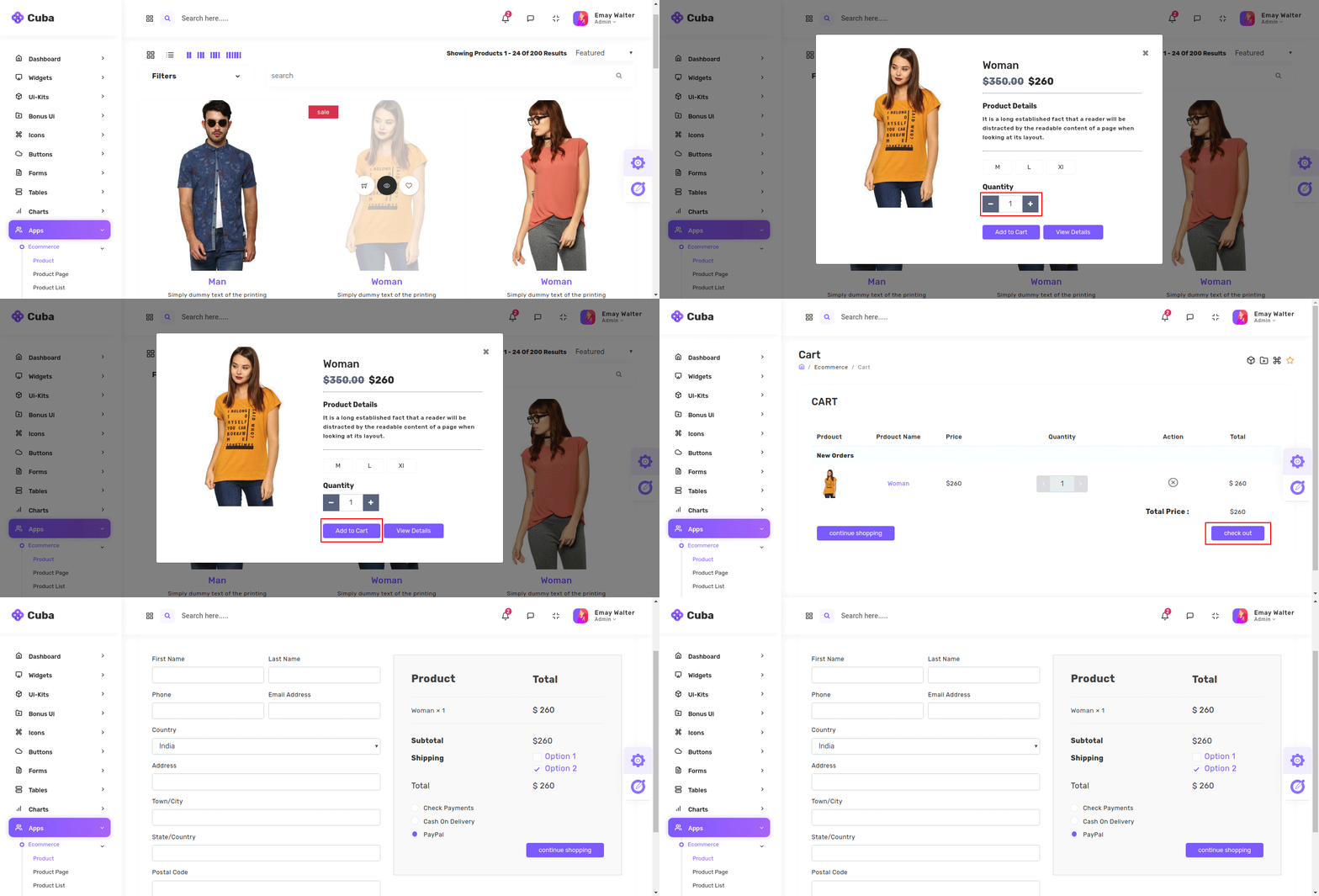
You can directly use complete E-commerce app to manage your E-commerce with readymade functionality of Add to cart,Quickview, and Checkout with Stripe as well as Paypal. Apart from that if you want it to use it in your frontend application then you just need to change your json with your API data and you get complete workable E-commerce for your frontend.
Chat
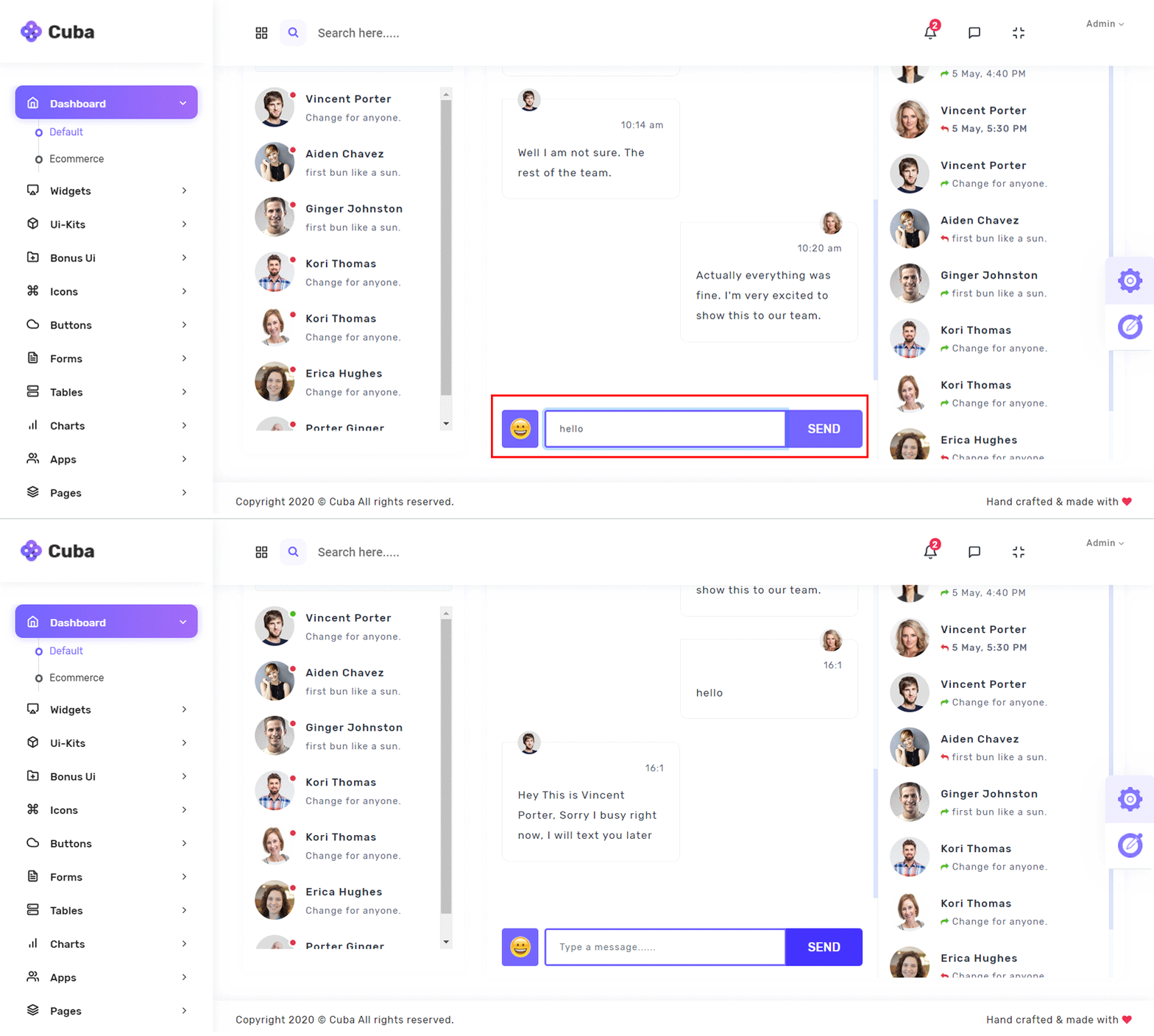
In Chat application we provide complete chat designing with basic feature like chat with a people.
Gallery
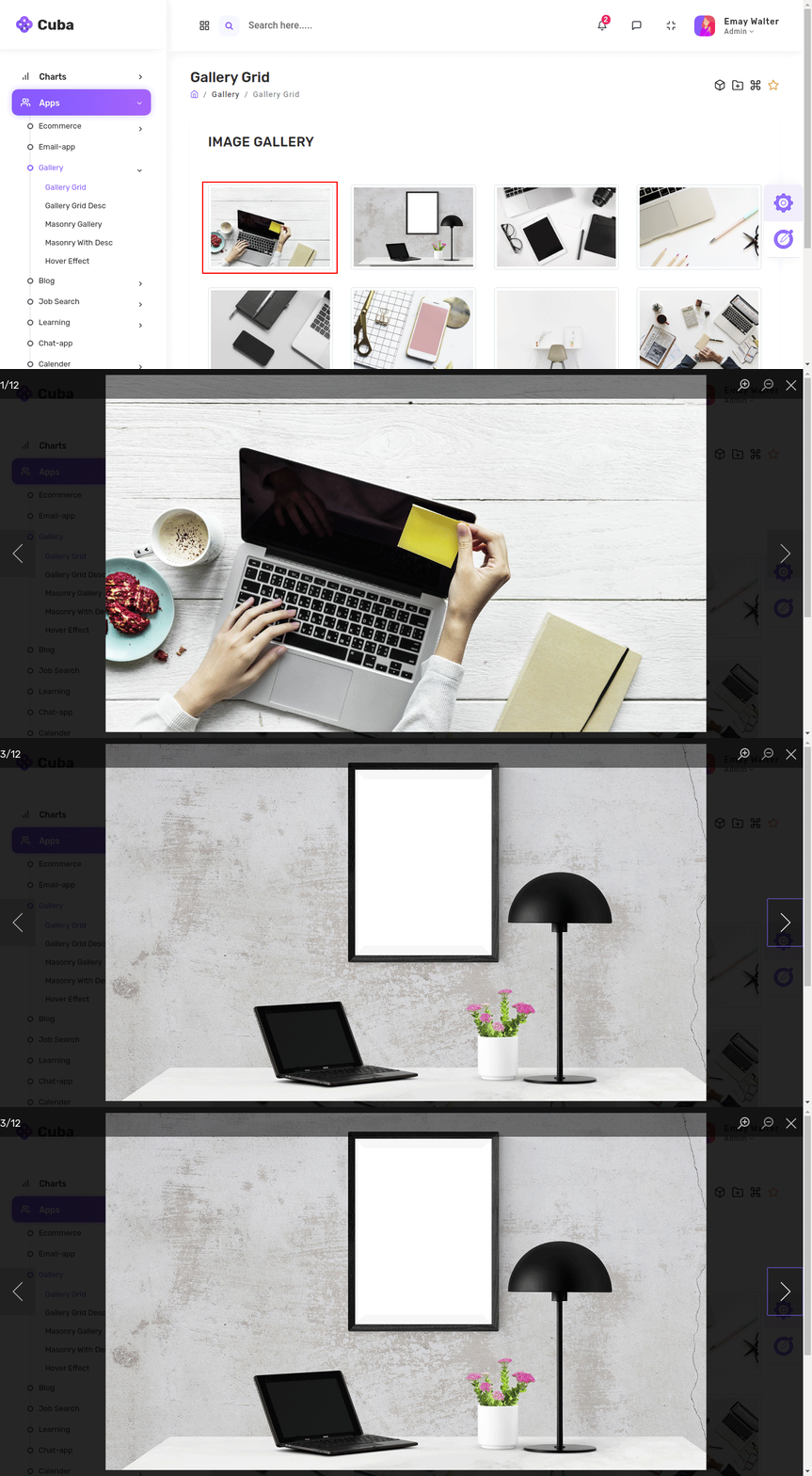
Present your amazing ideas and images using our smooth and attractive gallery
To-D0
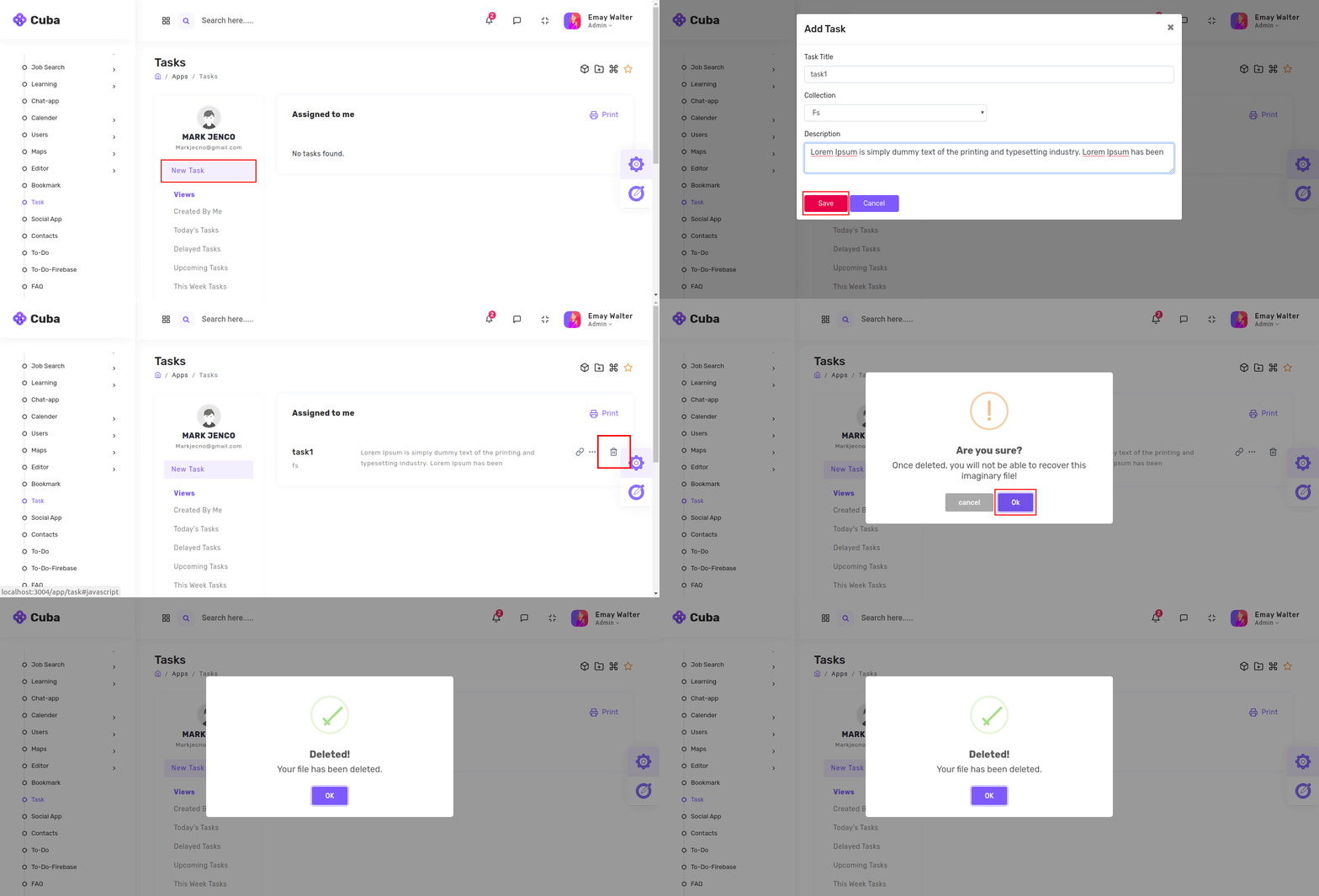
Now it's time to Decrease your burden by listing your daily task in our To-do app and feel relax.
To-D0 with Firebase

Now it's time to Decrease your burden by listing your important task in our To-do app and feel relax.
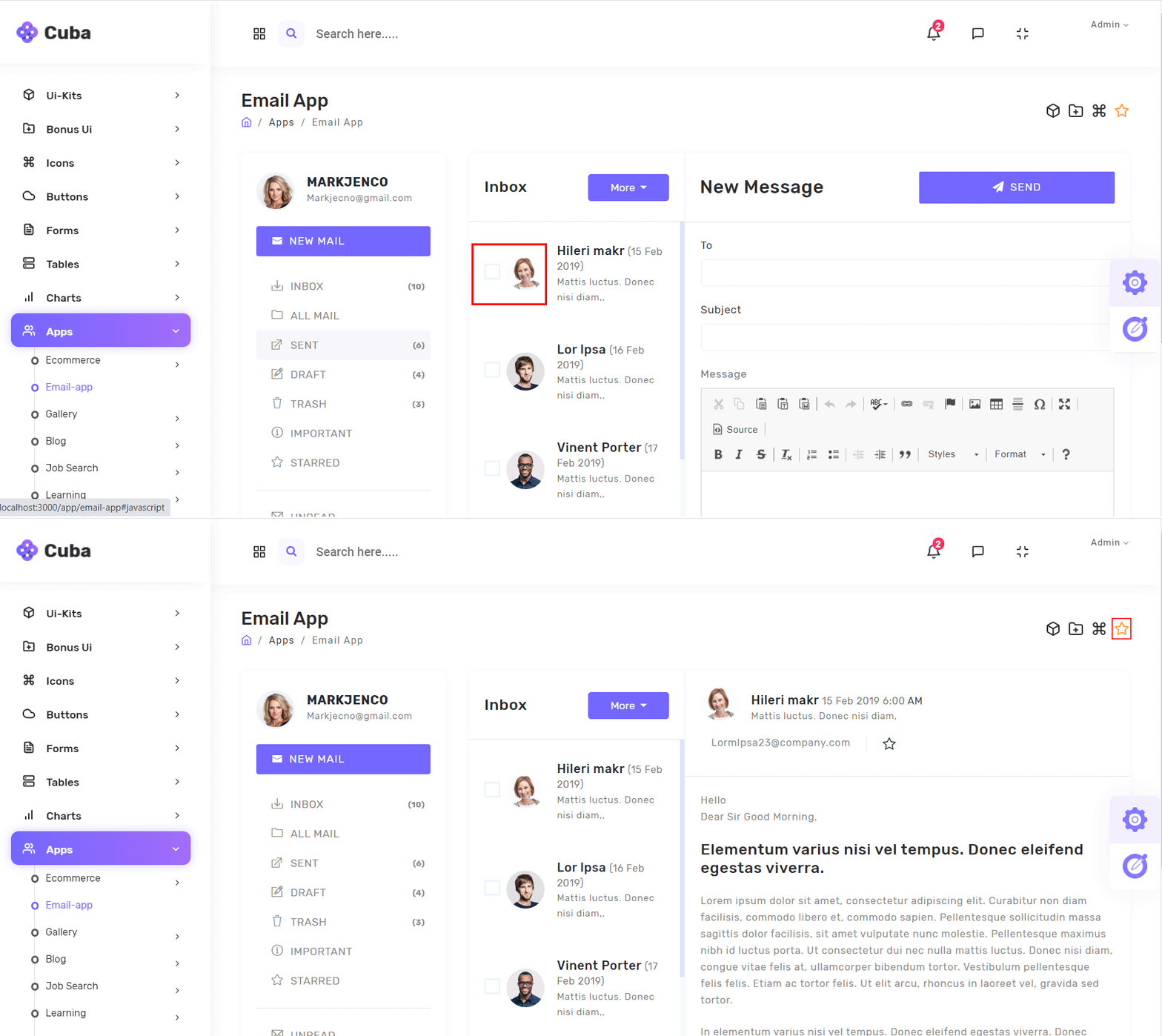
Use our Email application design to build complete email app
Bookmark
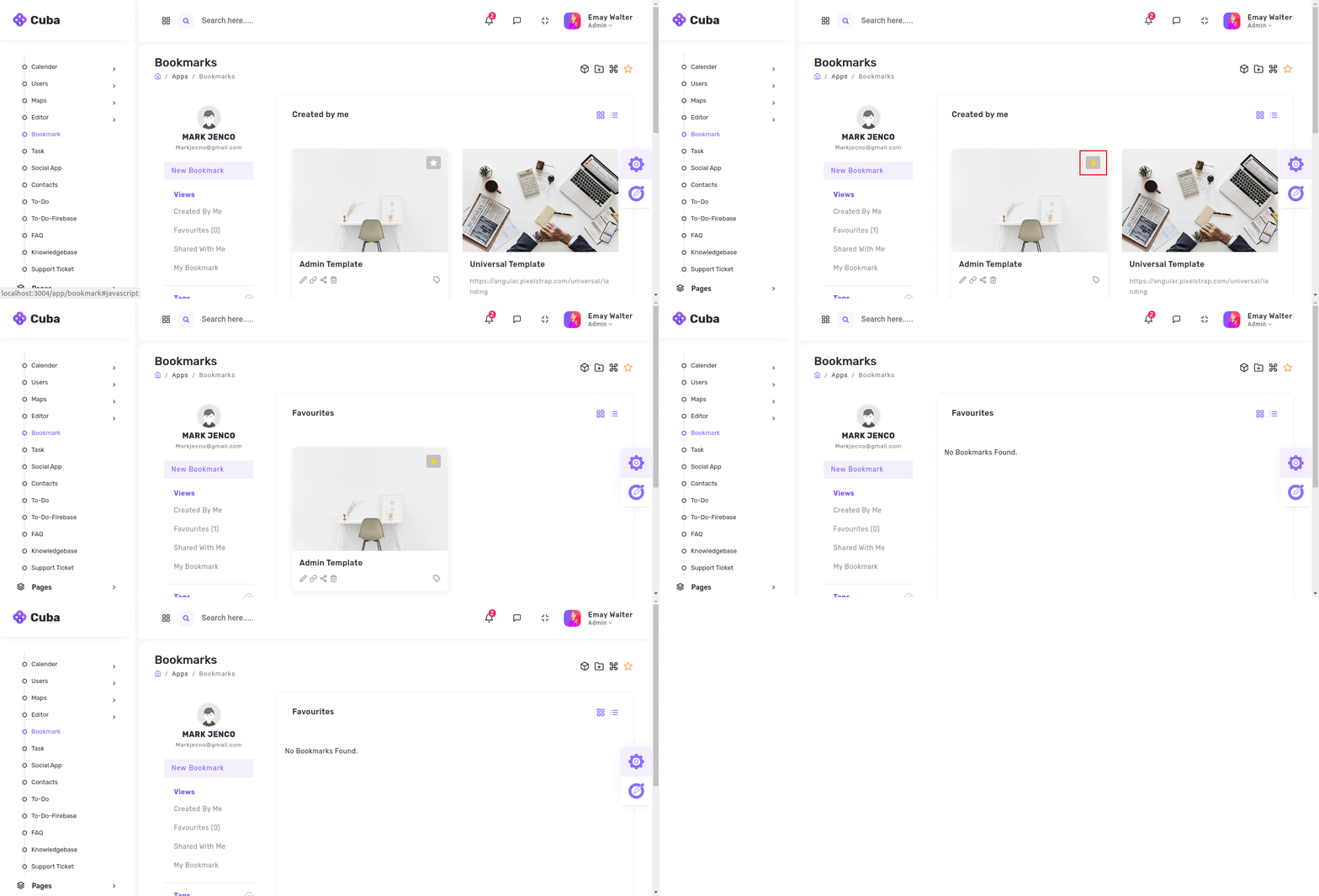
You can Bookmark your Favioute application and pages using bookmark app so you can reach to your favioute app quickly.
Calender
Installing and usage
ng add angular-calendar
<mwl-calendar-month-view *ngSwitchCase="CalendarView.Month" [viewDate]="viewDate" [events]="events"
  [refresh]="refresh" [activeDayIsOpen]="activeDayIsOpen" (dayClicked)="dayClicked($event.day)"
  (eventClicked)="handleEvent('Clicked', $event.event)" (eventTimesChanged)="eventTimesChanged($event)">
</mwl-calendar-month-view>
  import {
  Component,ChangeDetectionStrategy,ViewChild,TemplateRef,} from '@angular/core';
  import {startOfDay,endOfDay,subDays,addDays,endOfMonth,isSameDay,isSameMonth,addHours} from 'date-fns';
  import { Subject } from 'rxjs';
  import { NgbModal } from '@ng-bootstrap/ng-bootstrap';
  import {CalendarEvent,CalendarEventAction,CalendarEventTimesChangedEvent,CalendarView} from 'angular-calendar';

  const colors: any = {
  red: {
  primary: '#ad2121',
  secondary: '#FAE3E3',
  },
  blue: {
  primary: '#1e90ff',
  secondary: '#D1E8FF',
  },
  yellow: {
  primary: '#e3bc08',
  secondary: '#FDF1BA',
  },
  };

  @Component({
  selector: 'mwl-demo-component',
  changeDetection: ChangeDetectionStrategy.OnPush,
  styleUrls: ['styles.css'],
  templateUrl: 'template.html',
  })
  export class DemoComponent {
  @ViewChild('modalContent', { static: true }) modalContent: TemplateRef;

    view: CalendarView = CalendarView.Month;

    CalendarView = CalendarView;

    viewDate: Date = new Date();

    modalData: {
    action: string;
    event: CalendarEvent;
    };

    actions: CalendarEventAction[] = [
    {
    label: '',
    a11yLabel: 'Edit',
    onClick: ({ event }: { event: CalendarEvent }): void => {
    this.handleEvent('Edited', event);
    },
    },
    {
    label: '',
    a11yLabel: 'Delete',
    onClick: ({ event }: { event: CalendarEvent }): void => {
    this.events = this.events.filter((iEvent) => iEvent !== event);
    this.handleEvent('Deleted', event);
    },
    },
    ];

    refresh: Subject = new Subject();

      events: CalendarEvent[] = [
      {
      start: subDays(startOfDay(new Date()), 1),
      end: addDays(new Date(), 1),
      title: 'A 3 day event',
      color: colors.red,
      actions: this.actions,
      allDay: true,
      resizable: {
      beforeStart: true,
      afterEnd: true,
      },
      draggable: true,
      },
      {
      start: startOfDay(new Date()),
      title: 'An event with no end date',
      color: colors.yellow,
      actions: this.actions,
      },
      {
      start: subDays(endOfMonth(new Date()), 3),
      end: addDays(endOfMonth(new Date()), 3),
      title: 'A long event that spans 2 months',
      color: colors.blue,
      allDay: true,
      },
      {
      start: addHours(startOfDay(new Date()), 2),
      end: addHours(new Date(), 2),
      title: 'A draggable and resizable event',
      color: colors.yellow,
      actions: this.actions,
      resizable: {
      beforeStart: true,
      afterEnd: true,
      },
      draggable: true,
      },
      ];

      activeDayIsOpen: boolean = true;

      constructor(private modal: NgbModal) {}

      dayClicked({ date, events }: { date: Date; events: CalendarEvent[] }): void {
      if (isSameMonth(date, this.viewDate)) {
      if (
      (isSameDay(this.viewDate, date) && this.activeDayIsOpen === true) ||
      events.length === 0
      ) {
      this.activeDayIsOpen = false;
      } else {
      this.activeDayIsOpen = true;
      }
      this.viewDate = date;
      }
      }

      eventTimesChanged({
      event,
      newStart,
      newEnd,
      }: CalendarEventTimesChangedEvent): void {
      this.events = this.events.map((iEvent) => {
      if (iEvent === event) {
      return {
      ...event,
      start: newStart,
      end: newEnd,
      };
      }
      return iEvent;
      });
      this.handleEvent('Dropped or resized', event);
      }

      handleEvent(action: string, event: CalendarEvent): void {
      this.modalData = { event, action };
      this.modal.open(this.modalContent, { size: 'lg' });
      }

      addEvent(): void {
      this.events = [
      ...this.events,
      {
      title: 'New event',
      start: startOfDay(new Date()),
      end: endOfDay(new Date()),
      color: colors.red,
      draggable: true,
      resizable: {
      beforeStart: true,
      afterEnd: true,
      },
      },
      ];
      }

      deleteEvent(eventToDelete: CalendarEvent) {
      this.events = this.events.filter((event) => event !== eventToDelete);
      }

      setView(view: CalendarView) {
      this.view = view;
      }

      closeOpenMonthViewDay() {
      this.activeDayIsOpen = false;
      }
      }
Others
There are many others application in cuba which is help you in improve your knowledge and solve your issues.
- Knowledge Base
- Job Search
- Learning
- Social App
Firebase
Basically we use firebase for:
There are also many other use of firebase that you can find from reference which we have attach below.
Prerequisites
You must have the following prerequisites for this tutorial:
Let's follow below step to secure your application
-
Step 1:
-
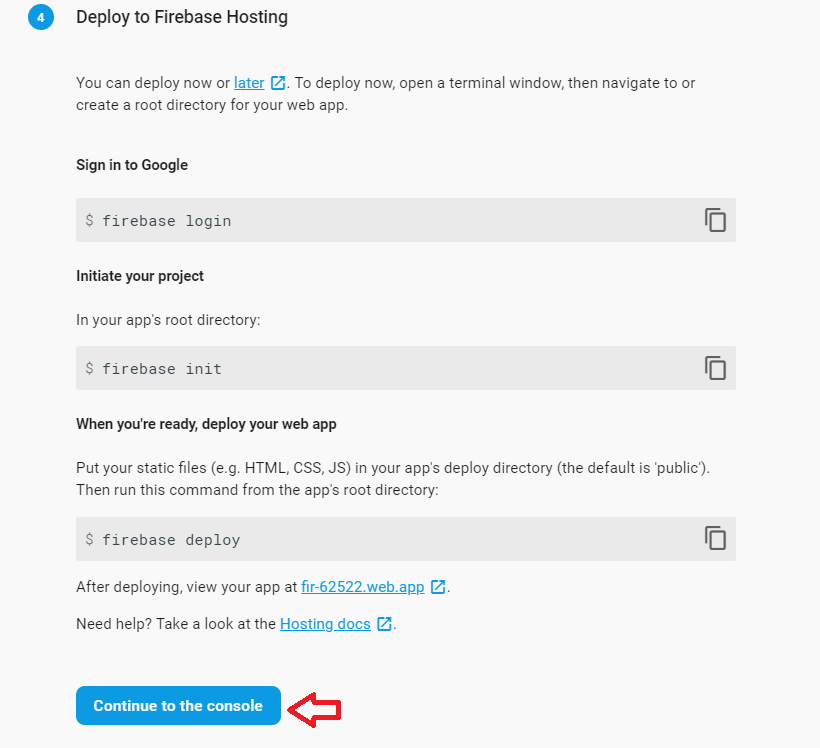
1.setup firebase project in firebase console.

click on Get Started button
-
2. Add new project
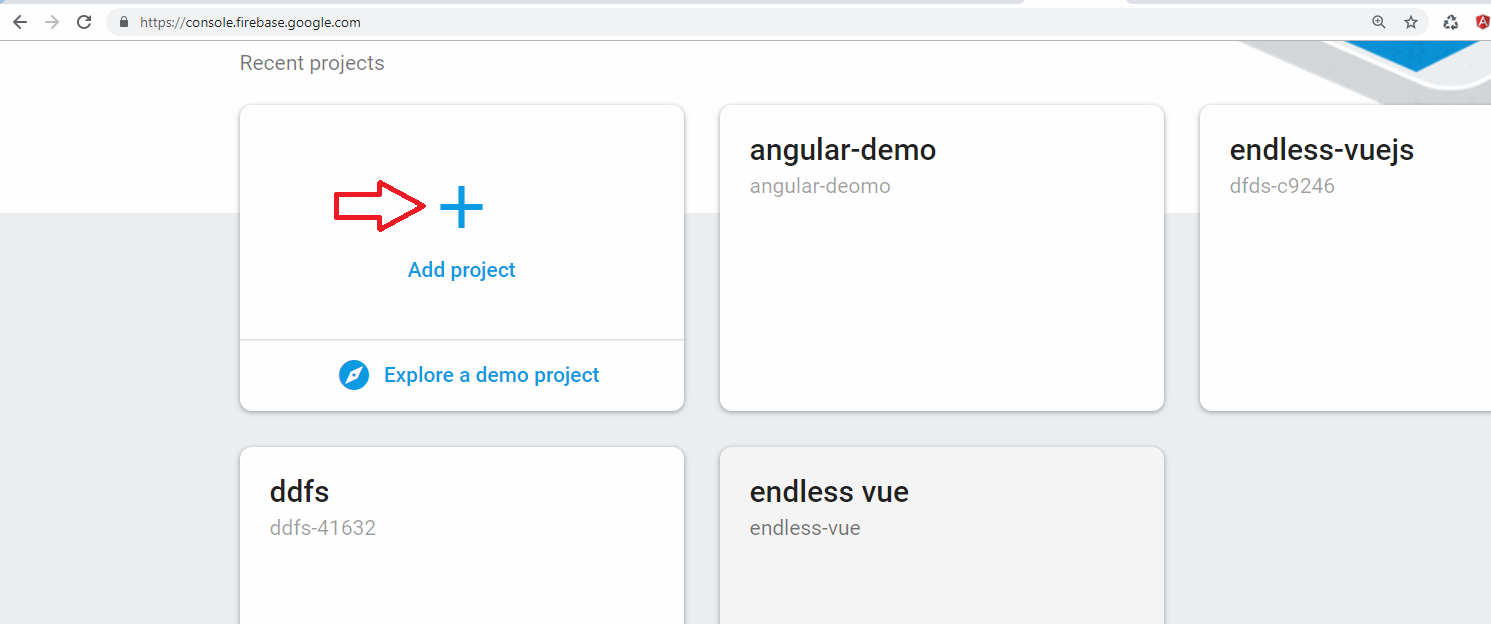
create new project
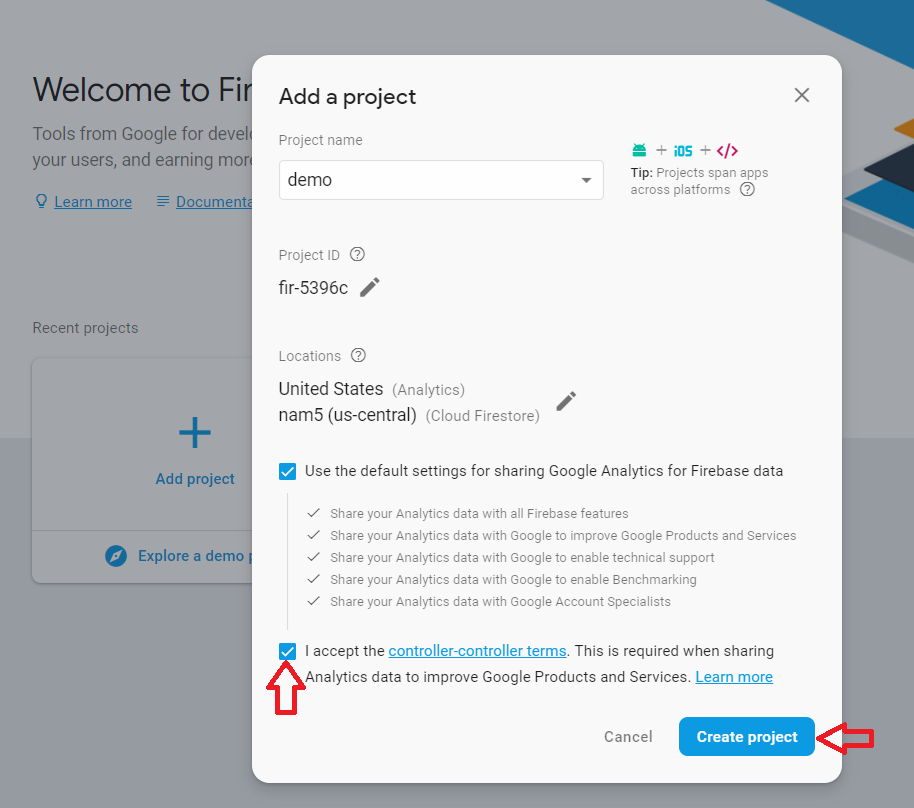
Accept the controler-terms and click on Create Project
-
3. Go to Develop > Authentication
-
4. Get config object for your web app
To get the config object for a Firebase Web App:
>> Click the Settings icon, then select Project settings.
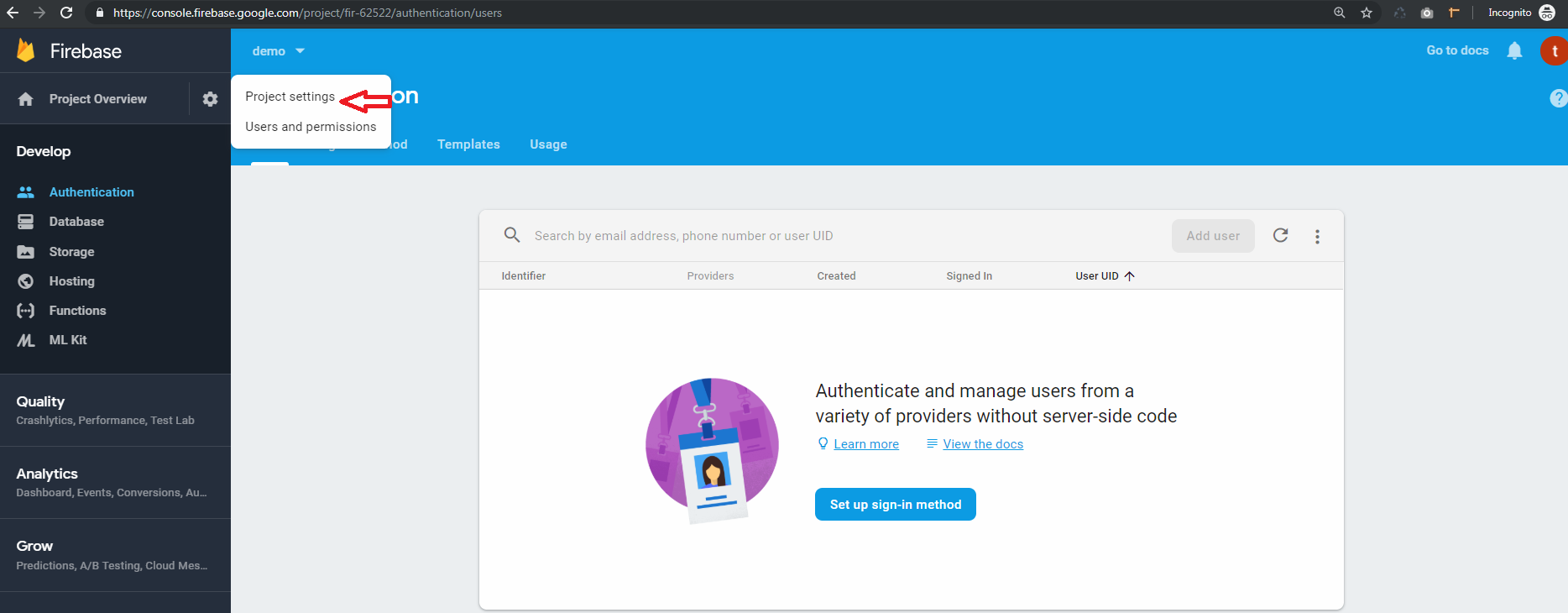
>> Go to the web app
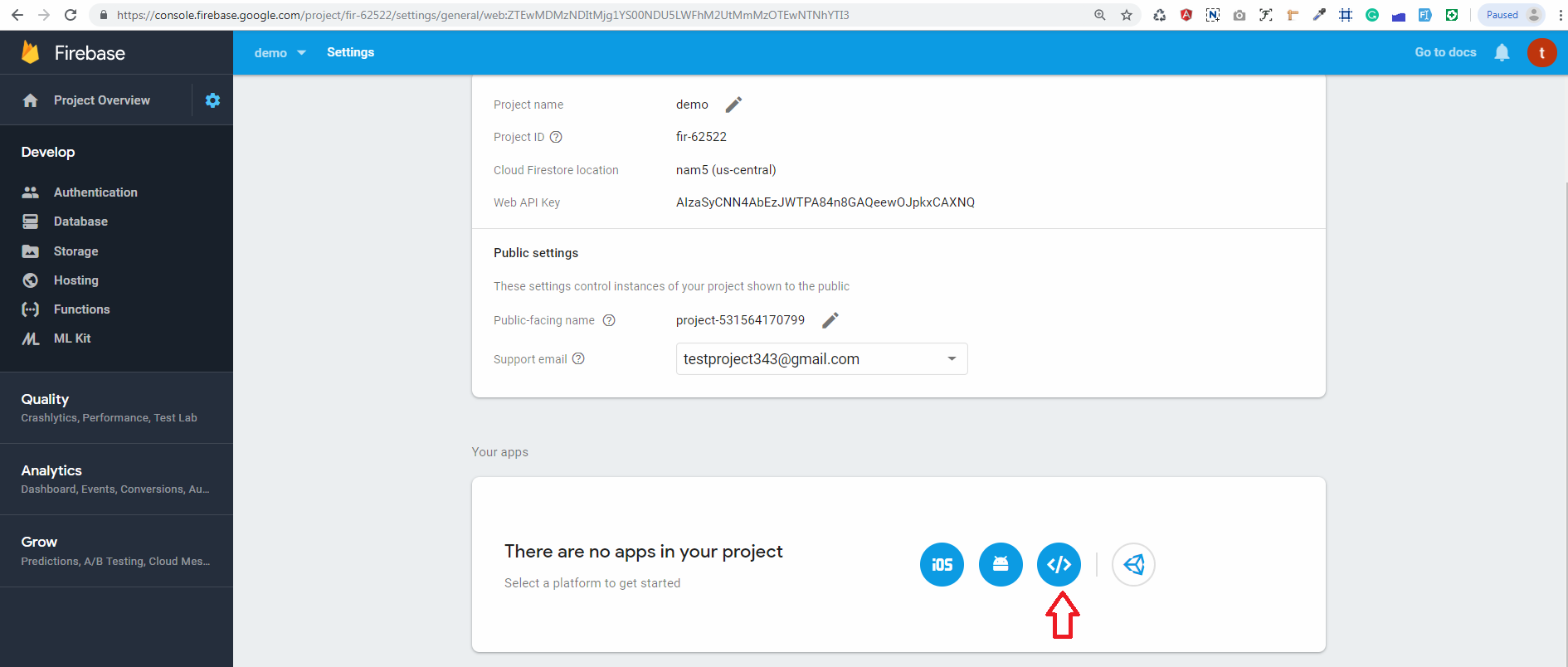
>> In Your apps card, select the nickname of the app for which you need a config object.
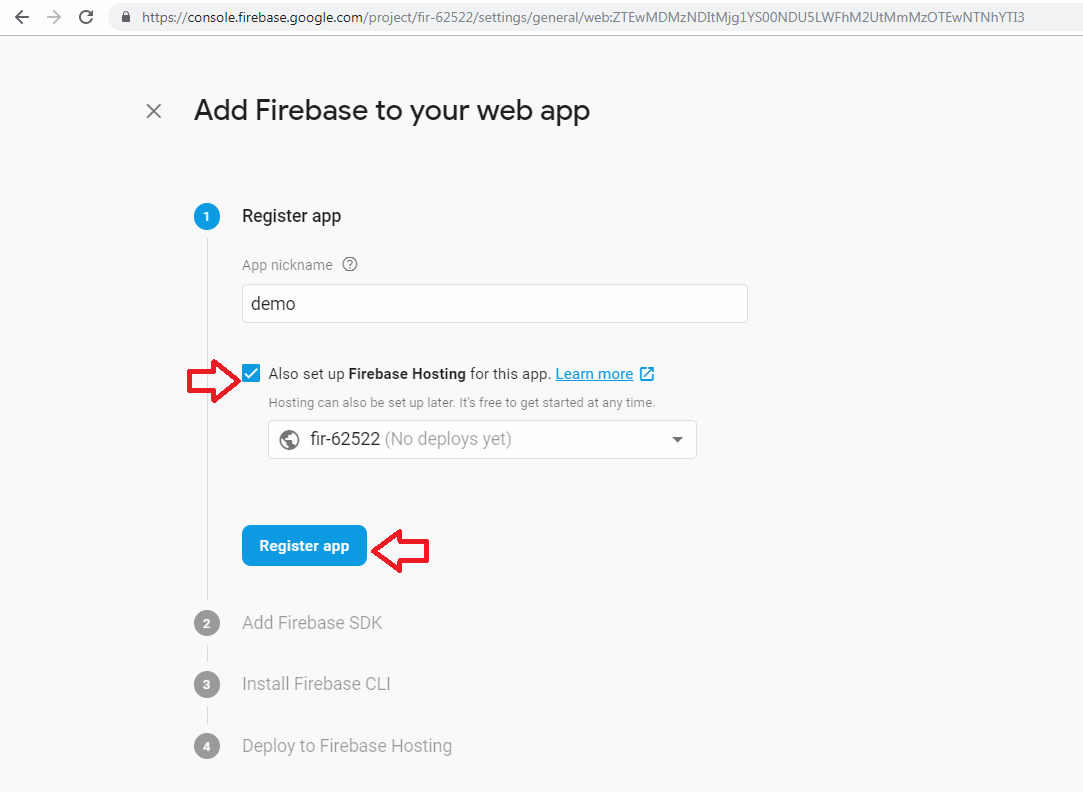
>> Select Config from the Firebase SDK snippet pane.
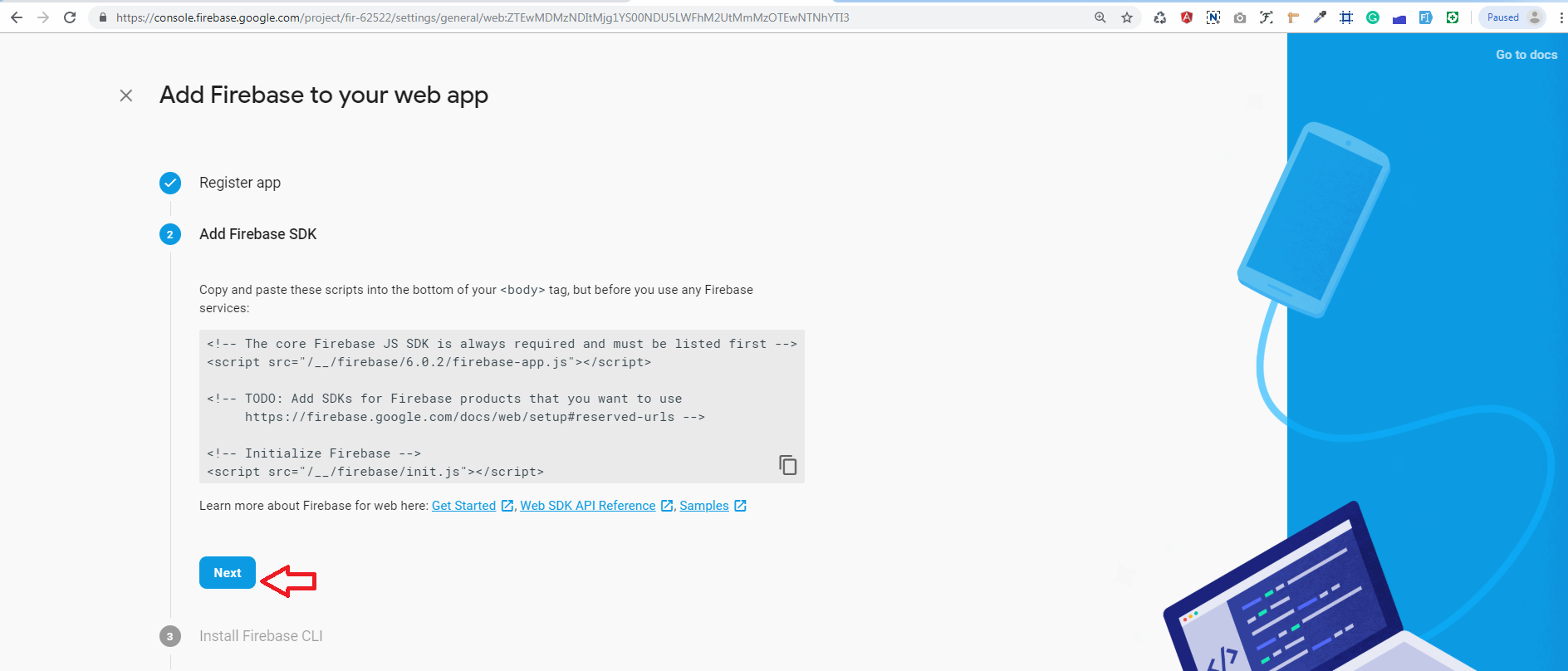
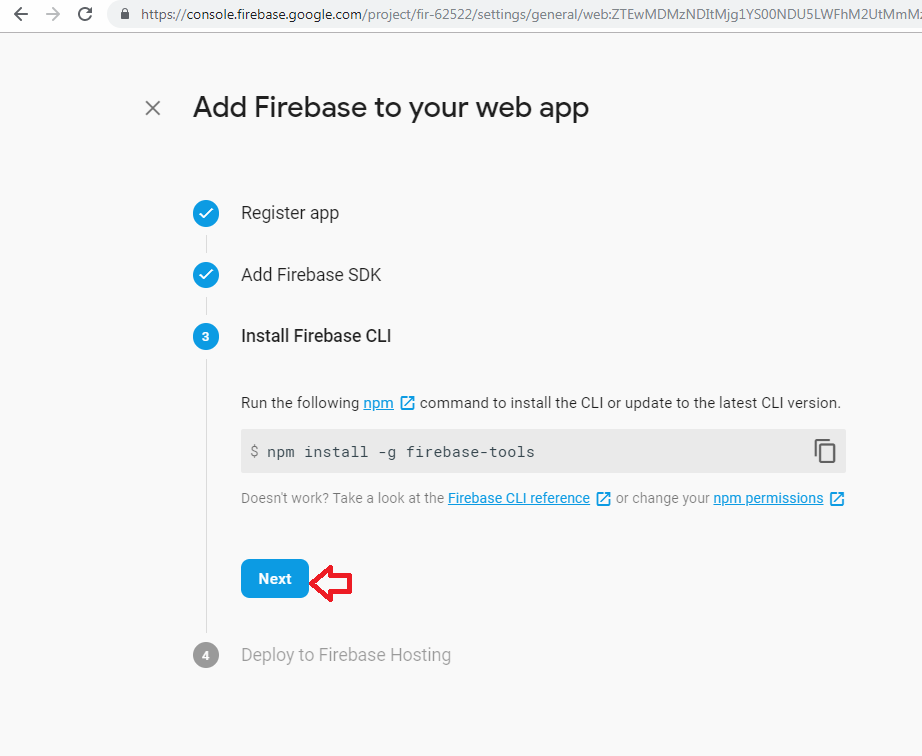
>> Copy the config object snippet, then add it to your app's HTML.
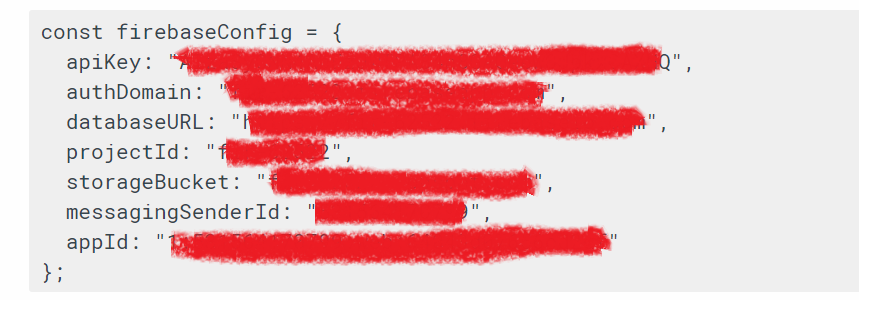
copy config add on config.txt
-
5.Next, you'll need to enable Email authentication from the authentication > Sign-in method tab:
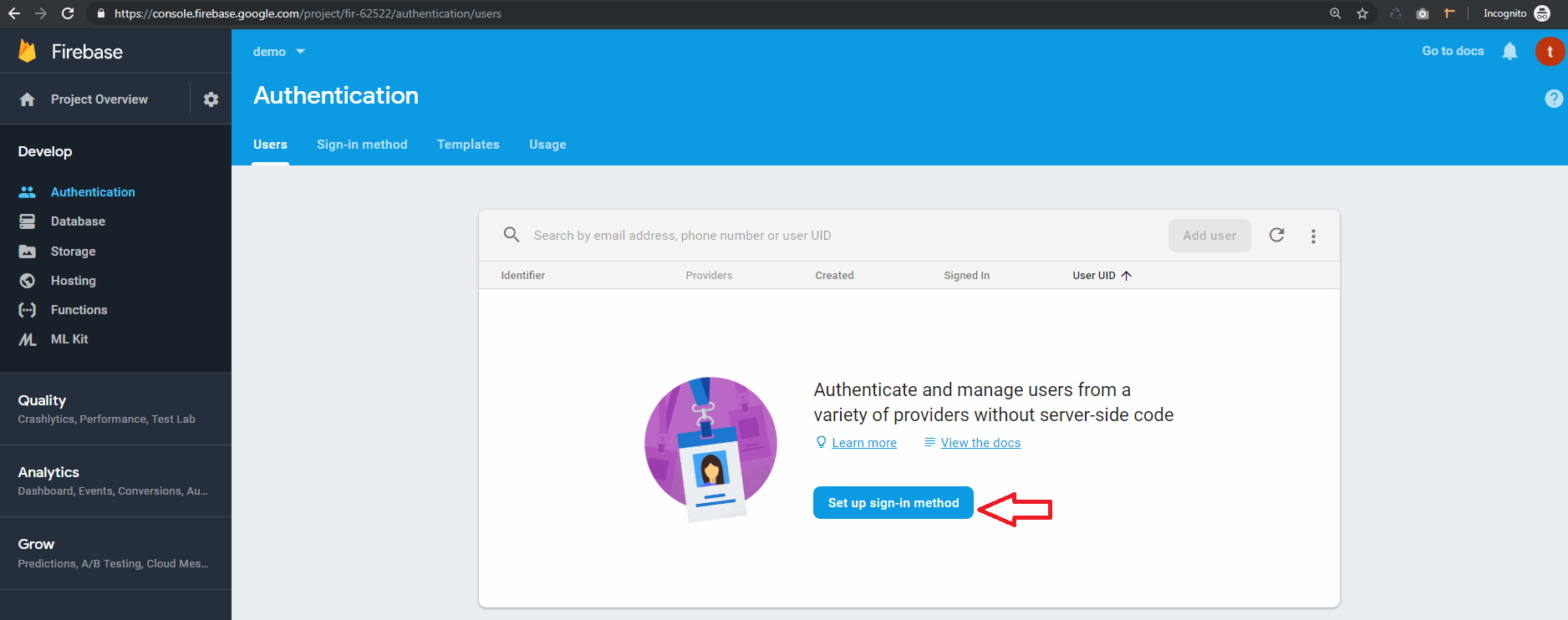
-
6.go to sign in method
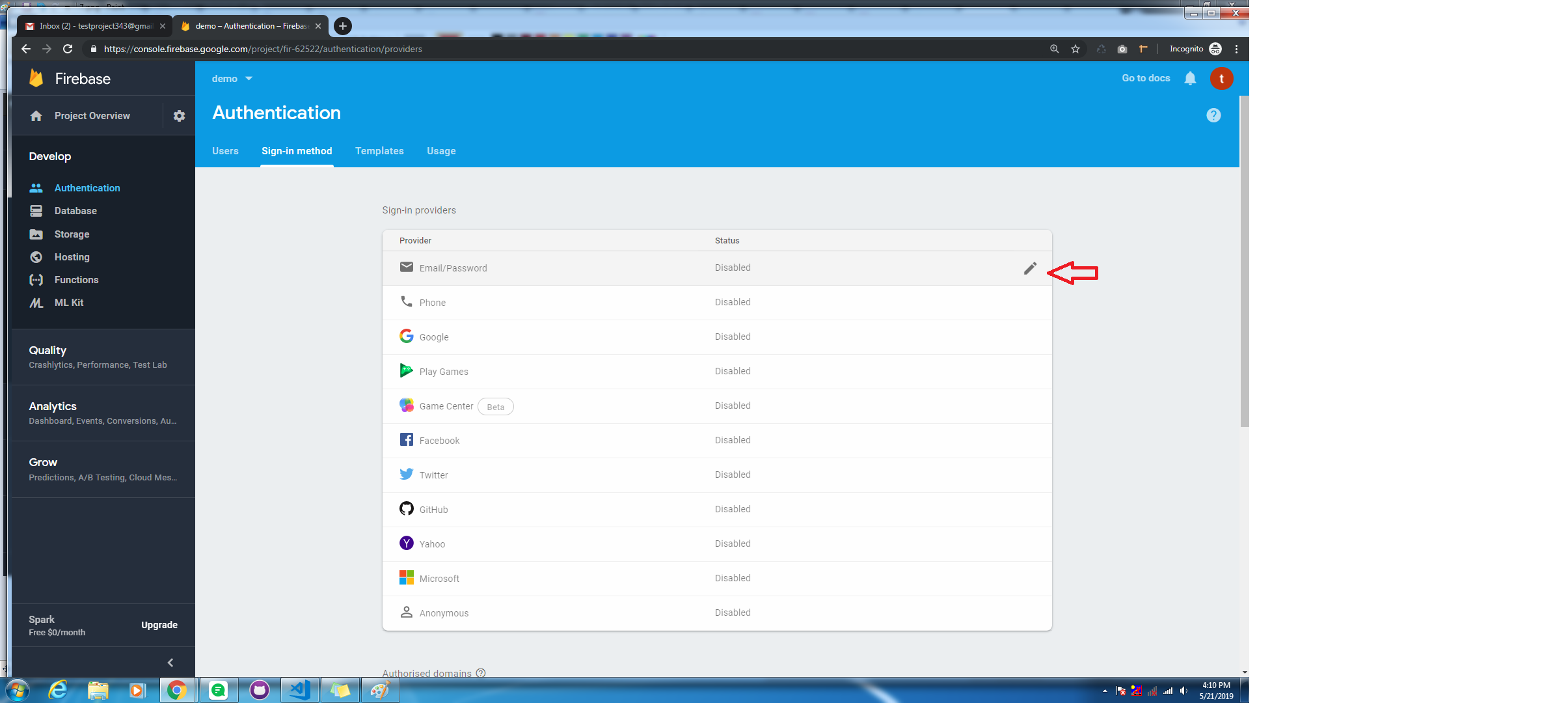
Make disble toggle to enable, and save changes
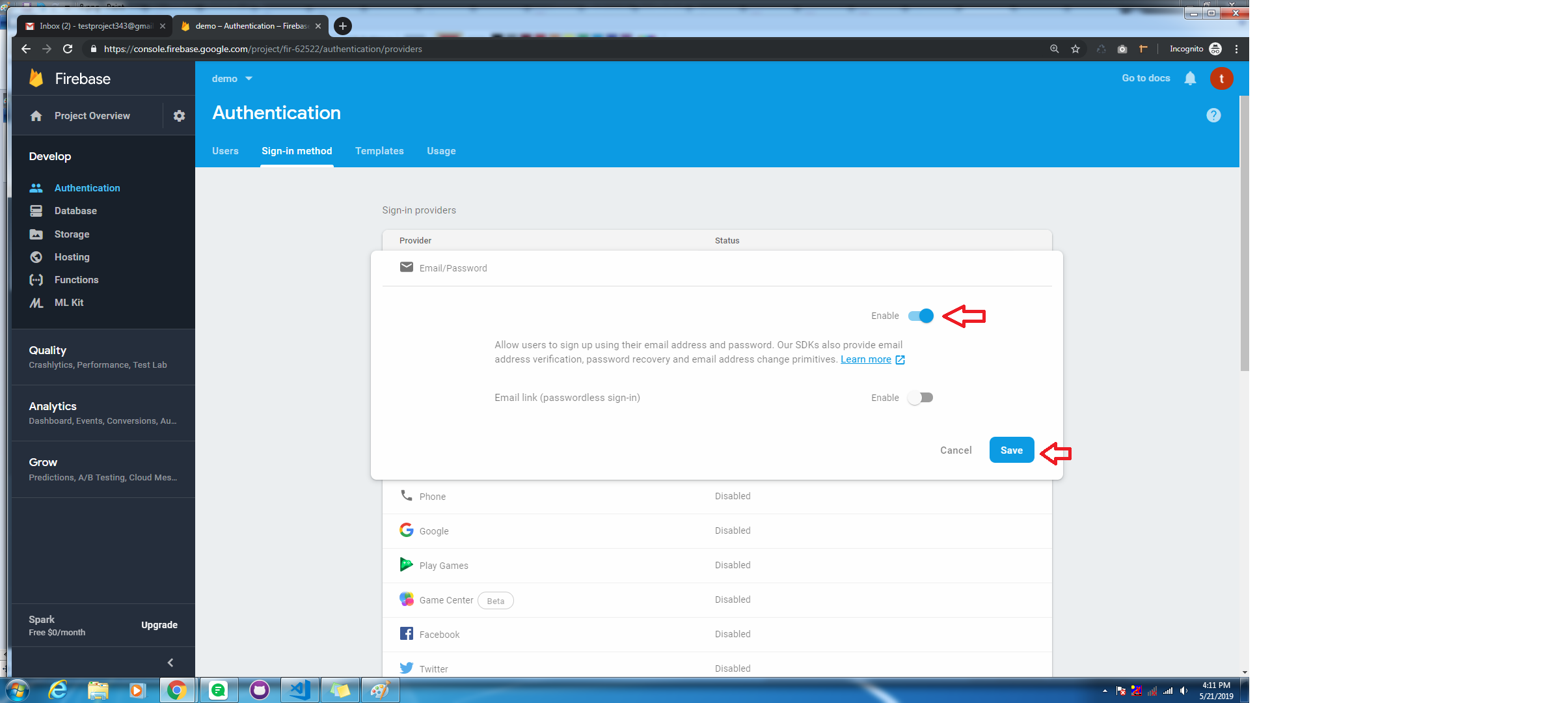
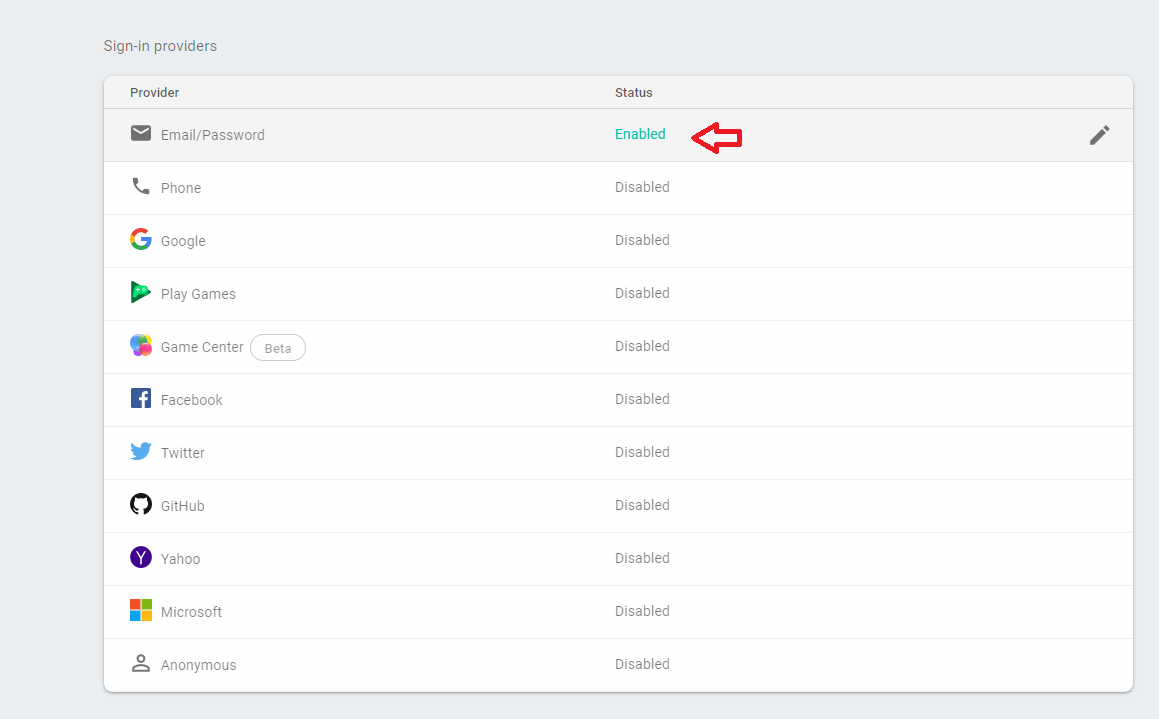
-
7.Go to the authentication > Users tab then click on the Add user button and genarate email and password:
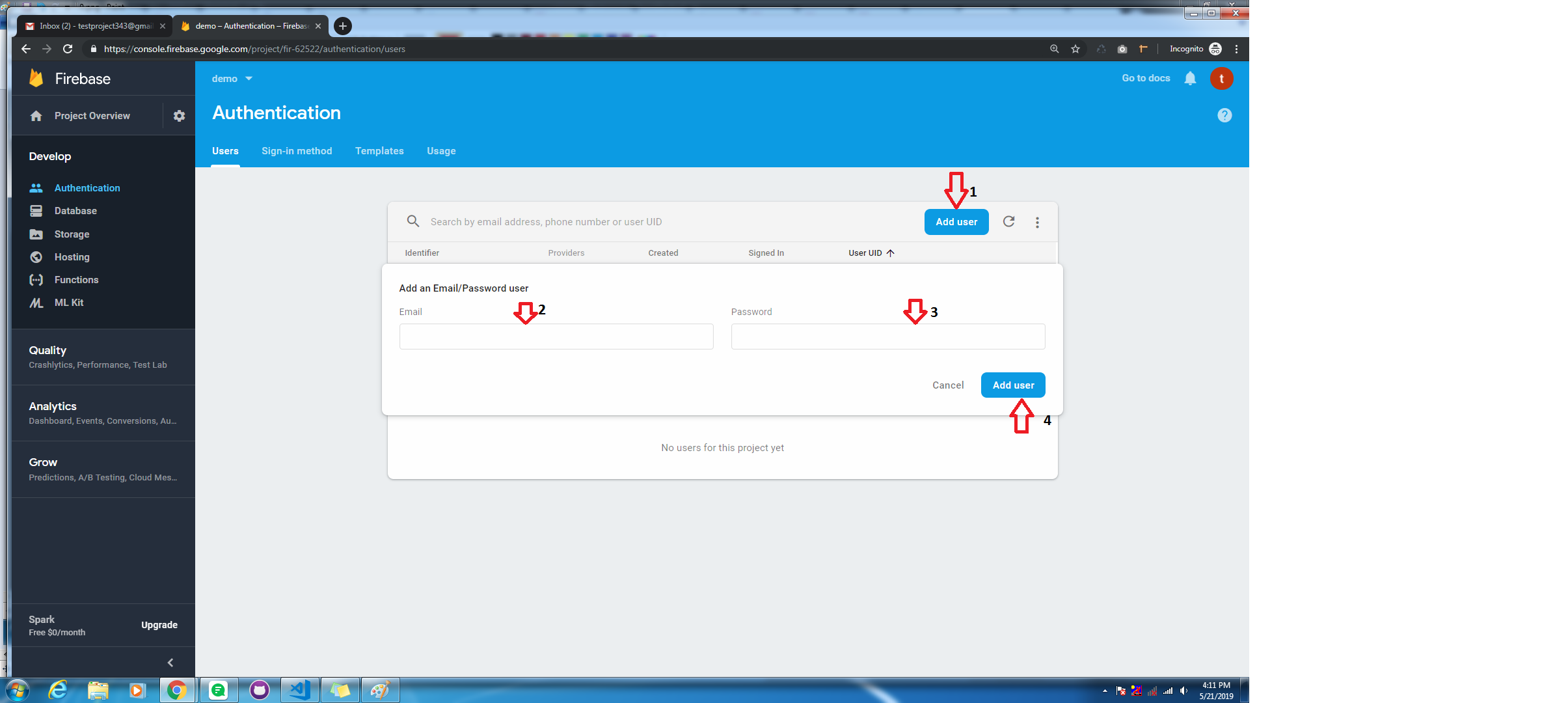
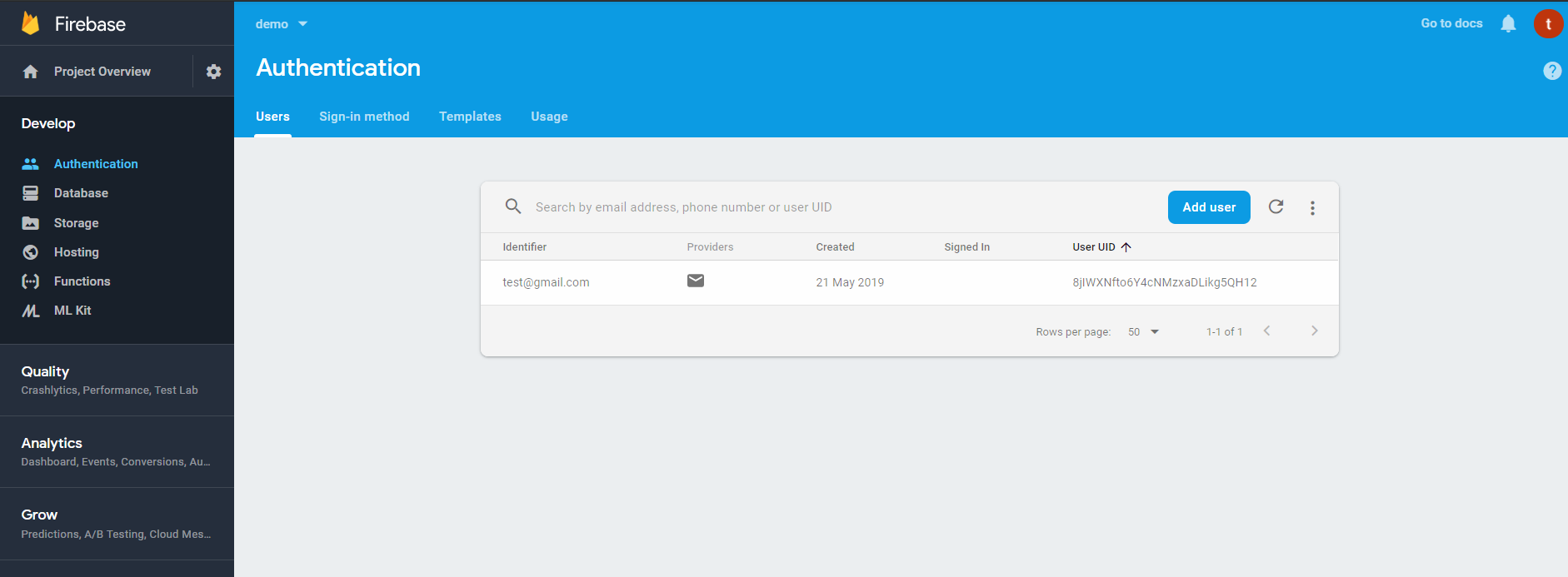
-
-
Step 2:
Installing AngularFire2
-
npm install firebase @angular/fire --save -
2. Go to app -> app.module.ts file
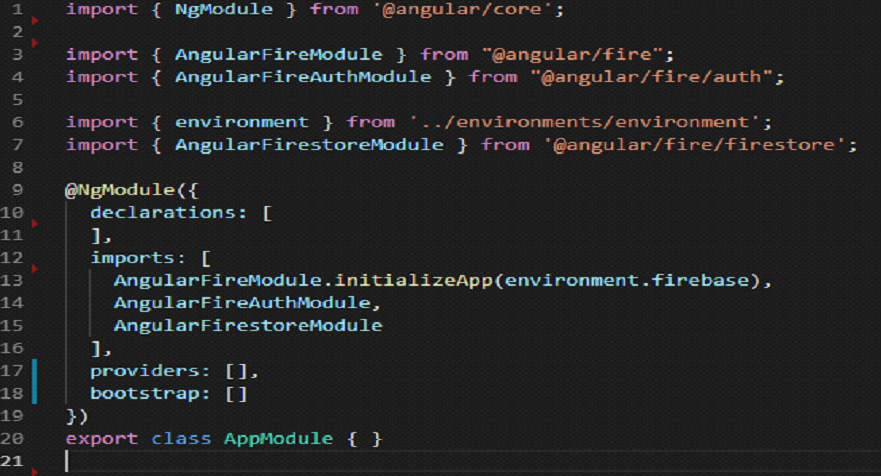
-
3. Add config.txt content on src -> environments -> enviroment.ts file
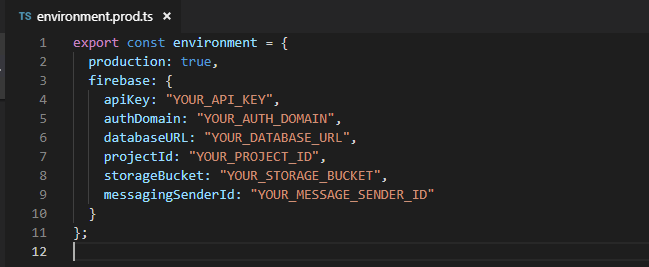
-
4. Create login component
ng g c login -
5. Create auth service.
ng g s auth/auth.serviceonce you create auth.service then adding following imports:
import { Router } from "@angular/router"; import { auth } from 'firebase/app'; import { AngularFireAuth } from "@angular/fire/auth"; -
6 .Next, Add user interface in auth.service
export interface User { uid: string; email: string; displayName: string; photoURL: string; emailVerified: boolean; } -
7.Next, inject the Firebase authentication service and the router via the service's constructor in auth.service:
@Injectable({ providedIn: 'root' }) export class AuthService { user: User; constructor(public afAuth: AngularFireAuth, public router: Router) { } } -
8. Next, in the constructor of auth.service , we subscribe to the authentication state; if the user is logged in, we add the user's data to the browser's local storage; otherwise we store a null user:
this.afAuth.authState.subscribe(user => { if (user){ this.user = user; localStorage.setItem('user', JSON.stringify(this.user)); } else { localStorage.setItem('user', null); } }) -
9. Create a login method in auth.service
async login(email: string, password: string) { var result = await this.afAuth.auth.signInWithEmailAndPassword(email, password) this.router.navigate(['Add_path']); } -
10. And then create a logout method in auth.service
async logout(){ await this.afAuth.auth.signOut(); localStorage.removeItem('user'); this.router.navigate(['Add_path']); } -
11. Then create isLoggedIn() for check if the user is logged in or not in auth.service:
get isLoggedIn(): boolean { const user = JSON.parse(localStorage.getItem('user')); return user !== null; } -
12. Finally, add loginWithGoogle() method in auth.service that will be used to authenticate users with Google
                                          async  loginWithGoogle(){
      await  this.afAuth.auth.signInWithPopup(new auth.GoogleAuthProvider())
      this.router.navigate(['Add_path']);
  }
-
-
Step 3:
-
1.generate guard use following command :
ng g guard admin/adminAdd services and guards provider in app -> app.module.ts
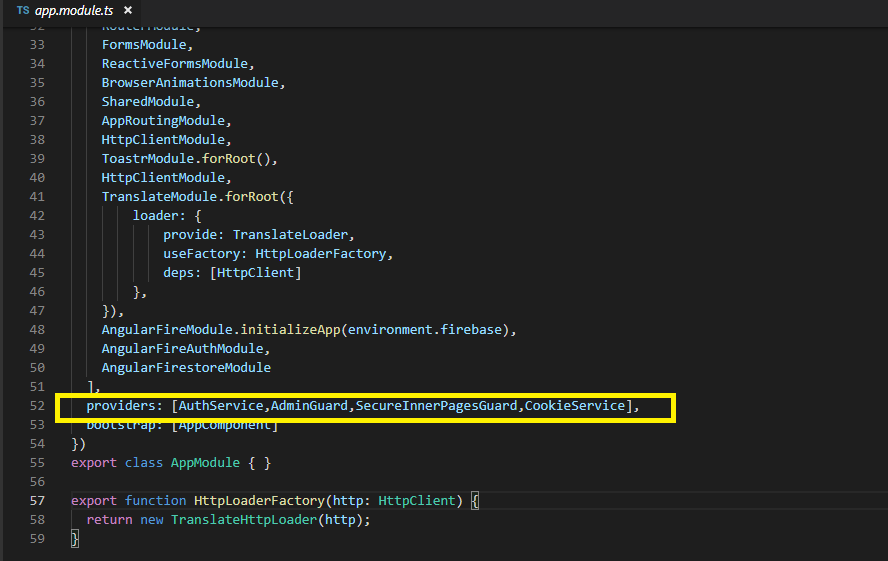

From the code, you see that a guard is simply a service that implements the CanActivate interface and overrides the canActivate() method. In this case, it always returns true which means access will be always granted to the user when this guard is applied to a route.
This method to only allow access if the user is logged in. First, you need to import AuthService and inject it via the AdminGuard service and next you need to call the isLoggedIn property in the canActivate() method to check if the user is logged in and return true or false; The canActivate() method will return true if the user is logged in or false otherwise.
-
2. Go to routing.module.ts file and update it accordingly
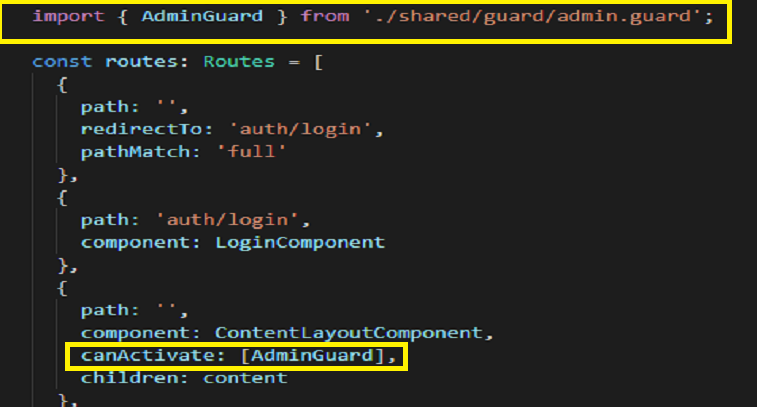
-
How to remove the firebase from cuba theme
-
1. Remove src -> environments -> enviroment.ts file setup.
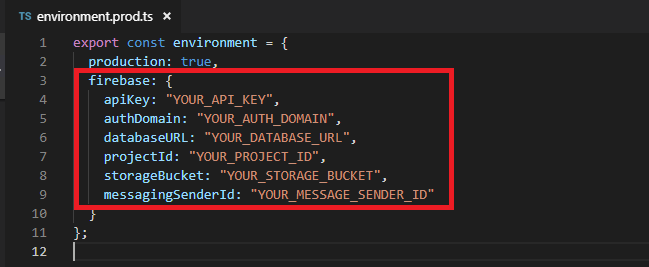
-
2. Remove all the dependacies from the app -> app.module.ts
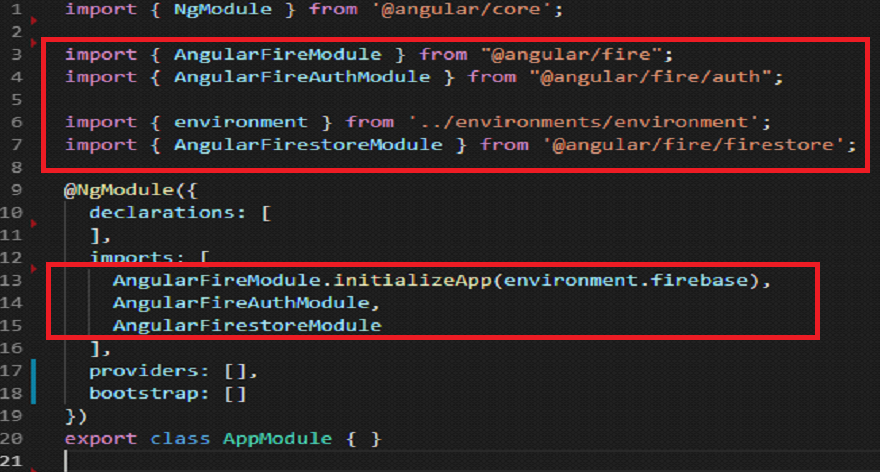
-
3. remove shared -> services -> auth.service.ts file
-
4. remove services and guards from providers from app -> app.module.ts
-
5. Remove shared -> guard -> admin.guard.ts and shared -> guard -> SecureInnerPagesGuard.guard.ts
-
6. Remove [canActive] method from app -> app.routing.ts file.
-
7. Remove app -> auth component.
Thank You
Basically Our team will support in- Answering your questions, problems regarding theme with best to solving before 24 working hours,once you generate a ticket.
- Solution of Reported Bug
- Update you with latest version of theme
Apart from that, if you needs any extra / customization work then also you can get in touch with our experts by raising ticket to help you in customize with affordable extra budget.