Welcome to Voxo!
- Voxo is a beautiful and elegant multi purpose E-commerce theme. There in no Jquery used in this theme. Yes
you read it right. No JQuery.
- Voxo is the most powerful & responsive theme with all the modules and functions involved with an attractive
design.
- Voxo theme is created with NextJs which is well known React framework
- The components is reusable and also splitted in small components.
- Voxo theme contain 6 Demo pages, 9 product pages, 10 shop pages, 7 portfolio, 7 blog pages, 7 element pages
and 17 other pages.
- We request to have a look at our Voxo document to know brief about the theme! We have compromised each and
every detail for you in this manual that you will need.
- If we are unable to answer your queries beyond our documentation, you are free to contact us through the
themeforest support page with your site. We will be happy to cater you and will
get back to you in no time.
            <!-- Run Voxo Nextjs Theme -->
            npm install --- To install the required dependencies from npm.
            npm run dev --- To start the project.
When you unpack downloaded archive from ThemeForest.net you'll get folder containing 2 folders.
- Documentation - Documentation for Voxo Nextjs template
- THEME - Voxo Main Folder
In Voxo theme, google fonts have been used. google fonts are open source and easy to use. Voxo have used
following fonts:
- Rubik, sans-serif: title font
- Montserrat, sans-serif
you can use different google fonts. following are the steps
- Go to Google Fonts.
- Use the filters on the left-hand side to display the kinds of fonts you want to choose and choose a couple
of fonts you like.
- To select a font family, press the ⊕ button alongside it.
- When you've chosen the font families, press the [Number] Families Selected bar at the bottom of the page.
- In the resulting screen, you first need to copy the line of HTML code shown and paste it into the head of
your app.js file. Put it above the existing element, so that the font is imported
before you try to use it in your CSS
- Below are the example.
              In the path: <<-- /Voxo/Front End/pages/_app.js -->>
                file

<head>
  <title>Voxo NextJs Theme</title>
  <link href="https://fonts.googleapis.com/css2?family=Rubik:ital,wght@0,300;0,400;0,500;0,600;0,700;0,800;0,900;1,300;1,400;1,500;1,600;1,700;1,800;1,900&display=swap"
  rel="stylesheet"/>
  <link href="https://fonts.googleapis.com/css2?family=Montserrat:wght@400;500;600;700;800;900&display=swap" rel="stylesheet" />
</head>
In Voxo theme, we have used 6 colors or 6 styles. following are the colors:
-
demo-1: #e22454
-
demo-2: #7520dd
-
demo-3: #51983c
-
demo-4: #e87316
-
demo-5: #0163d2
-
demo-6: #df4246
How to remove the other demos except for one demo? Example is given below.
* Below step is adding only fashion demo and remove others
- Which demo or layout we need to keep in our theme put demo or layout that for example
path: <<-- /Voxo/Front End/src/Layout/Layout1.jsx -->>
- We need to remove the other layout from path: <<-- /Voxo/Front
End/src/Layout/Layout2.jsx -->>
- From Above given path are we will remove then only Layout1 will be appers.
- Also we need to remove the sccs files regarding the layouts, path:
<<-- /Voxo/Front End/public/assets/scss/demo2.scss -->> and many
more.
We used the Feather Icon and many more icon in Voxo Nextjs theme.
How to use Feather Icon in NextJs. Example is given below.
import React from 'react';
import { Camera } from 'react-feather';
  const App = () => {
    return <Camera />
};
export default App;
If you want RTL or LTR theme, changes are below:
import { useState } from 'react';
import { Btn } from '../../../Components/AbstractElements';
import { LTR, RTL } from '../../../Components/Constant';

const Direction = () => {
  const [isDir, setIsDir] = useState('ltr');
  const onHandleClick = (value) => {
    setIsDir(value);
    if (value === 'ltr') {
      document.body.classList.add('ltr');
      document.body.classList.remove('rtl');
      document.documentElement.dir = 'ltr';
      document.getElementById('rtl-link').setAttribute('href', './assets/css/bootstrap.min.css');
    } else {
      document.body.classList.add('rtl');
      document.body.classList.remove('ltr');
      document.documentElement.dir = 'rtl';
      document.getElementById('rtl-link').setAttribute('href', './assets/css/bootstrap.rtl.min.css');
    }
  };
  return (
    <li>
      {isDir === 'ltr' ? (
        <Btn attrBtn={{ className: 'btn-sm rtl-button',onClick: () => onHandleClick('rtl'), }}>{RTL}</Btn>
      ) : (
        <Btn attrBtn={{ className: 'btn-sm rtl-button', onClick: () => onHandleClick('ltr'),}}>{LTR}</Btn>
      )}
    </li>
  );
};
export default Direction;
It is essential for us to maintain good user experience, and even when they are browsing through your website
at night, that experience should not be ruined just because your website is too
bright. To make sure our user gets the best experience at any time of the day, we have added the dark mode. Go
through our Guide to dark layout to know more about it.
If you want Dark or Light theme, changes are below:
import { useState } from "react";
import { Btn } from "../../../Components/AbstractElements";

const DarkLight = () => {
  const [moonlight, setMoonlight] = useState(false);
  const MoonlightToggle = (light) => {
    if (light) {
      setMoonlight(!light);
      document.body.classList.add("light");
      document.body.classList.remove("dark");
    } else {
      setMoonlight(!light);
      document.body.classList.add("dark");
      document.body.classList.remove("light");
    }
  };
  return (
    <>
      <li onClick={() => MoonlightToggle(moonlight)}>
        <Btn attrBtn={{ id: "darkButton",color: "light",className: "dark-button",size: "sm",}}>
          {moonlight ? "Light" : "Dark"}
        </Btn>
      </li>
    </>
  );
};
export default DarkLight;
Ratio Classes: Change your image proportion by just adding class
If you use image as background than add class ".bg-img" in image and add below class in parent.
- .ratio_40 - 40%
- .ratio_45 - 45%
- .ratio2_1 - 50%
- .ratio2_3 - 60%
- .ratio3_2 - 66.66%
- .ratio_landscape - 75%
- .ratio_square - 100%
- .ratio_asos - 127.77%
- .ratio_portrait - 150%
- .ratio1_2 - 200%
-
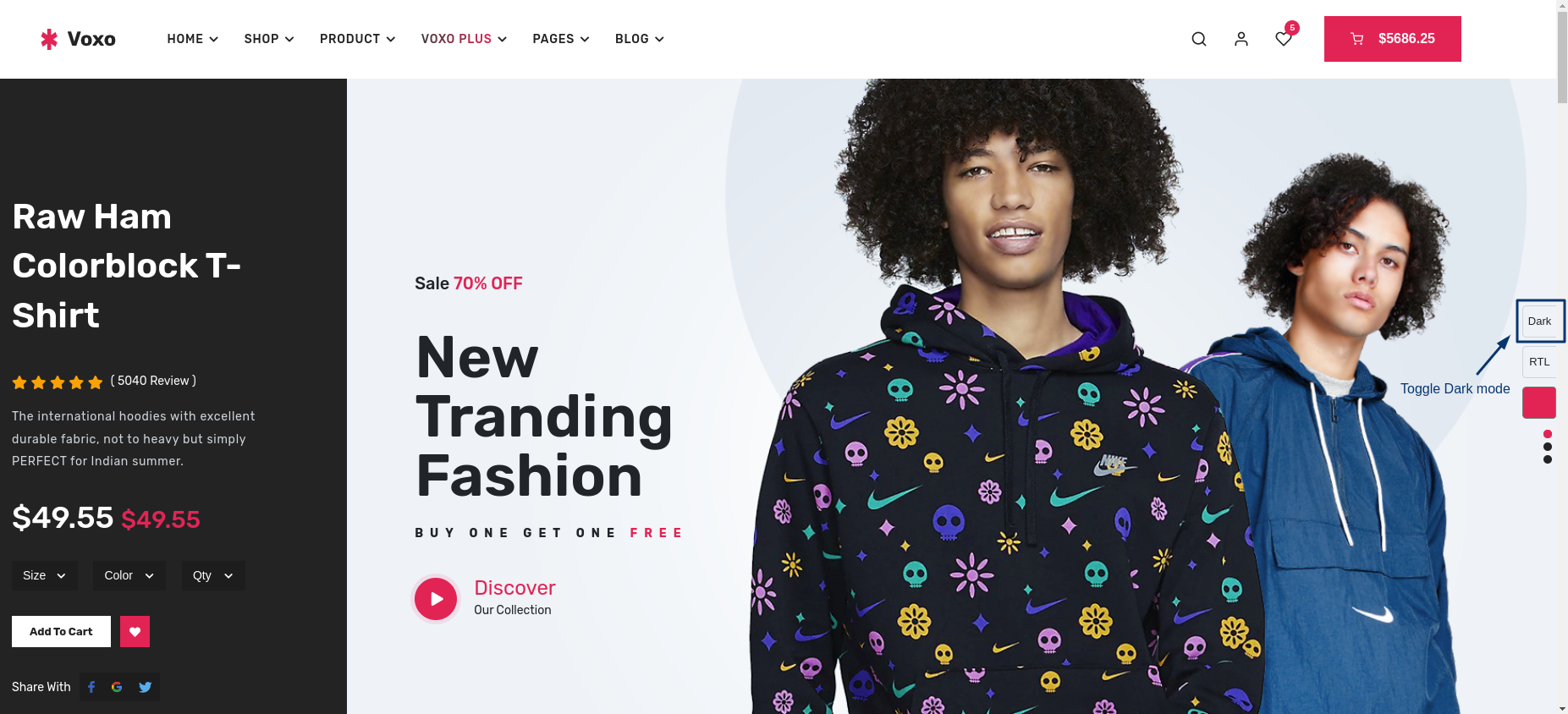
In the given below image, user is applying Dark
theme.
-
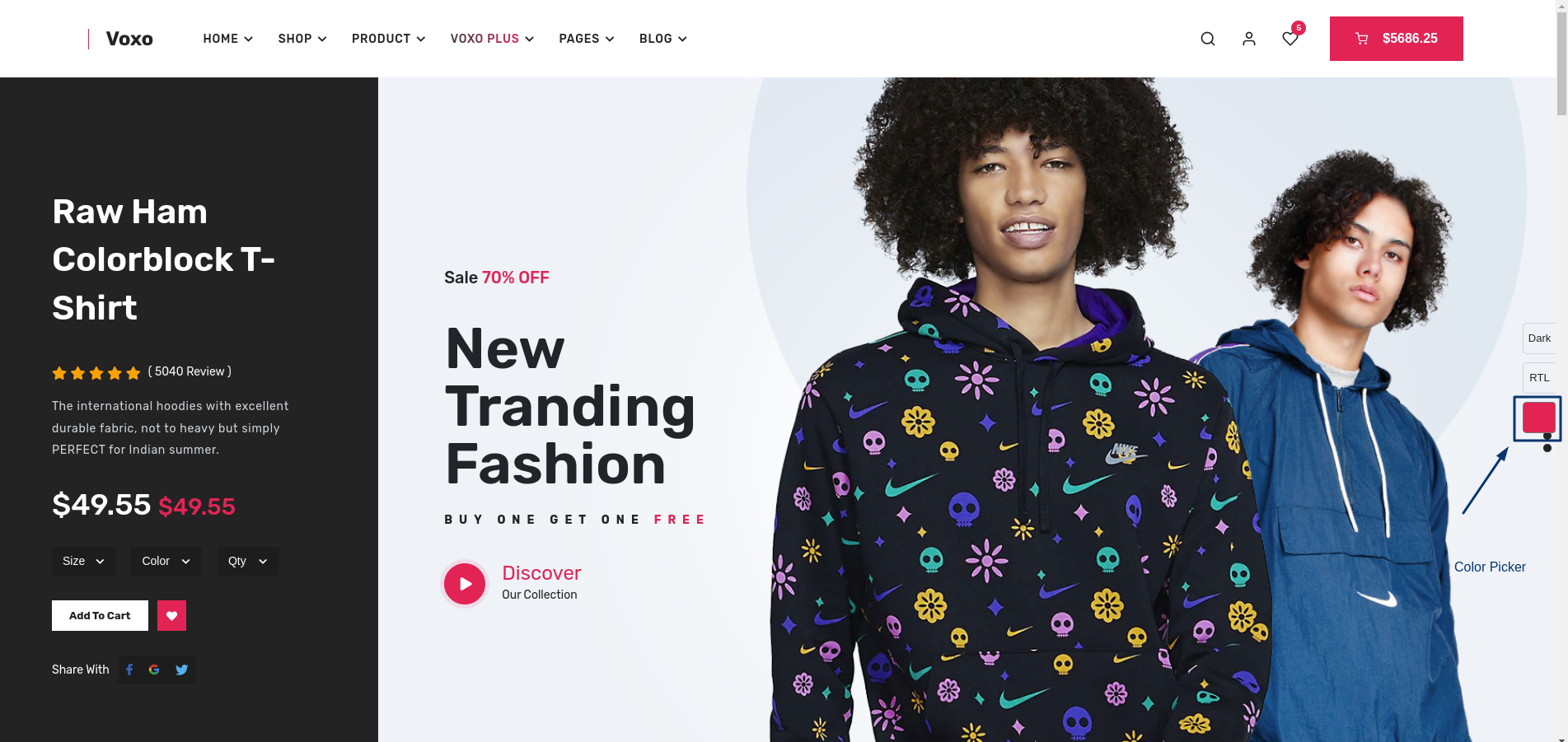
In the given below image, user is using the unlimited Color.
-
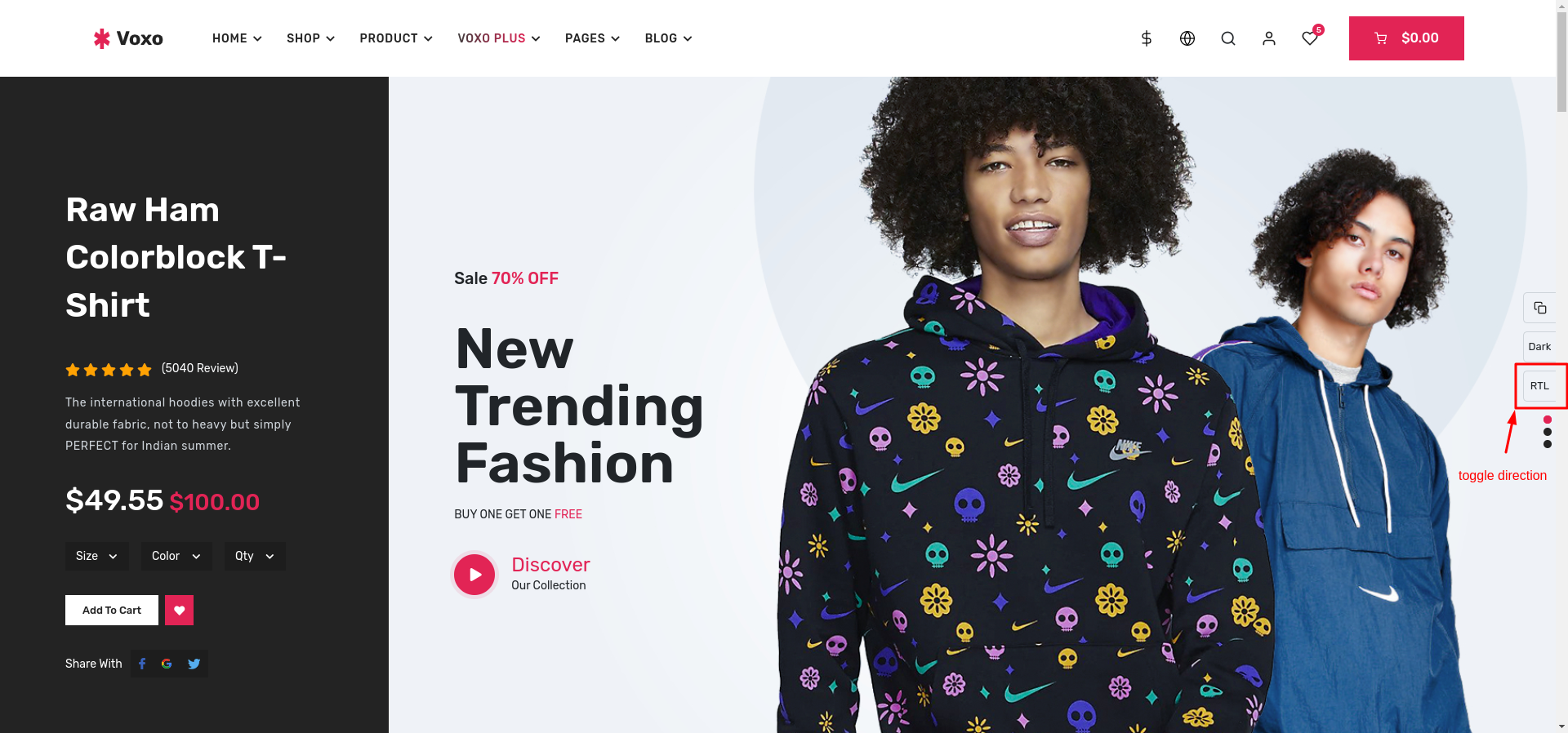
In the given below image, user is changing the direction of theme.
-
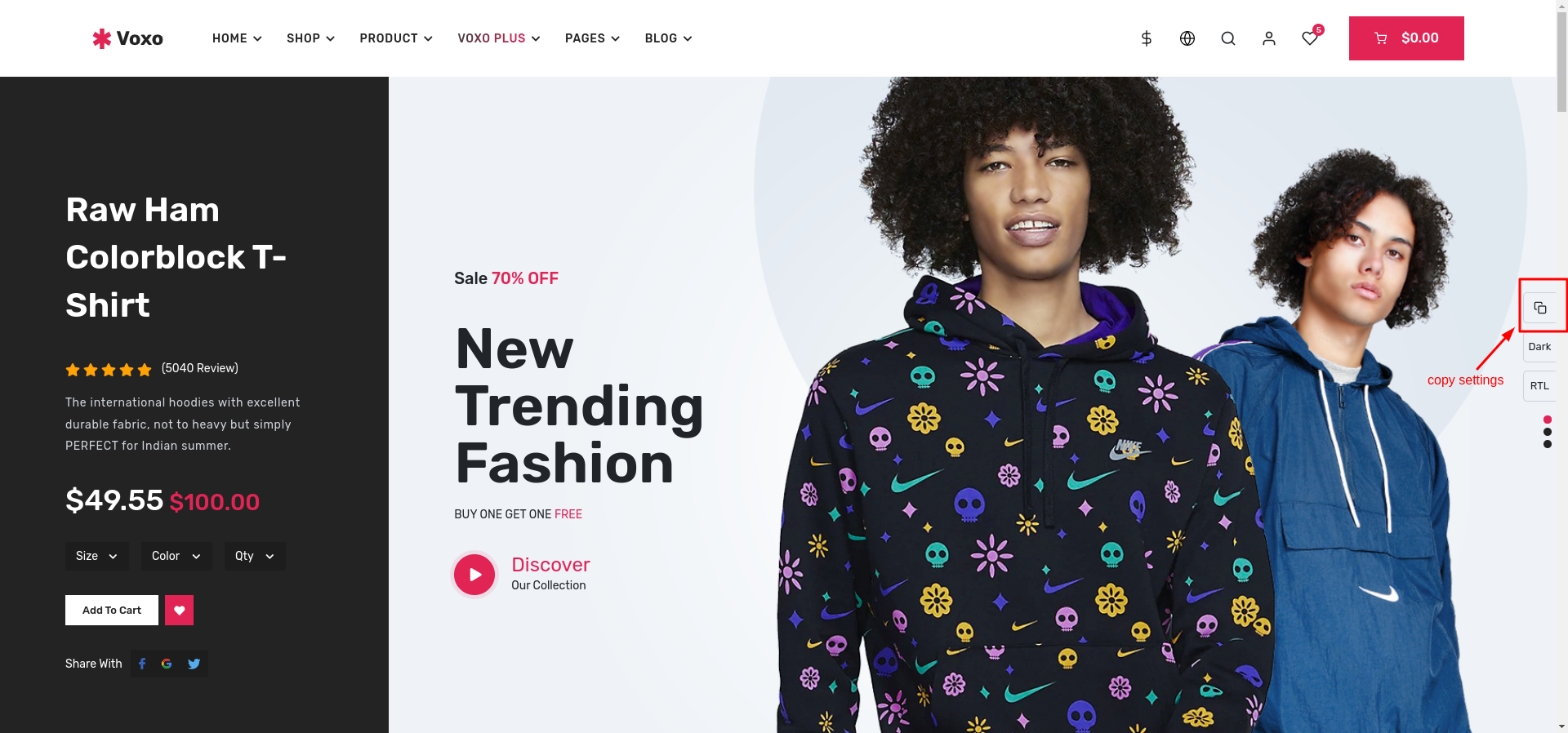
Whatever the changes we have done from the above settings we can get it from
the Copy config
-
If we copy the changes and put in the path :<<-- /Voxo/Front
End/src/Config/ThemeConfigSettings.jsx -->> file then it will save as permanent theme settings.
without this plugins and products, our theme will be incomplete.
open source plugins
Recent Version:
- Next :- Next 15.1.6
- React :- React 19.0.0
- Node :- 22.13.1
- Folder Structure : App Directory
- Issues solved : Add to Cart,Wishlist,Compare
Q. When you first Receive the theme, and you run npm run dev directly, you will face
this error.
Ans. Run npm install first to install all the dependencies and then run the command npm run dev.
                   => npm install
                   => npm run dev
Q. Facing Issues while installing and using dependencies ?
Ans. If you are facing this issues, then you might be running the older version of node, we recommend
that you upgrade your node version and try running the project again.
Q. If you faces System limit for number of file watchers reached, watch like error
Ans. Try the below given command
sudo sysctl fs.inotify.max_user_watches=524288
Q. Getting the error -> Heap out of memory?
Ans. Run the following command in the terminal. Use the first command if you are a linux user and second
command if you are windows user.
For Linux
NODE_OPTIONS=--max_old_space_size=4096
For Windows
set NODE_OPTIONS=--max_old_space_size=4096 npm run build
Q. facing Issues with cache?
Ans. Follow the below Given Setps
If still you are facing the same issue:
- remove node_module
- remove package-lock
- run npm i again
Once again thank you for purchasing one of our Templates , if you like our Templates please
rate us
Best Regards, Pixelstrap

